
Clientless Application Access Using a Guacamole Instance
 For supported software information, click here.
You can enable clientless application access to provide secure, browser-based connectivity to private applications such as Secure Shell (SSH), Virtual Network Computing (VNC), and Remote Desktop Protocol (RDP), without requiring endpoint software installation. Through integration with an Apache GuacamoleTM server, users can seamlessly access SSH, VNC, and RDP sessions directly from a web browser, enabling secure and efficient remote access to internal systems.
To implement clientless application access, you bring up a frontend Versa Operating SystemTM (VOSTM) SD-WAN device alongside a Guacamole instance. Both the frontend VOS device and the Guacamole instance support multitenant deployment. Individual Docker containers are created for each tenant within the Guacamole instance. For cloud deployment where it does not support VLAN-based interfaces, you can bring up GRE-based routing between the frontend VOS and the Guacamole instance. For datacenter or bare metal deployment, you can bring up either GRE or VLAN-based interfaces between the frontend VOS device and the Guacamole instance.
This article describes:
- How to bring up the frontend VOS device from both Director and Concerto.
- How to configure the Guacamole instance and Docker containers on a per-tenant basis.
Requirements
Before you enable clientless application access, make sure your system meets the following requirements:
| Component | Release |
|---|---|
| Concerto | 13.1.1 and later |
| Director | 22.1.4 (latest version) |
| VOS | 22.1.4 (latest version) |
| Guacamole | Ubuntu 22.04 LTS |
Topology
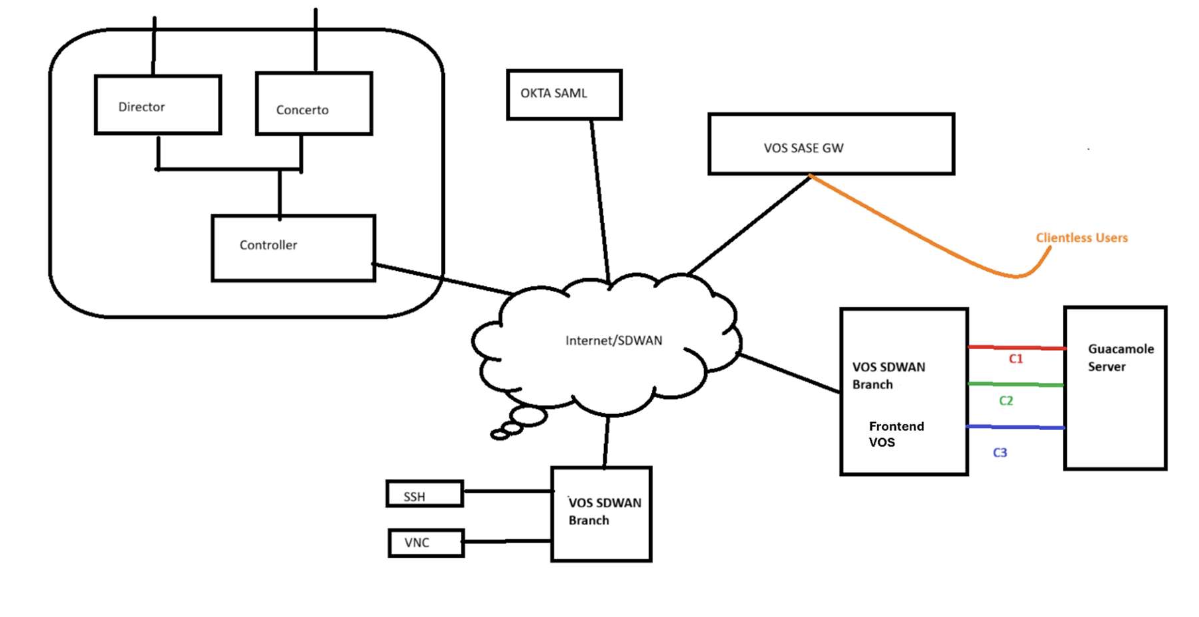
The following figure illustrates the topology and components in the clientless application access implementation:
Components
The table below describes the components in the topology:
| Component | Description |
|---|---|
| Frontend VOS device | SD-WAN device acting as traffic entry point. Must be tagged with CLOUD-SERVICE- FRONTEND-VOS. |
| Guacamole instance |
HTML5 gateway for SSH/VNC/RDP access. Multi-tenant through Docker. |
| SSE gateway | Secure entry point between the Internet user and the internal application access environment hosted behind SD-WAN. |
| Concerto |
Orchestration and provisioning platform. Manages instances and tenants. |
| Director |
Device management and onboarding. Handles ZTP and templates. |
| VNI interface |
Network link between the frontend VOS device and Guacamole. VLAN-based for multitenancy. |
| Loopback address |
NAT source IP for Guacamole traffic. Note that the loopback address must not overlap with customer networks. |
Configuration
To implement clientless application access, you do the following:
- Onboard the frontend VOS device in Director using post-staging template workflows. See Onboard the Frontend VOS, below.
- Create clientless access instances Concerto.
- Create and publish the tenant in Concerto.
- Configure the Guacamole Instance.
- Configure the SASE gateway in Concerto
Onboard the Frontend VOS Device
The frontend VOS device must be properly configured and tagged in Director to allow Concerto to recognize it as a clientless access device. Onboard the frontend VOS device using the post-staging template workflows. For more information on post-staging templates, see Create Post-Staging Templates.
To onboard the frontend VOS device:
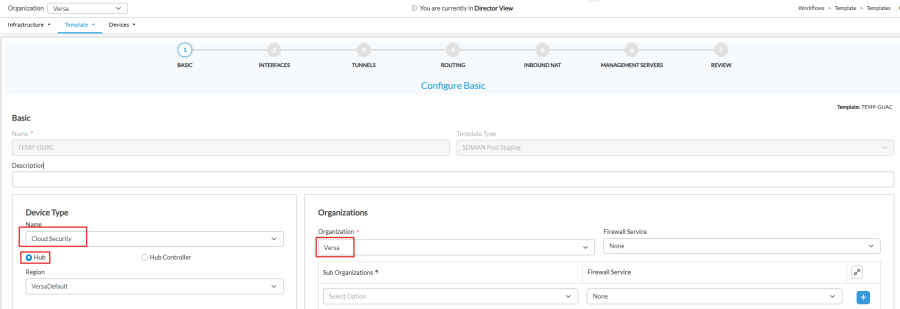
- In workflow step 1, Basic, set the following parameters:
- Device Type Name—Cloud Security
- Device Type Mode—Hub
- Organization—Select the provider organization.
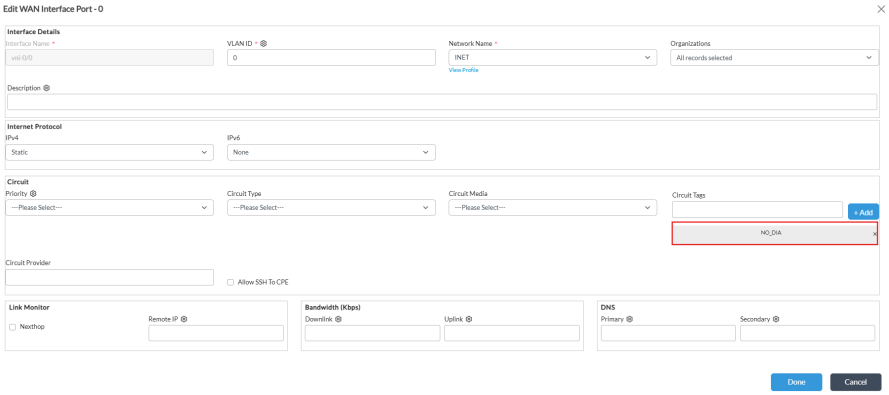
- In workflow step 2, Interfaces, add the NO_DIA tag to each WAN circuit. The frontend VOS device does not require direct to internet (DIA) access for tenants. The NO_DIA tag prevents Concerto from adding DIA-related configurations when creating a new tenant.
- Add the LAN interface and associate it with the provider organization LAN-VR. This LAN interface is needed for GRE based routing between the frontend VOS device and the Guacamole instance. This VNI LAN acts as an Underlay Transport for the GRE, with a separate GRE tunnel per tenant. Recommended for cloud deployments where VLAN support is unavailable. For datacenter deployments (baremetal or VM) with VLAN routing, this step can be skipped. The GRE or VNI-VLAN selection is configured in Concerto during Clientless Access Instance creation.
- Create the device and onboard it using zero touch provisioning (ZTP). You must use ZTP for proper device onboarding and configuration management.
- After the device is onboarded, add the tag CLOUD-SERVICE-FRONTEND-VOS in the Director Appliances screen. This allows Concerto to identify these devices as frontend VOS rather than SASE gateway. Note that the tag CLOUD-SERVICE-FRONTEND-VOS must be applied in all capital case, as shown below.

- After adding the tag, discover the appliances in Concerto under the provider organization. This imports appliances from Director and registers them as Frontend VOS device types in the Concerto database.
Create Clientless Access Instances
Before creating tenants, you must create clientless access instances that link the front end VOS devices to Guacamole servers. For more information, see Configure Concerto Infrastructure Lifecycle.
- Go to Infrastructure > Clientless Access Instance.

- Click Add Clientless Access Instance.
- In the Add Clientless Access Instance window, enter information for the following fields.

Field Description Clientless Access Instance Name A unique name for the clientless access instance. Typically matches the tenant name. API Username guacadmin (all lowercase - required). Password guacadmin (all lowercase - required). Frontend VOS Select from dropdown - lists all frontend VOS devices discovered under the provider organization. Loopback Address A unique loopback address advertised in the customer tenant LAN-VR. This is the NAT source IP for Guacamole traffic. It must not overlap with customer network IP addresses.
Note: Since both the frontend VOS device and Guacamole support multitenancy, a single interface can be created between the two entities and configured as VLAN-based to support multiple tenants. This optimizes resource utilization.
- For GRE tunnel routing, enter information for the following fields. Note that for a particular frontend VOS device, these parameters remain the same for most tenants unless a different VNI interface or peer IP address is used. GRE tunnel-based routing is recommended for cloud deployments where VLAN-based routing is not supported.
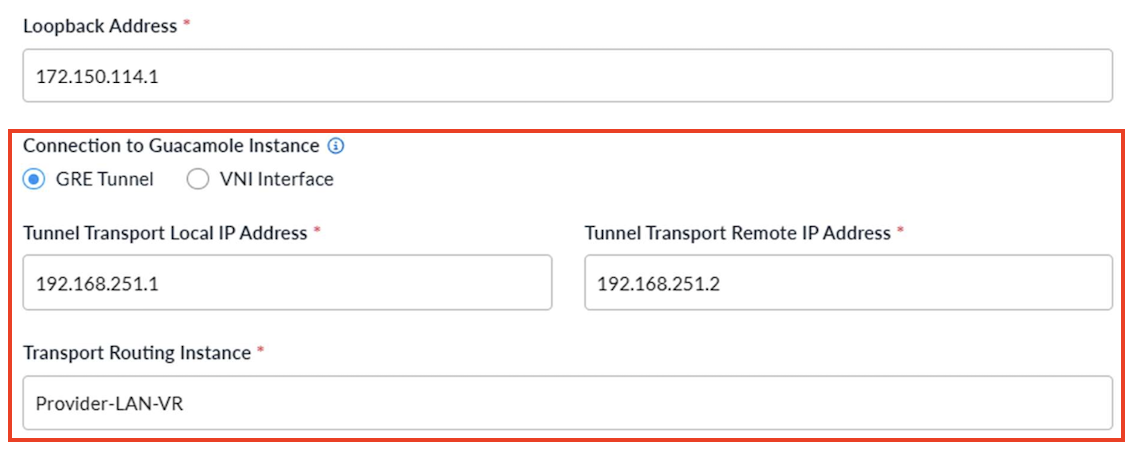
Field Description Tunnel Transport Local IP
Provide the VOS side VNI interface LAN network added as part of the provider organization.
Tunnel Transport Remote IP
Provide the Guacamole instance underlay IP address.
Transport Routing Instance
Provide the provider organization LAN-VR that the Tunnel Transport Local VNI is part of.
-
For VNI interface routing, enter information for the following fields.

Field Description VNI Interface
Select the VNI interface connecting the frontend VOS device to the Guacamole instance.
VLAN ID
Enter the VLAN ID if a subnet VLAN exists between the frontend VOS devices and Guacamole. If no VLAN is configured, enter 0.
Range: 0 through 4094
Default: None
- For GRE tunnel routing, enter information for the following fields. Note that for a particular frontend VOS device, these parameters remain the same for most tenants unless a different VNI interface or peer IP address is used. GRE tunnel-based routing is recommended for cloud deployments where VLAN-based routing is not supported.
Create the Tenant in Concerto
Create the tenant following the standard SASE/SD-WAN tenant creation process in Concerto. Under the Select Tenant Product section, select Versa Secure Access Fabric–Elite Bundle and enable the Privileged Access option. This is required to create private applications within the tenant.
When creating a tenant in Concerto, you must select the appropriate product bundle and assign Guacamole instances per region.
- In the Select Tenant Product section, select Versa Secure Access Fabric – Elite Bundle.

- Click the Privileged Access checkbox. This is required to create private applications within the tenant.
- After selecting gateways per region, select workflow step 5, Advance Security Cloud.
- Select the Clientless Access Instances tab.
- Add the Guacamole instances for each region, as shown below.

Note: For high availability, it is recommended to deploy two frontend VOS devices and two Guacamole instances per region.
- Select the final workflow step, Review and Submit.
- Click Publish to create the tenant. Concerto automatically pushes the required configurations to the selected SASE gateways and frontend VOS devices.
Configure the Guacamole Instance
You can configure the Guacamole instance on a per-tenant basis within the Guacamole VM. Contact the Versa Networks customer support team for the shell script and Docker images. Bring the Ubuntu-VM 22.04 in the same network as in the frontend VOS device with a minimum of one interface directly connected to it.
To configure the Guacamole instance using the shell script:
- Copy the contents of the .tar file which contains the auth extensions, Docker images and the shell script.
For example:

- Install the Docker package using the following commands:
- sudo apt update
- sudo apt install docker.io -y
- Load the Docker images into the Ubuntu VM using the following commands:
- sudo docker load -i docker_guac_images_<filename>.tar
- sudo docker images

- Run the Guacamole Docker script (guac-docker*.sh) to bring up Docker containers for each tenant. Run the appropriate script based on the routing mode configured between the frontend VOS device and the Guacamole instance. The tenant name must exactly match the name configured in Concerto (case-sensitive).
- Option 1—Use the VNI-based script. Provide the interface name with VLAN-ID connected to the Frontend VOS. The VLAN ID must match the value provided in the Concerto Clientless Access Instance creation step.
- Option 2—Use the GRE-based script. Provide the Outer Local IP (Guacamole instance underlay IP) and Outer Peer IP (VOS-side VNI interface IP in the provider organization LAN-VR). The tenant name must match exactly as configured in Concerto.
- To verify the Docker containers are running, issue the sudo docker ps command. This will bring up the Docker containers for the given tenant.
For example:

- Run the verification script (verify_namespace_local.py) with the tenant name.
For example:

- Check the routes configured and the ports opened inside the tenant namespace.
For example:

Configure the SASE Gateway
Configure the following features, in order, on the SASE gateway in the provider organization.
- In Director:
- Configure captive portal to handle user authentication management. The certificate in the captive portal must include the following Subject Alternative Name (SAN): For more information, see Modify Captive Portal Settings.
- *.myapps.<sse-root-domain.com>
- Configure the Versa Forward Proxy (VFP) with SNAT pool. For the IP Address field, enter the WAN interface IP address. For the Port field, enter port 443. For more information, see Configure a Web Proxy.
- Configure captive portal to handle user authentication management. The certificate in the captive portal must include the following Subject Alternative Name (SAN): For more information, see Modify Captive Portal Settings.
- In Concerto:
- Create User Device Authentication profiles and specify the users and groups that will have access to Clientless Applications. You can create an authentication profile using one of the following methods:
- SAML authentication
- LDAP authentication
- Versa local directory
- Configure the RDP, SSH or VNC applications with parameters such as host IP address, port, username, and password. For more information, see Configure Clientless Applications in Concerto.
- Create a clientless application policy rule with the users and groups that were created for the User Device Authentication profiles. Configure the source geolocation and source IP address if required. In the Clientless Application tab, select the list of private applications allowed for the list of users referred. For more information, see Configure SASE Secure Clientless Access Policy Rules.
- Create an internet protection rule to allow the following destination zones: Internet, SD-WAN Zone (ptvi), and Versa Client, as shown below. For more information, see Configure SASE Internet Protection Rules.

- Publish the configuration to the SASE gateway.
- Create User Device Authentication profiles and specify the users and groups that will have access to Clientless Applications. You can create an authentication profile using one of the following methods:
Access the Applications
To access the clientless applications in the user application portal, use the tenant-based URL in the following format: https://<tenant-name>.myapps.<sse-root-domain>/userportal/en-US/applications.html.
For example, in the URL https://acme.myapps.demo.versanow.net/userportal/applications.html, "acme" is the tenant name and "demo.versanow.net" is the Versa root domain.
To access the applications:
- Open the application portal with the tenant-based URL: https://<tenant-name>.myapps.<sse-root-domain>/userportal/en-US/applications.html.

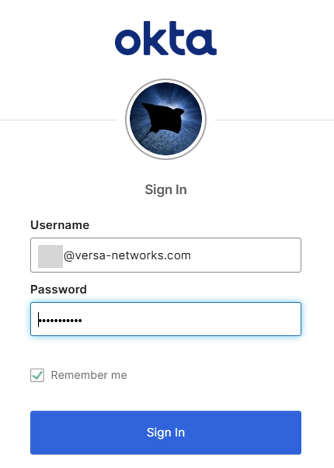
- The user is redirected to the authentication method configured at the SASE gateway tenant level. The example below shows the portal for Okta SAML authentication.
-
After successful authentication, the screen displays the configured applications. The list of applications is based on the user and application configured in the clientless policy rules, which allows different sets of applications to display for different sets of users.

Note: The portal displays two thumbnails per application if the primary and secondary Guacamole instances are selected for this SASE gateway region in the tenant onboarding page. If there is only one instance in the region, it displays only one thumbnail.
-
Click one of the applications to access the specific application on the end server. The traffic for this application initiates from the Guacamole instance, reaches the frontend VOS tenant-LAN-VR, and continues to the customer CPE device using the SD-WAN data path.
Note: Make sure to add the following host entries in the DNS server so user can access it:
10.73.18.80 ssh_10_73_18_49-Tesseract.myapps.versa-test.net
10.73.18.80 ssh_10_73_18_49-backup-Tesseract.myapps.versa-test.net
10.73.18.80 vnc_10_73_18_49-backup-Tesseract.myapps.versa-test.net
10.73.18.80 vnc_10_73_18_49-Tesseract.myapps.versa-test.net
10.73.18.80 ssh_10_70_18_52-Tesseract.myapps.versa-test.net
10.73.18.80 rdp_172_20_30_99-Tesseract.myapps.versa-test.net
Supported Software Information
The following releases support the content described in this article:
- Concerto Releases 13.1.1 and later
- Director Releases 22.1.4 and later
- VOS Releases 22.1.4 and later