
Troubleshoot the SASE Client
 For supported software information, click here.
This article describes some of the error messages that an end user might see when using the Versa SASE client and the reasons that the errors might occur. However, it does not cover all the issues that might be caused by the underlying operating system, because there can be various conditions that differ for each operating system and platform.
This article also describes a few cases when the SASE service might become unavailable so that an MSP can appropriately assign these issues to the Versa Networks Managed Services NOC team.
The article describes errors from an end customer perspective and it assumes that the MSP has no access to any troubleshooting on the Versa Secure Access (VSA) or SASE gateways that are managed by the Versa Managed Services team.
After you go through the steps to fix the issues described in this article, collect the debug logs before contacting Versa Support for help. For more information, see Collect Complete Debug Logs, below.
Note that for releases prior to Release 7.4.3 for Android, Release 7.3.7 for MacOS, and Release 7.4.5 for Windows, the Versa SASE client was called the Versa Secure Access (VSA) client application software.
SASE Client Connectivity Flow
To understand the SASE client error messages, you must understand the normal flow of events that occur when an end user connects to an enterprise using the SASE client:
- The end user downloads the SASE client software using the link provided by Versa Networks.
- The end user installs the SASE client on the client device by following instructions provided.
- During the installation, a Versa root authority certificate is pushed to the client and installed in the user’s certificate trust store. For this to occur, the user must have administrative privileges on the client.
- The client registers using the following information provided by the enterprise's IT administrator: the FQDN of the registrar portal, the name of the enterprise as configured on the gateways, and the user credentials.
- When the registration successfully authenticates the user, the portal pushes a set of Versa SASE profiles based on the username, user group, device, and posture to the client. The SASE profiles determine the connection type, the selection of the gateways to which the client can connect, the encryption standards to use, the traffic-steering policies, and other parameters. The connection to the gateway can be manual or automatic, depending on the policies.
- When the connection successfully establishes, the client uses the IP address assigned to it.
- The end user can then use the SASE client to access their corporate internal network, and to access general public networks and applications. Access depends on the policies that the gateway pushes to the end user's device.
- If the end user wants to disconnect from the private network, they can click Disconnect, if the option is available. If Always On is enabled on the end user’s device, you cannot disconnect the client.
Troubleshoot Client Installation
You can install the SASE client can on various operating systems and versions. For more information, see Install and Configure Versa SASE Clients.
Installation Failure
The following error message may display if client installation fails:
- Registration failed Error. Object reference not set to an instance of an object.
To verify on Windows OS:
- If the application is unavailable or does not display in the application list, try to reinstall the client as Administrator.
- Check the system tray for the active Versa SASE client icon to ensure it is running, as shown in the screenshot below.

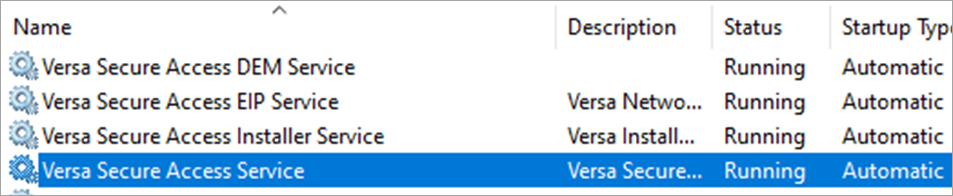
- Go to services.msc and confirm that all Versa-related services are running. For example:
To verify on MacOS:
- If the application is unavailable or does not display in the application list, try to reinstall the client as Administrator.
- If the installation is successful and the application is running, the client icon displays on the MacOS menu bar, as shown in the screenshot below.

- Open the terminal and run the grep command for versa services and ensure that all Versa-related services are running. For example:
usern@abcMBP ~ % ps aux | grep Versa
root             520  0.0  0.0  411746048   13728   ??  Ss   Mon08PM   0:00.23 /Applications/Versa SASE Client.app/Contents/XPCServices/SCAXPCServices.xpc/Contents/MacOS/SCAXPCServices
root             515  0.0  0.0  410794048    3040   ??  Ss   Mon08PM   0:00.02 /Applications/Versa SASE Client.app/Contents/XPCServices/DEMXPCService.xpc/Contents/MacOS/DEMXPCService
root             518  0.0  0.0  410768976    3136   ??  Ss   Mon08PM   0:00.03 /Applications/Versa SASE Client.app/Contents/XPCServices/EIPXPCServices.xpc/Contents/MacOS/EIPXPCServices
[masked]       10666  0.0  0.0  410740096   1408  s000  S+    3:06PM   0:00.00 grep Versa
[masked]       10644  0.2  0.0  412005104  60160   ??  S      3:05PM   0:00.66 /Applications/Versa SASE Client.app/Contents/MacOS/Versa SASE Client /bin
[masked]       10588  0.2  0.0  411834736  62384   ??  S      3:03PM   0:00.47 /Applications/Versa SASE Client.app/Contents/MacOS/VSATrayApp.app/Contents/MacOS/VSATrayApp /bin
Troubleshoot Client Registration
SASE client registration may fail due to various factors such as certificate issues, DNS resolution problems, blocked ports, or interference from captive portal configurations. These underlying causes can prevent the client from successfully connecting and completing the registration process. To identify the root cause, review the error messages that display during failure and follow the troubleshooting steps described in this section.
Gateway CA Certificate
The following error messages may display if client registration fails:
- Registration failed. Error: Failed to register. Use alternate FQDN for registration. Error: The underlying connection was closed: Could not establish trust relationship for the SSL/TSL secure channel.
- Registration failed; the underlying connection was closed the connection was closed unexpectedly.
- Failed to connect. Retry after some time, OR choose a different gateway and connect.
A gateway certificate authority (CA) certificate is required to establish secure VPN connections. Ensure that all essential CA certificates are installed in the device's certificate store. Missing or invalid certificates may hinder successful authentication between the SASE client and SASE gateway.
To verify CA certificates (on Windows OS):
- In Windows, navigate to Run > certlm.msc > Trusted Root Certificate.
- Verify the relevant CA server in Gateway Secure Access. If a publicly signed certificate is used for VPN authentication, it must also be included in the list.
Port Requirements for Portal and Gateway
The following error messages display in case of port and protocol issues related to SASE portal or gateway:
- Registration failed; the underlying connection was closed the connection was closed unexpectedly.
- Retry after some time OR use alternate FQDN for registration. Error: The underlying connection was closed: The connection was closed unexpectedly.
- RAS809 network connection between your computer and VPN server could not be established because remote server is not responding.
The SASE client requires the following ports to be open for outbound connections to all portal and gateway FQDN or IP addresses:
| Port Number | Protocol |
|---|---|
|
500 |
UDP |
|
4500 |
UDP |
|
50 (ESP) |
IP Protocol 50 |
|
443 |
HTTPS, TCP (TLS) and UDP (DTLS) |
|
ICMP ECHO |
ICMP |
If any of the error messages display, check that the required ports and protocols are allowed from the SASE client to the SASE gateway.
DNS Resolution of Portal, Group, and Gateway FQDN
The DNS server on end-user devices resolves the SASE gateway portal and gateway FQDN IP addresses. In case of issues, the following error messages display:
- Failed to connect. Error: Failed to resolve global.versanow.net
- Registration failed. Error: Failed to register. Please check your DNS Settings. Error: The remote name could not be resolved: ‘url'
- Retry after some time OR use alternate FQDN for registration. Error: The underlying connection was closed: The connection was closed unexpectedly.
(For Windows OS) To verify if portal and gateway FQDNs resolve to valid IP addresses, run the ping FQDN CLI command in the command prompt. For example:
C:\Users\user-1>ping chn-sse-gw1.versanow.net
Pinging chn-sse-gwl.versanow.net [10.163.107.22] with 32 bytes of data:
Reply from 10.163.107.22: bytes=32 time=3ms TTL=63
Reply from 10.163.107.22: bytes=32 time=2ms TTL=63
Reply from 10.163.107.22: bytes=32 time=2ms TTL=63
Reply from 10.163.107.22: bytes=32 time=2ms TTL=63
Ping statistics for 10.163.107.22:
Packets: Sent = 4, Received = 4, Lost = 0 (0% loss), Approximate round trip times in milli-seconds:
Minimum = 2ms, Maximum = 3ms, Average = 2ms
To verify that the portal, group, and gateway FQDNs resolve all their required IP addresses correctly, in the command prompt, run nslookup portal.example.com (for Windows) or dig portal.example.com (Linux). The following is an example for Windows:
C:\Users\user-1>nslookup
Default Server: dns.versa-networks.com
Address: 10.75.0.53
> sse-blr-lab-gw1.pslab.versanow.net
Server: dns.versa-networks.com
Address: 10.75.0.53

Non-authoritative answer:
Name: sse-blr-lab-gw1.pslab.versanow.net
Addresses: 18x.1x.14x.17x
           18x.1x.14x.17x
Note that the portal and gateway FQDNs resolve to the private IP segment for internal networks by using gateway-assisted trusted network detection. For more information, see Configure Detection of Trusted Networks for SASE Gateways.
Test Portal API
To verify that the SASE gateway processes SASE client requests, check the portal API to confirm its accessibility and that you receive a “200 OK” status code. If the browser indicates that sites cannot be trusted, it means that the gateway CA certificate is missing. Refer to “Gateway and SSL Decryption CA Verification.”
For example:
https://portal-FQDN/secure-access/services/gateway?action=discover&ent_name=ENT-NAME

Bypass SSE FQDNs in Third-Party Clients and Security Devices
Third-party endpoint tools such as antivirus, endpoint detection and response (EDR), firewall agents, and web proxies can interfere with SASE gateway connections (HTTPS, IPsec, TLS, or DTLS). To prevent this, do the following:
- Ensure that portal, gateway group, and gateway FQDNs and IP addresses are allowed in all the endpoints installed on the machine and transit security devices (firewalls and proxies).
- Test the SASE client on a clean device, without additional security agents, to ensure it works in a default environment.
Troubleshoot User Authentication
User authentication may fail due to reasons such as incorrect passwords, LDAP connection issues, or failures in SAML or certificate-based authentication. These issues prevent successful login and access to services. Review the specific error messages to help pinpoint the cause, and follow the procedures below to troubleshoot and resolve the issue.
LDAP User Authentication Failure
Error messages:
- Authentication failed! Please check UserName and Password, and then resubmit.
- Registration failed. Error: Failed to register. Retry after sometime OR use alternate FQDN for registration.\nError: Unable to reach to the remote server.
User authentication may fail due to the following conditions:
- The password the user enters is incorrect or locked.
- The SASE gateway is unable to communicate with the LDAP servers. Check reachability of LDAP from the gateway, or check the Administrator user password entered in the LDAP profile configuration.
User with Locked or Expired Password Connects to Client
- If a user’s password expires or changes after connecting to the SASE gateway, the connection remains active. Versa SASE gateway's default authentication cache interval is 10 minutes. If a user disconnects and then reconnects after this interval, the user password is validated.
- In the Concerto UI, navigate to View > User > Live Users, and then force SASE user to disconnect. This clears the SASE gateway cache. The user is forced to validate the password after disconnection.
SAML Authentication Failure
SAML authentication can fail due to misconfiguration by the identity provider (IdP) or service provider. Try the following checks for such failures:
Validate the Certificate
- Ensure that the certificate provided by the IdP is correctly configured and trusted by the service provider.
Verify Entity ID Configuration
- Confirm that the entity ID configured on both the IdP and service provider sides is an exact match. A mismatch in entity ID can cause assertion rejection or redirection failure. In such cases, authentication goes through, but token validation fails and registration cannot be completed.
- Verify that the correct IdP certificate is uploaded in Concerto. You must download certificates from the IdP after all configurations.
Device Certificate Authentication Issues
To verify device certificate authentication issues:
- Ping the SASE gateway FQDN in the certificate that is reachable from the client device for validation. To get FQDN details:
- In the SASE client, click the
 Settings icon > select the enterprise profile under Enterprise > Gateways > select the primary gateway > copy the FQDN of all the gateways.
 - Add the keyword “-cert” keyword between the gateway hostname and root domain in all the gateway FQDNs. For example, if the abc-sse-gw1.versa.net, edit it to abc-sse-gw1-cert.versa.net.

- In the SASE client, click the
- Ensure that the SASE gateway and device certificates issued by the customer have extended key usage client and server authentication. For example:

- The SASE gateway and device (endpoint) certificate must not include the email attribute enabled in the Subject because this may fail during certificate trust chain validation, since the email identifier is not a valid distinguished name (DN). For example:

Client error message:

- To verify if the CA root certificate is in the Certificates (Local Computer) > Trusted Root Certificate Authorities > Certificates folder of your device, run the certlm.msc CLI command from the command prompt. For example:

- Check if the device certificate is present in the Certificates (Local Computer) > Personal > Certificates folder. For example:

- Verify that the device certificate has the Extended Key Usage: Client Authentication. For example:

If the correct device certificate is not present in the Certificates (Local Computer) > Personal > Certificates folder, authentication fails and the following message displays:

- Ensure that the SASE gateways certificate has been imported to the customer organization in “gateway-name-device-auth” format.
- On the SASE gateway, verify if the device certificate authentication profile is configured with the correct Certificate Authority (CA):
- Go to Configure > Security Service Edge > User and Device Authentication > Profiles. For more information, see Configure User and Device Authentication Profiles.
- Select the required device certificate-based authentication profile and the check the following in the Edit Device Certificate Authentication Profile screen > Settings tab:

User Certificate Authentication Issues
To verify user certificate authentication issues:
- In user certificates, the Common Name (CN) field typically contains either the User Principal Name (UPN) or the display name. The Username Identifying Field in Certificate matches the user's simple name or principal name when connecting via the SASE client.
- Go to Configure > Security Service Edge > User and Device Authentication > Profiles. The User and Device Authentication Profiles screen displays.
- Click + Add. The Add User Device Authentication Profile screen displays.

- Select User Certificate Based in and click Get Started. The Add User Certificate Authentication Profile screen displays.

- Select the appropriate value from the Username Identifying Field in Certificate field.
- For information about configuring other paramaters, see Configure User and Device Authentication Profiles.
- Click Save in the Review and Submit field.
- The CA certificate must be available in the Trusted Root Certificate Authorities folder. Access the certificate store to verify if the CA is present in the Certificates - Current User > Trusted Root Certificate Authorities > Certificates folder:

- Verify if the user certificate is present in the Certificates - Current User > Personal > Certificates folder.

- Verify that the user certificate common name (CN) is the username of the user to authenticate.

- Verify that the user certificate has Extended Key Usage: Client Authentication.

Multifactor Authentication TOTP Issues
Multifactor authentication (MFA) is a key component of SASE security and adds a layer of protection beyond traditional passwords. Users may encounter issues with MFA when connecting through the SASE client, preventing them from accessing necessary applications and data. This section highlights some of the common issues and solutions related to MFA and time-based one-time password (TOTP).
The following error messages display in case of TOTP issues:
- OTP verification failed! Please enter the correct OTP and then resubmit
- Unable to communicate with Versa Service. Please retry again
If the SASE client fails to authenticate using TOTP and displays errors such as “User authentication failed” or “Invalid OTP”, verify that the endpoint device time zone and the SASE gateway clock are accurate.
To verify:
- In VOS, you must configure NTP with the appropriate time zone and synchronize NTP.
- Ensure that the end user device clock is synchronized with NTP.
- A difference of more than a minute between the SASE gateways and the end user device can cause TOTP to fail. A TOTP is valid for 3 minutes.
SASE Client Tunnel Issues
SASE displays the following RAS error if there is any issue with the tunnel:
- RAS_ReturnCode[809]: The network connection between your computer and the VPN server could not be established because the remote server is not responding. This could be because one of the network devices (e.g, firewalls, NAT, routers, etc) between your computer and the remote server is not configured to allow VPN connections. Please contact your Administrator or your service provider to determine which device may be causing the problem.
To verify:
- Ensure that ports 500 and 4500 are open for the SASE gateway FQDNs. For DTLS/TLS, ensure TCP/UDP port 443 is also open.
- MTU may cause problems on PPPoE and LTE circuits. Ensure that you use the latest SASE client version to prevent these issues.
- Ensure that the SASE gateway certificate issued by the SSE MSP has server and client authentication for Enhanced Key Usage:

SSL Decryption Issues
SSL/TLS decryption is crucial to facilitate advanced security features, such as application control, data loss prevention (DLP), Cloud Access Security Broker (CASB), and antivirus, to inspect threats and policy violations. This section describes how to troubleshoot common SSL decryption-related issues on the client side.
Verify CA Installation for Decryption
- In Windows, go to: Run > certlm.msc > Trusted Root Certificates.
- Check if Versa Networks Root Certificate Authority is present. If the customer provided a CA certificate for SSL decryption, ensure that it is included in the list. For example:

- If any certificate is missing, install it in the Certificates folder under Trusted Root Certificate Authority store.
Verify SSL Decryption for Browser-Based Traffic
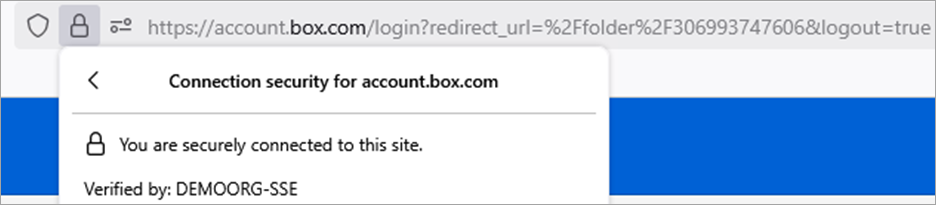
- Open any web browser and go to any accessible HTTPS site that utilizes SASE gateways with SSL decryption enabled. Then, to HTTPS > click the lock icon in the address bar > select "Connection secure" and click "More information".
"Verified by:" must display the Internal CA server name or the SSE organization name. For example:
- If you want to validate further, open the certificate and check for the issuer, which is an internal certificate. For example:

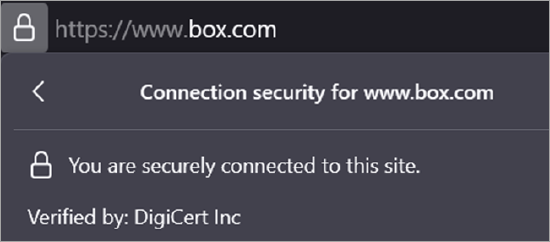
If the certificates are validated by a public C) such DigiCert or GoDaddy, SSL decryption does not function. For example:
- Check if DNS resolution is resolving to IPv6, as this bypasses the tunnel.
- Verify decryption policies on the SASE gateway.
VSPA Traffic Issues
With the Versa Secure Private Access (VSPA) solution, only private traffic is directed towards the SASE gateway and then forwarded to the customer datacenters.
Users may experience difficulties while accessing these private resources. This section provides details about common issues, troubleshooting steps, and solutions for private access issues.
Unable to Access Private Applications
If you are unable to access private applications when the SASE client is connected:
- Check to make sure the DNS servers learned through the SASE gateway are valid and configured with the domain name. To verify, run the ipconfig /all CLI command from the command prompt. For example:
C:\Users\ExampleUser>ipconfig /all

Windows IP Configuration

   Host Name . . . . . . . . . . . . : ExampleHost
   Primary Dns Suffix  . . . . . . . : example.local
   Node Type . . . . . . . . . . . . : Hybrid
   IP Routing Enabled. . . . . . . . : No
   WINS Proxy Enabled. . . . . . . . : No
   DNS Suffix Search List. . . . . . : abc-networks.com

Unknown adapter Versa-Networks-VPN-DC:

   Connection-specific DNS Suffix  . : abc-Networks-Bangalore-DC
   Description . . . . . . . . . . . : abc-Networks-Bangalore-DC Adapter
   Physical Address. . . . . . . . . : AB-CD-EF-12-34-56
   DHCP Enabled. . . . . . . . . . . : No
   Autoconfiguration Enabled . . . . : Yes
   Link-local IPv6 Address . . . . . : fe80::1234:abcd:5678:9abc%7(Preferred)
   IPv4 Address. . . . . . . . . . . : 192.168.100.2(Preferred)
   Subnet Mask . . . . . . . . . . . : 255.255.255.0
   Default Gateway . . . . . . . . . : 192.168.100.1
   DNS Servers . . . . . . . . . . . : 8.8.8.8
   NetBIOS over Tcpip. . . . . . . . : Enabled
- From the PowerShell prompt, run the Get-DnsClientNrptRule CLI command to check if the specific domain name is matched to the private DNS server. For example:
Name : {8B0059AE-XXXX-XXXX-XXXX-XXXXXXXXXXXX} Version : 3 Namespace : {pslab.example.net, testlab.abc.net, india.example.net, sse-chn.example.org, ...} IPsecCARestriction : DirectAccessDnsServers : DirectAccessEnabled : False DirectAccessProxyType : DirectAccessProxyName : DirectAccessQueryIPsecEncryption : DirectAccessQueryIPsecRequired : NameServers : 192.0.2.5 DnsSecEnabled : False - To verify if routes are added on endpoints for the private network and DNS server, run the route print CLI command from the command prompt. Check that the valid routes for DNS and private applications are directed to the IPsec interface.
- To verify if you can resolve private domains, ping them and telnet on required ports. For example, run the following CLI commands from command prompt:
- ping private URL/application FQDN
- telnet private URL/application <port number>
Validate VSIA and VISA+VPSA Traffic
In instances involving only VISA-VSPA, the SASE client operates in full tunnel mode, where all Internet and private traffic is directed to the SASE gateway by default. This sections provides details about common issues, troubleshooting steps and solutions related to traffic validation and access issues.
Internet Applications via SASE Gateway are Inaccessible
If applications are not functioning as expected after establishing a connection with the SASE client, follow these steps to isolate the Issue:
- Verify that the SASE client is configured with a default route for Internet access directed towards the SASE gateway virtual adapter. To do this, run the route print CLI command in the command prompt, and then if check the default route points to the IPsec interface IP address. For example:
C:\Users\admin>route print =========================================================================== Interface List 29...XX XX XX XX XX XX ......Example-VPN-Interface 10...YY YY YY YY YY YY ......Intel(R) PRO/1000 MT Network Connection 1...........................Software Loopback Interface 1 =========================================================================== IPv4 Route Table =========================================================================== Active Routes: Network Destination Netmask Gateway Interface Metric 0.0.0.0 0.0.0.0 10.10.0.1 10.10.0.100 281 0.0.0.0 0.0.0.0 On-link 192.168.1.3 2 4.2.2.2 255.255.255.255 10.10.0.1 10.10.0.100 525 8.8.4.4 255.255.255.255 On-link 192.168.1.3 2 - Ensure that the DNS learned from the SASE gateway does not have a domain mapped to it (even if its VISA+VSPA). The namespace must be empty.
- Ping the application FQDN and confirm that it resolves to a valid IPv4 address and not to an IPv6 address. If it resolves to an IPv6 address:
- Disable the IPv6 address.
- Enable DNS filtering on SASE Gateways to block “AAAA" records.
- Deactivate the IPv6 adapter on the client and prohibit IPv6 DNS requests in the SASE gateway.
C:\Users\ExampleUser>ping google.com

Pinging google.com [142.250.189.206] with 32 bytes of data:
Reply from 142.250.189.206: bytes=32 time=207ms TTL=109
Reply from 142.250.189.206: bytes=32 time=208ms TTL=109
Reply from 142.250.189.206: bytes=32 time=207ms TTL=109
Reply from 142.250.189.206: bytes=32 time=209ms TTL=109

Ping statistics for 142.250.189.206:
    Packets: Sent = 4, Received = 4, Lost = 0 (0% loss),
Approximate round trip times in milli-seconds:
    Minimum = 207ms, Maximum = 209ms, Average = 207ms
IPv6 Ping Output: PING ipv6.google.com(muc12s12-in-x0e.1e100.net (2a00:1450:4016:809::200e)) 32 data bytes 40 bytes from muc12s12-in-x0e.1e100.net (2a00:1450:4016:809::200e): icmp_seq=1 ttl=118 time=7.39 ms 40 bytes from muc12s12-in-x0e.1e100.net (2a00:1450:4016:809::200e): icmp_seq=2 ttl=118 time=7.09 ms 40 bytes from muc12s12-in-x0e.1e100.net (2a00:1450:4016:809::200e): icmp_seq=3 ttl=118 time=7.26 ms 40 bytes from muc12s12-in-x0e.1e100.net (2a00:1450:4016:809::200e): icmp_seq=4 ttl=118 time=7.09 ms
- Verify that the resolved IP address in the ping test does not appear in the route print output and is directed to the local network Interface. If yes, it means that an application bypass is configured for the application in the secure access rule on SASE gateways. Verify this configuration.
In this case, the default route points to the SASE gateway and all internet traffic is routed through a VPN tunnel interface. All applications take the default route unless an application is configured with application bypass. For example:
IP configuration:PPP adapter Example-VPN-Interface: Connection-specific DNS Suffix . : Description . . . . . . . . . . . : Example-VPN-Interface Physical Address. . . . . . . . . : XX-XX-XX-XX-XX-XX DHCP Enabled. . . . . . . . . . . : No Autoconfiguration Enabled . . . . : Yes IPv4 Address. . . . . . . . . . . : 10.10.10.136(Preferred) Subnet Mask . . . . . . . . . . . : 255.255.255.255 Default Gateway . . . . . . . . . : 0.0.0.0 DNS Servers . . . . . . . . . . . : NetBIOS over Tcpip. . . . . . . . : Enabled Ethernet adapter Ethernet Instance 0: Connection-specific DNS Suffix . : Description . . . . . . . . . . . : Intel(R) Ethernet Connection Physical Address. . . . . . . . . : XX-XX-XX-XX-XX-XX DHCP Enabled. . . . . . . . . . . : No Autoconfiguration Enabled . . . . : Yes Link-local IPv6 Address . . . . . : fe80::abcd:bcf9:6035:5734%3(Preferred) IPv4 Address. . . . . . . . . . . : 10.195.62.139(Preferred) Subnet Mask . . . . . . . . . . . : 255.255.0.0 Default Gateway . . . . . . . . . : 10.195.0.1 DNS Servers . . . . . . . . . . . : 8.8.8.8 NetBIOS over Tcpip. . . . . . . . : Enabled
ping output:C:\Users\admin>ping outlook.com Pinging outlook.com [52.96.91.34] with 32 bytes of data: Reply from 52.96.91.34: bytes=32 time=240ms TTL=228 Reply from 52.96.91.34: bytes=32 time=240ms TTL=228 Reply from 52.96.91.34: bytes=32 time=240ms TTL=228 Reply from 52.96.91.34: bytes=32 time=239ms TTL=228 Ping statistics for 52.96.91.34: Packets: Sent = 4, Received = 4, Lost = 0 (0% loss), Approximate round trip times in milli-seconds: Minimum = 239ms, Maximum = 240ms, Average = 239ms
route print output:C:\Users\admin>route print =========================================================================== Interface List 29...XX XX XX XX XX XX ......Example-VPN-Interface 10...XX XX XX XX XX XX ......Intel(R) Ethernet Connection 11...XX XX XX XX XX XX ......Intel(R) Ethernet Connection #3 1...........................Software Loopback Interface 1 =========================================================================== IPv4 Route Table =========================================================================== Active Routes: Network Destination Netmask Gateway Interface Metric 0.0.0.0 0.0.0.0 10.195.0.1 10.195.62.139 281 10.10.10.136 255.255.255.255 On-link 10.10.10.136 425 10.195.0.0 255.255.0.0 On-link 10.195.62.139 281 10.195.62.139 255.255.255.255 On-link 10.195.62.139 425 10.195.255.255 255.255.255.255 On-link 10.195.62.139 425 127.0.0.0 255.0.0.0 On-link 127.0.0.1 331 127.0.0.1 255.255.255.255 On-link 127.0.0.1 331 127.255.255.255 255.255.255.255 On-link 127.0.0.1 331 169.254.0.0 255.255.0.0 On-link 169.254.84.224 281 169.254.84.224 255.255.255.255 On-link 169.254.84.224 281 169.254.255.255 255.255.255.255 On-link 169.254.84.224 281 224.0.0.0 240.0.0.0 On-link 10.195.62.139 281 224.0.0.0 240.0.0.0 On-link 169.254.84.224 281 255.255.255.255 255.255.255.255 On-link 10.195.62.139 281 255.255.255.255 255.255.255.255 On-link 169.254.84.224 281
nslookup output:C:\Users\admin>nslookup Default Server: dns.google Address: 8.8.8.8 > outlook.com Server: dns.google Address: 8.8.8.8 DNS request timed out. timeout was 2 seconds. DNS request timed out. timeout was 2 seconds. Non-authoritative answer: Name: outlook.com Addresses: 52.96.229.242 52.96.228.130 52.96.222.226 52.96.111.82 52.96.222.240 52.96.3.2 52.96.91.34 52.96.214.50 52.96.172.98 52.96.222.194 - Verify third-party proxy applications or proxies configured in the endpoint device browser. If any are enabled, disable them and test again. To verify:
- Navigate to Settings > Network & internet > Proxy. For example:

- Otherwise, from the PowerShell command, run the Get-ItemProperty -Path "HKCU:\Software\Microsoft\Windows\CurrentVersion\Internet Settings" CLI command. For example:
PS C:\Users\admin> Get-ItemProperty -Path "HKCU:\Software\Microsoft\Windows\CurrentVersion\Internet Settings"

CertificateRevocation    : 1
DisableCachingOfSSLPages : 0
IE5_UA_Backup_Flag       : 5
PrivacyAdvanced          : 1
SecureProtocols          : 1200
User Agent               : Mozilla/4.0 (compatible; MSIE 8.0; Win32)
ZonesSecurityUpgrade     : {182, 113, 75, 18...}
WarnonZoneCrossing       : 0
EnableNegotiate          : 1
ProxyEnable              : 1
MigrateProxy             : 1
LockDatabase             : 133868971572318107
ProxyServer              : 1.1.1.1:8080
PSPath                   : Microsoft.PowerShell.Core\Registry::HKEY_CURRENT_USER\Software\Microsoft\Windows\CurrentVersion\Internet Settings
PSParentPath             : Microsoft.PowerShell.Core\Registry::HKEY_CURRENT_USER\Software\Microsoft\Windows\CurrentVersion
PSChildName              : Internet Settings
PSDrive                  : HKCU
PSProvider               : Microsoft.PowerShell.Core\Registr
- Navigate to Settings > Network & internet > Proxy. For example:
Local Breakout Application Does Not Work
In scenarios where where specific applications or FQDNs must break out locally before they are forwarded to the SASE gateway, verify the following:
- Ensure that the SASE gateway secure access rule configuration includes the required FQDN in the application bypass list, and that changes are published after the SASE client is re-registered.
- Run the ping CLI command to validate FQDN resolution and check if an entry populates in the route print output for the resolved IP address, which points to the device's local interface and not the SASE gateway.
In the following example, the Dropbox application is routed through local internet or adapter:
VPN adapter (PPP)PPP adapter sulaisse-SSE-GW2-001: Connection-specific DNS Suffix . : Description . . . . . . . . . . . : sulaisse-SSE-GW2-001 Physical Address. . . . . . . . . : DHCP Enabled. . . . . . . . . . . : Yes Autoconfiguration Enabled . . . . : Yes IPv4 Address. . . . . . . . . . . : 10.10.13.106 (Preferred) Subnet Mask . . . . . . . . . . . : 255.255.255.255 Default Gateway . . . . . . . . . : DNS Servers . . . . . . . . . . . : 8.8.8.8 NetBIOS over Tcpip. . . . . . . . : Enabled
Local adapter (Ethernet)Ethernet adapter Ethernet Instance 0: Connection-specific DNS Suffix . : Description . . . . . . . . . . . : Intel(R) Ethernet Adapter Physical Address. . . . . . . . . : 52-54-00-5E-F2-02 DHCP Enabled. . . . . . . . . . . : Yes Autoconfiguration Enabled . . . . : Yes IPv4 Address. . . . . . . . . . . : 10.195.62.139 (Preferred) Subnet Mask . . . . . . . . . . . : 255.255.0.0 Default Gateway . . . . . . . . . : 10.195.0.1 DHCPv6 IAID . . . . . . . . . . . : ######## DHCPv6 Client DUID. . . . . . . . : ########### DNS Servers . . . . . . . . . . . : 8.8.8.8
ping output (Dropbox):C:\Users\admin>ping dropbox.com Pinging dropbox.com [162.125.248.18] with 32 bytes of data: Reply from 162.125.248.18: bytes=32 time=134ms TTL=55 Reply from 162.125.248.18: bytes=32 time=134ms TTL=55 Reply from 162.125.248.18: bytes=32 time=134ms TTL=55 Reply from 162.125.248.18: bytes=32 time=134ms TTL=55 Ping statistics for 162.125.248.18: Packets: Sent = 4, Received = 4, Lost = 0 (0% loss), Approximate round trip times in milli-seconds: Minimum = 134ms, Maximum = 134ms, Average = 134ms
nslookup output (Dropbox):C:\Users\admin>nslookup DNS request timed out. timeout was 2 seconds. Default Server: Unknown Address: 8.8.8.8 > dropbox.com Server: Unknown Address: 8.8.8.8 DNS request timed out. DNS request timed out. Non-authoritative answer: Name: dropbox.com Addresses: 2620:100:6018:18::a27d:f812 162.125.248.18
route print output (the highlighted text shows Dropbox route pointing to VPN adapter):C:\Users\admin>route print Interface List 23...00 00 00 00 00 00 ...... sulaisse-SSE-GW2-001 12...52 54 00 5e f2 02 ...... Intel(R) Ethernet Adapter 3...52 54 00 ca 24 1a ...... Intel(R) Ethernet Adapter #3 1........................... Software Loopback Interface 1 IPv4 Route Table =========================================================================== Active Routes: Network Destination Netmask Gateway Interface Metric 0.0.0.0 0.0.0.0 10.195.0.1 10.195.62.139 281 10.10.13.106 255.255.255.255 On-link 10.10.13.106 2 10.195.0.0 255.255.0.0 On-link 10.195.62.139 281 10.195.62.139 255.255.255.255 On-link 10.195.62.139 281 127.0.0.0 255.0.0.0 On-link 127.0.0.1 331 162.125.248.18 255.255.255.255 10.195.0.1 10.195.62.139 425 ...
Troubleshoot Services Dependent on Third-Party Clients or Proxy
In some cases, SASE client deployment has to integrate with existing third-party clients or proxy-dependent services. These integrations enhance overall security posture; however, they can also add to complexity and may lead to connectivity and performance issues. In such cases compatibility between the Versa SASE and other vendor VPN, EIP, DLP or network-related agents can affect the function of each other. Use the following steps to troubleshoot such issues:
- Navigate to Control Panel > Programs > Programs and Features and check for software such as Cisco AnyConnect, Fortinet/FortiClient, Zscaler, OpenVPN, or similar VPN or security clients. DLP and EDR agents may conflict with Versa SASE client.
- Temporarily disable or uninstall conflicting software one at a time. After disabling each agent, restart your computer to and verify if conflicts are resolved.
EIP Rule Match Issues
Endpoint Information Profiles (EIP) is a key component of SASE solutions. It is a set of data points and characteristics that describe an endpoint device (client), that allows you to evaluate its security posture and decide whether to grant access to network resources. You may face issues if the client does not match the right EIP rule. This section covers common issues, troubleshooting steps, and solutions for EIP rule-related problems. To verify:
If you face EIP rule-related issues, ensure that the EIP agent matched in the secure access rules is installed and running on the end user machine. To verify:
- Collect the EIP data from SASE Client by clicking the Seetting icon > App Settings > Collect EIP:

- Access the generated EIP File from: C:\ProgramData\Versa Secure Access\config\EIPCollectedData.json.
- Open the JSON file to check that the matched EIP agent details are present and its attribute information matches the EIP policy. For example:
eip:
  antimalware:
    softwares:
      software:
        0:
          vendor: "Microsoft Corporation"
          product: "Microsoft Defender ATP"
          major: 10
          minor: 0
          service: 22631
          patch: 5189
          raw_version: "10.0.22631.5189"
          is-running: true
          is-configured: true
          is-installed: true
          realtime-protection: true
Fail-Close Issues
You can enable Fail-Close on the SASE client to ensure control and compliance for user endpoints. You can configure it to block all traffic except for certain bypassed URLs (defined in secure access rules) and default captive portals in cases where the client is not connected or is manually disconnected by the user. This section covers common configuration issues that may prevent Fail-Close mode from working as expected, along with solutions to rectify them.
To troubleshoot Fail-Close:
- You must enable auto connect and Fail-Close for SASE gateway secure access rules and when a user connects, the user is matched to the appropriate rule.
- Check if the user has manually updated client settings and disabled the auto connect from the client. If yes, the user must disconnect the client and then re-register or delete the account.
- Check the Versa secure access logs to ensure the driver is configured with Fail-Close mode. To check client logs, look for FAIL_CLOSE state in the log file at C:\ProgramData\Versa Secure Access\logs\ versa_secure_access_service.log. If driver has not enforced Fail-Close, contact support.
2025-06-04 14:04:16,471 [35] DEBUG VNNetworkLib.RouteMgr:0 - <Route_IP>/32, NextHop <Gateway_IP>, Metric 500, ifIndex 13 is not present, skip delete route
2025-06-04 14:04:16,472 [35] DEBUG VNServiceUtils.SystemOperations:0 - Deleted Route <Route_IP>/32 failed/does not exist
2025-06-04 14:04:16,473 [NetworkEventHandler] DEBUG VNVersaSecureAccessWcfService.ProfileMgrSystem.TunnelDriverMgr:0 - Configured Driver mode FAIL_OPEN, Running Driver mode FAIL_OPEN, New driver mode FAIL_OPEN, Driver Filter Enabled: False
2025-06-04 14:04:16,474 [NetworkEventHandler] DEBUG VNVersaSecureAccessWcfService.ProfileMgrSystem.TunnelDriverMgr:0 - No change in Driver mode FAIL_OPEN
2025-06-04 14:04:16,475 [NetworkEventHandler] DEBUG VNVersaSecureAccessWcfService.INetworkChangeHandler:0 - DriverModeConfigured: FAIL_OPEN
2025-06-04 14:04:16,475 [NetworkEventHandler] DEBUG VNVersaSecureAccessWcfService.INetworkChangeHandler:0 - Refresh app tunnel driver loaded profiles.
2025-06-04 14:04:17,832 [23] DEBUG VNVersaSecureAccessWcfService.VPNConnectionManager:0 - No connected N/W interfaces found
2025-06-04 14:04:17,834 [23] DEBUG VNUtilities.OSUtil:0 - IsX86Mode :False, Windows OS Version is 10 Or Above:True
2025-06-04 14:04:27,768 [23] DEBUG VNVersaSecureAccessWcfService.VPNConnectionManager:0 - No connected N/W interfaces found
Pre-Logon Issues
To troubleshoot pre-logon issues:
- Try to load the pre-login file using the command prompt in Windows as Administrator. To load the file, run the VersaSecureAccessClientConsole.exe prelogon –prelogon_config file path and file name CLI command. If the command output displays 'Failed', it indicates an issue with the pre-login JSON file. For example:
C:\Users\user1\TempDownloads>VersaSecureAccessClientConsole.exe prelogon --prelogon_config "Win-Secure-Policy-prelogon-config (1).json" 292 [1] INFO Versa Secure Access (null) - Starting application in console mode. Version 7.9.1_45ee8d413
381 [1] DEBUG Versa Secure Access (null) - Prelogon configuration initiated
382 [1] DEBUG Versa Secure Access (null) - Verifying and Applying Prelogon Configuration
650 [1] ERROR Versa Secure Access (null)
651 [1] ERROR Versa Secure Access (null) - Failed!
The following is a sample output when the file loads successfully:C:\Users\user1\TempDownloads >VersaSecureAccessClientConsole.exe prelogon --prelogon_config "Win-Secure-Policy-prelogon-config (1).json" 295 [1] INFO Versa Secure Access (null) Starting application in console mode. Version 7.9.1_45ee8d413 385 [1] DEBUG Versa Secure Access (null) - Prelogon configuration initiated 386 [1] DEBUG Versa Secure Access (null) - Verifying and Applying Prelogon Configuration 1701 [1] DEBUG Versa Secure Access (null)- Prelogon Configuration Applied Successfully!
Tunnel Flapping Issue
Multiple reasons can cause the tunnel on the SASE client flap or disconnect. To troubleshoot:
- Check if the client internet connection is stable. To do this, open the command prompt on the client machine and run the ping google.com -t CLI command. Packet loss or consistently high latency in the output indicates an unstable internet connection. For example:
C:\Users\admin>ping youtube.com -t Pinging youtube.com [142.251.222.206] with 32 bytes of data: Reply from 142.251.222.206: bytes=32 time=9ms TTL=114 Reply from 142.251.222.206: bytes=32 time=9ms TTL=114 Reply from 142.251.222.206: bytes=32 time=9ms TTL=114 Ping statistics for 142.251.222.206: Packets: Sent = 30, Received = 30, Lost = 0 (0% loss), Approximate round trip times in milli-seconds: Minimum 9ms, Maximum = 9ms, Average = 9ms - Check if the tunnel monitoring IP address is reachable when tunnel monitoring is enabled. To do this:
- In the SASE client, go to Profile > Account Details > Tunnel Monitoring to check the tunnel IP address.
- Ping this IP address to check the connectivity and if the tunnel is stable. The tunnel is up and functioning correctly if the IP address is reachable without drops. Lack of response or intermittent replies indicates tunnel instability.
- Ensure that the monitoring IP address is allowed in the internet protection rules on SASE gateways.
C:\Users\admin>ping 8.8.8.8 -t
Pinging 8.8.8.8 with 32 bytes of data:
Reply from 8.8.8.8: bytes=32 time=12ms TTL=114
Reply from 8.8.8.8: bytes=32 time=11ms TTL=114
Reply from 8.8.8.8: bytes=32 time=11ms TTL=114

Ping statistics for 8.8.8.8:
    Packets: Sent = 17, Received = 17, Lost = 0 (0% loss),
Approximate round trip times in milli-seconds:
    Minimum = 11ms, Maximum = 26ms, Average = 12ms Control-C
SASE Client Error Message Categories
There are eight categories of SASE client errors. The initial owner of each error category is the end user, the customer IT department, or Versa Networks. The following are the SASE client error categories organized by who is responsible for addressing the error condition:
- End user or the customer IT department
- Authentication errors
- Configuration errors
- Internet connectivity errors
- Network access errors
- Operating system errors
- Versa Networks
- Client application errors
- Gateway connectivity errors
- Unknown errors
Error Messages Reported on the SASE client
This section describes the error messages reported on the SASE client. This section lists the error messages in an order as described Flow of SASE Client Connectivity above.
Error Message: Your attention is needed to restore internet
Error Message: You are not connected to the internet. Please check your connection.
| Description | There is no Internet connection for the client device to reach the registrar portal or the cloud gateway. |
| Error type | Internet connectivity |
| Responsible party | End user, customer IT team |
| Possible reasons |
|
| Next steps |
|
Error Message: Account creation failed! Please try again later
| Description | Registration with the cloud gateway failed. |
| Error type | Internet connectivity |
| Responsible party | End user, customer IT team |
| Possible reasons |
|
| Next steps |
|
Error Message: Please enter all the fields to add a connection! Cancel otherwise
| Description | Not all registration values are provided. |
| Error type | Configuration |
| Responsible party | End user, customer IT team |
| Possible reasons |
|
| Next steps |
|
Error Message: Change password failed! Please enter correct OTP and then resubmit
| Description | Procedure to change the password has failed because the OTP entered is incorrect. |
| Error type | Authentication |
| Responsible party | End user |
| Possible reasons |
|
| Next steps |
|
Error Message: Passwords don't match! Please use same password and then submit
| Description | During the password reset process, the user is prompted twice to enter the new password. The two passwords do not match. |
| Error type | Authentication |
| Responsible party | End user |
| Possible reasons |
|
| Next steps |
|
Error Message: Authentication failed! Please check Username and Password, and then resubmit
| Description | The credentials provided for user authentication are incorrect. |
| Error type | Authentication |
| Responsible party | End user, customer IT team, Versa Networks |
| Possible reasons |
|
| Next steps |
|
Error Message: OTP verification failed! Please enter correct OTP and then resubmit
| Description | User has not entered the correct one-time password (OTP) during the multifactor authentication (MFA) authentication process |
| Error type | Authentication |
| Responsible party | End user |
| Possible reasons |
|
| Next steps |
|
Error Message: Password has expired! Please use your new password
| Description | User password has expired. |
| Error type | Authentication |
| Responsible party | End user, customer IT team |
| Possible reasons |
|
| Next steps |
|
Error Message: Failed to register! Please try after some time
| Description | The user was not able to connect to the registrar portal to register the device. |
| Error type | Gateway connectivity |
| Responsible party | Customer IT team, Versa Networks |
| Possible reasons |
|
| Next steps |
|
Error Message: Failed to connect! Please try after some time
| Description | The user was not able to connect to the registrar portal to register the device. |
| Error type | Gateway connectivity |
| Responsible party | Customer IT team, Versa Networks |
| Possible reasons |
|
| Next steps |
|
Error Message: Failed to connect! Please restore your Internet connection and try again
| Description | Client is not able to access Internet to reach the Versa Cloud Gateway (VCG). |
| Error type | Internet connectivity |
| Responsible party | Customer IT team |
| Possible reasons |
|
| Next steps |
|
Error Message: Permission Denied or Config Error! Please allow VPN configuration to connect
| Description | The profile pushed during the registration process failed. The user did not allow the configuration to be saved on the device. This is error message usually seen on MacOS. |
| Error type | Configuration |
| Responsible party | End user |
| Possible reasons |
|
| Next steps |
|
Error Message: Tunnel network identified! Tunnel bypassed
| Description | Client does not trust the cloud gateway and hence is bypassing the tunnel. |
| Error type | Gateway connectivity |
| Responsible party | Versa Networks |
| Possible reasons |
|
| Next steps |
|
Error Message: Service Restart Failed! Please retry after some time
| Description | On MacOS, internal services restart after the initial configuration has failed. |
| Error type | Operating system |
| Responsible party | Versa Networks |
| Possible reasons |
|
| Next steps |
|
Error Message: Failed to connect! System would reconnect in 60 seconds
| Description | The Versa Client is not able to connect to the VCG even though it has detected that the gateway is reachable. |
| Error type | Gateway connectivity |
| Responsible party | End user, Versa Networks |
| Possible reasons |
|
| Next steps |
|
Error Message: Unknown Error Occurred
| Description | The Versa client is not able to connect, but the error is an unexpected one. |
| Error type | Unknown |
| Responsible party | Customer IT team, Versa Networks |
| Possible reasons |
|
| Next steps |
|
Error Message: Failed to Reconnect. Please try connect manually.
| Description | Graceful restart from the client has failed, and manual intervention or attention required. |
| Error type | Gateway connectivity |
| Responsible party | Customer IT team, Versa Networks |
| Possible reasons |
|
| Next steps |
|
Error Message: Check DNS settings OR choose different server and connect
| Description | DNS resolution to the preferred VCG has failed. |
| Error type | Internet connectivity |
| Responsible party | Customer IT team, Versa Networks |
| Possible reasons |
|
| Next steps |
|
Error Message: Check DNS settings OR use alternate FQDN for registration
| Description | DNS resolution to the Versa registration has failed. |
| Error type | Internet connectivity |
| Responsible party | Customer IT team, Versa Networks |
| Possible reasons |
|
| Next steps |
|
Error Message: Failed to connect to gateway group! Please try connecting to a specific gateway
| Description | The Versa client chooses a best gateway from a group of gateways available for the user to connect to. While connecting to this gateway group, the Versa client is unable to connect to any available best gateway. |
| Error type | Gateway connectivity |
| Responsible party | Customer IT team, Versa Networks |
| Possible reasons |
|
| Next steps |
|
Error Message: Authentication failed. Disconnected from enterprise-name
| Description | A reauthentication request from the server has failed, and the user has been disconnected from the enterprise network. |
| Error type | Authentication |
| Responsible party | End user |
| Possible reasons |
|
| Next steps |
|
Error Message: Record not found for VPN Profile gateway-name
Error Message: Profile not found
| Description | Information the gateway that was chosen to connect is not found.. |
| Error type | Configuration |
| Responsible party | End user, customer IT team, Versa Networks |
| Possible reasons |
|
| Next steps |
|
Error Message: Failed to connect. Unable to communicate to Versa Service. Please retry again
| Description | Issue with the Versa client software on a Windows machine. |
| Error type | Operating system |
| Responsible party | Customer IT team, Versa Networks |
| Possible reasons |
|
| Next steps |
|
Error Message: Failed to save configuration
| Description | Error while saving user changes made to the VPN profiles on the Versa client. |
| Error type | Client application, operating system |
| Responsible party | Customer IT team, Versa Networks |
| Possible reasons |
|
| Next steps |
|
Error Message: Failed to fetch the secure access servers
| Description | Error while trying to read the server details from the configuration file. |
| Error type | Client application, operating system |
| Responsible party | End user, Versa Networks |
| Possible reasons |
|
| Next steps |
|
Error Message: Authentication failed! User forbidden.
| Description | During the OTP verification process, a Forbidden error was received from the server. |
| Error type | Authentication |
| Responsible party | Customer IT team |
| Possible reasons |
|
| Next steps |
|
Error Message: Captive Portal Detected! Your attention is needed to restore Internet.
| Description | A captive portal has been detected at the customer location, possibly at a public or hotel internet location. |
| Error type | Internet connectivity |
| Responsible party | Customer IT team |
| Possible reasons |
|
| Next steps |
|
Error Message: enterprise-name is already Registered
| Description | User is trying to register with an enterprise name with which they have already registered. |
| Error type | Configuration |
| Responsible party | End user, customer IT team |
| Possible reasons |
|
| Next steps |
|
Other Issues
This section describes how to handle other issues that the user might experience on the SASE client.
Issue: I am able to connect to the gateway, but I am not able to access anything on the network.
| Description | The user is able to connect to any of the Versa VCGs but cannot access their private network or their applications. |
| Error type | Network access |
| Responsible party | End user, customer IT team |
| Possible reasons |
|
| Next steps |
|
Issue: I am able to connect to the gateway, but I am not able to access the internet.
| Description | The user is able to connect to any of the Versa VCGs but cannot access the internet using the customer network. |
| Error type | Network access |
| Responsible party | End user, customer IT team |
| Possible reasons |
|
| Next steps |
|
Issue: I am able to connect to the gateway, but able to access only a few private networks or applications.
| Description | The user is able to connect to any of the Versa VCGs and is able to access only some parts of the private network, but not others. |
| Error type | Network access |
| Responsible party | End user, customer IT team |
| Possible reasons |
|
| Next steps |
|
Issue: I am not able to connect to one of the gateways in the gateway list on the client.
| Description | The user is able to select and connect with only some of the VCGs in the list of gateways in the Versa client software, but is unable to connect with others. |
| Error type | Gateway connectivity |
| Responsible party | Versa Networks |
| Possible reasons |
|
| Next steps | Create a support ticket with the Versa Managed Services NOC team to debug the issue further. |
Debug the SASE client
Perform Diagnostics
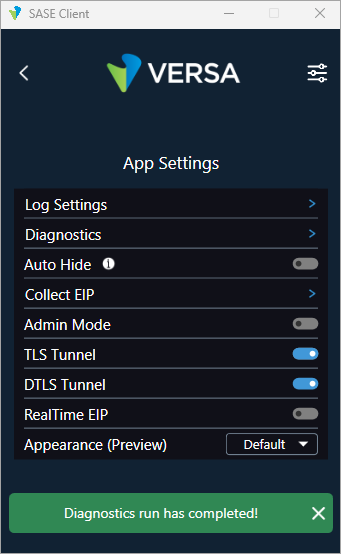
To automatically fix basic issues on the Versa Client, perform the diagnostics procedure:
- In the SASE client home screen, click the
 Settings icon.
 - Click App Settings and then click click Diagnostics.

When the diagnostics complete, a message displays.
Collect Complete Debug Logs
To collect a complete set of debug logs to help the Versa Managed Services NOG team debug issues on the Versa client and the operating system:
- In the SASE client home screen, click the Settings icon.
- Click App Settings.

- Click Log Settings.
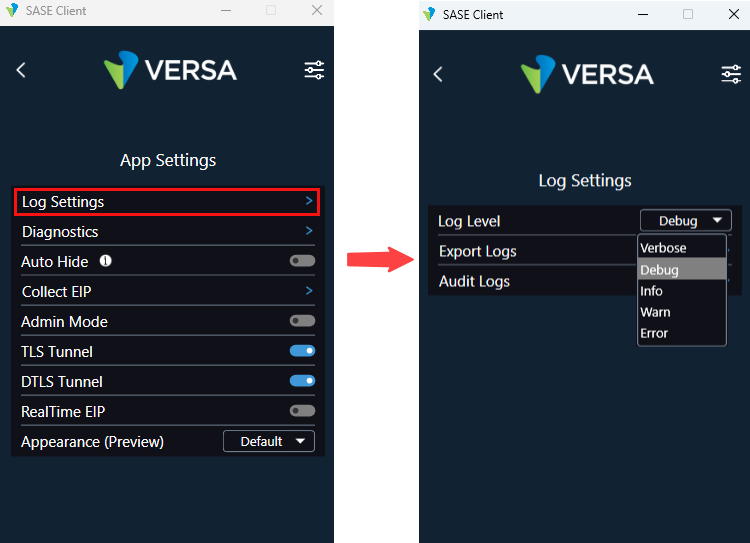
- In the Log Settings screen, click Log Level, and select a log severity level:
- Debug—Log application debug-level information.
- Error—Log error-level information.
- Info—Log informational-level information. This is the default.
- Verbose—Log additional information during the interaction with the client user interface.
- Warm—Log warming-level information.
To save the log files:
- In the App Settings screen, click Export Logs.

- Select a folder and save the log file on your computer. The saved log file is in .zip format.
- Share the .zip file with the Versa Managed Services NOC team.
Verify the FQDN Used for Portal Registration
To verify that that FQDN used for portal registration resolves to the correct SASE portal WAN IP address, issue an nslookup or ping command for the FQDN that you use used for registration from your computer or laptop. The FQDN must resolve to the SASE portal WAN IP address. For example:
C:\Users\user1>nslookup sj-sandbox.versa-test.net
Server: dns-aa.versa-networks.com
Address: 10.10.11.111
Non-authoritative answer:
Name: sj-sandbox.versa-test.net Address: 200.40.10.10
Verify that HTTP and HTTPS Packets Are Allowed
To verify that HTTP and HTTPS packets destined to the SASE portal are allowed, check that your computer or laptop is set to allow HTTP and HTTPS packets to the VCG and registration portal. Make sure that the firewall on computer or laptop is not set to block HTTP and HTTPS packets bidirectionally.
To troubleshoot firewall issues on your computer or laptop, see the documentation from computer OS provider.
Supported Software Information
VOS Releases 20.2.3 and later support all content described in this article.
SASE client Releases 7.2.0 and later support all content described in this article.
Additional Information
Configure Versa SASE Clients
Use the Versa SASE Client Application