
Configure Vulnerability Threat Management in Concerto
 For supported software information, click here.
Vulnerability Threat Manager (VTM) is designed to identify, assess, prioritize, and remediate potential security weaknesses (vulnerabilities) within an organization’s system and networks, allowing them to proactively manage cyber threats. Versa Networks supports the following VTMs:
- Qualys
- Tenable
- Microsoft Defender
Configure Qualys VTM
Note: If you reached this page by clicking + Configure VTM in the Configure Unified Entity Risk Profiles in Concerto article, go to Step 2.
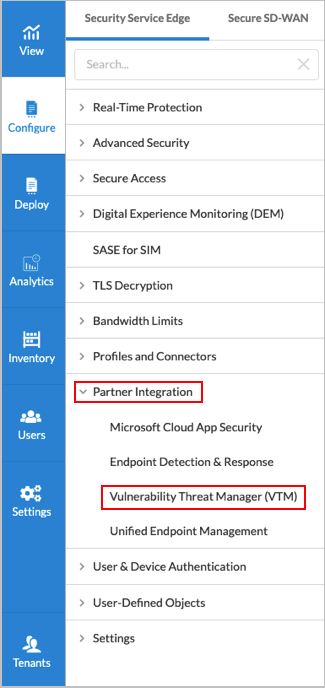
- Select Configure > Security Service Edge > Partner Integration > Vulnerability Threat Manager (VTM).
- In the Vulnerability Threat Manager (VTM) screen, under the Qualys tab, enter information for the following fields.

Field Description Disabled Click the toggle to enable Qualys, which is disabled by default. Username Enter a username for Qualys. Password Enter the password for Qualys. Poll Interval Enter the time, in seconds, between polling events.
Range: 10 through 1440 seconds
Default: 111 seconds
- Click Save.
Configure Tenable VTM
- Select Configure > Security Service Edge > Partner Integration > Vulnerability Threat Manager (VTM). The Vulnerability Threat Manager (VTM) screen displays.
- Select the Tenable tab, and then enter information for the following fields.

Field Description Disabled Click the toggle to enable Tenable, which is disabled by default. Tenant ID Enter the tenant ID. Access Key Enter an Access key. Secret Key Enter a Secret key. Poll Interval Enter the time, in seconds, between polling events.
Range: 10 through 1440 seconds
Default: 200 seconds
- Click Save.
Configure Microsoft Defender
- Select Configure > Security Service Edge > Partner Integration > Vulnerability Threat Manager (VTM). The Vulnerability Threat Manager (VTM) screen displays.
- Select the Microsoft Defender tab, and then enter information for the following fields.

Field Description Disabled Click the toggle to enable Microsoft Defender, which is disabled by default. Tenant ID Enter the tenant ID. Client ID Enter the client ID. Client Secret Enter the client secret. Poll Interval Enter the time, in minutes, between polling events.
Range: 10 through 1440 minutes
Default: 20 minutes
-
Click Save.
Supported Software Information
Releases 13.1.1 and later support all content described in this article.