
Configure Unified Entity Risk Profiles in Concerto
 For supported software information, click here.
Security software vendors, including Versa Networks, provide unified entity risk scores for their products. The unified entity risk score helps determine the likelihood that the activities associated with the product are legitimate.
Versa Concerto allows you to adjust the weight of the risk categories that are used to calculate the unified entity risk score. You do this by assigning a weighting value for each category in the entity risk profile, which is a consolidated risk assessment of an entity (endpoint, device, user, application, account, or identity) created by aggregating security signals from multiple sources. If you have multiple products in a given category, you can also specify the weight given to each product within the category.
Customers can subscribe to a Versa Networks security software product and also to products from other vendors. The unified entity risk categories, and the products supported in each category, are listed below:
- Endpoint Detection and Response (EDR):
- CrowdStrike
- Microsoft Defender
- SentinelOne
- Vulnerability Threat Manager (VTM):
- Qualys
- Tenable
- Microsoft Defender
Concerto sends the unified entity risk profile configuration to the cloud cluster to compute the unified entity risk score for all of the products included in the customer's subscription. The calculated score is then pushed to the SSE gateways. You can use the Concerto View lifecycle to see the result of these calculations.
Configure a Unified Entity Risk Profile
To configure a unified entity risk profile:
- In Tenant view, select Configure > Security Service Edge > Profiles and Connectors > Unified Entity Risk Profile.

- If you have not yet configured a unified entity risk profile, the following screen displays. Click the Add Unified Entity Risk Profile button. Go to Step 4.

- If you have previously configured a unified entity risk profile, the following screen displays when you select Configure > Security Service Edge > Profiles and Connectors > Unified Entity Risk Profile in the left menu bar:

Click the Add icon.
- The Add Unified Entity Risk Profile screen displays.
Note: You can configure EDR attributes and VTM attributes, or both, and assign an overall attribute weight to each of them. If you configure both EDR and VTM, their combined attribute weight should equal 100%.

- Enter information for the following fields.
Field Description Configure Endpoint with EPP/EDR Click the slider bar to enable you to configure an endpoint with Endpoint Protection Platform (EPP)/EDR. The default is disabled. Attribute Weight Enter the total attribute weight as a percentage for all EDR products. The total of all configured attribute weights for the EDR products must be 100%. Do you want to integrate with your EDR partner? To integrate with EDR partners, click  Configure EDR. The Configure EDR screen displays with CrowdStrike selected by default. To configure EDR, see Configure Endpoint Detection and Response.
EDR - Crowdstrike
To include Crowdstrike in the unified entity risk score, enter the attribute weight as a percentage. - Microsoft Defender
To include Microsoft Defender in the unified entity risk score, enter the attribute weight as a percentage. - SentinelOne
To include SentinelOne in the unified entity risk score, enter the attribute weight as a percentage. - Click Next to go to configure Vulnerability and Threat Management to set the weight VTM partners contribute through Common Vulnerabilities and Exposures (CVE) information or compliance status to the Unified Entity Risk Score.

- Enter information for the following fields.
Field Description Configure Vulnerability and Threat Management (VTM) Click the slider bar to enable you to configure an endpoint with VTM. The default is disabled. Attribute Weight Enter the total attribute weight as a percentage for all VTM products. The total of all configured attribute weights for the VTM products must be 100%. Do you want to integrate with your VTM partner? To integrate with VTM partners, click Configure VTM. The Configure VTM screen displays with Qualys selected by default. To configure VTM, see Configure Vulnerability Threat Management in Concerto.Vulnerability Data Click the toggle to include CVE information in the risk score weighting.
To assign a weight to one or more of the four reported vulnerabilities, click the checkbox for each reported vulnerability, and then enter a weight between 0 and 100 percent.
The Common Vulnerability Scoring System (CVSS) score indicates the severity rating for each reported vulnerability.
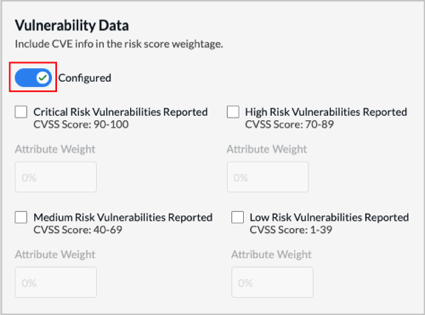
Compliance Status Click the toggle to include compliance status in the risk score weighting, and then enter a weight from 0 to 100 percent.
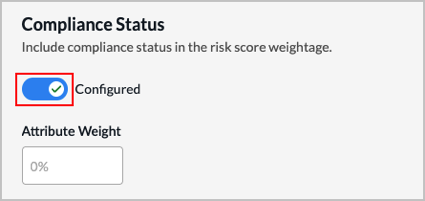
Configuration Issues Click the toggle to include configuration issues in the risk score weighting, and then enter a weight from 0 to 100 percent.
- Click Next to go to Review and Submit.

- Enter a name for the unified entity risk profile in the Name field.
- Click the
 Edit icon make changes to any section of the configuration.
 - Click Submit.
Supported Software Information
Releases 12.2.1 and later support all content described in this article, except:
- Release 13.1.1 adds support for SentinelOne EDR and Microsoft Defender VTM, and renames Device Risk Profile to Unified Entity Risk Profile.
Additional Information
Configure Endpoint Detection and Response
Configure Vulnerability Threat Management in Concerto