
Configure SASE User-Defined Objects
 For supported software information, click here.
Objects are configuration elements that you use to build larger configurations, such policy rules and profiles. Versa provides many predefined SASE objects that you can use as they are. You can also define your own objects with which to build policies. You can configure following types of user-defined SASE objects:
- Address Objects
- Address Groups
- Applications, which include the following:
- User Defined Applications
- Predefined Applications
- User Modified Predefined Applications
- Client Native Applications
Note: You can use internet applications only for internet protection rules, and you can use private applications only for private protection rules.
- Application Categories
- Application Groups, which include:
- User Defined Application Groups
- Predefined Application Groups
Note: You can use internet application groups only for internet protection rules, and you can use private application groups only for private protection rules.
- Operating system
- Schedules
- Security Actions
- Services
- Service Groups
- URL Categories
Note: You must configure the following SASE rules, profiles, and settings in a specific order:
- Configure site-to-site tunnels. For more information, see Configure SASE Site-to-Site Tunnels.
- Configure secure client access profiles and rules. For more information, see Configure SASE Secure Client-Based Access Rules.
You do not need to configure the remaining SASE rules, profiles, and settings in any particular order.
Configure Address Objects
To configure address objects:
- In Tenant view, select Configure > Security Service Edge > User-Defined Objects > Address Objects.
Note: For Releases 12.1.1 and earlier, User-Defined Objects is located at Configure > Security Service Edge > Settings.

If you have not previously configured address objects, the following screen displays. If you have previously configured address objects, go to Step 3.

- Click Address Object. The following screen displays.

- In step 1, Information, click one of the address types and enter the required information.
Field Description IPv4 Subnet Enter an IPv4 address and subnet to evaluate the address match. IPv6 Subnet Enter an IPv6 address and subnet. The bits in the mask can be on (1) or off (0). Only the bits that are enabled in the mask are used to determine whether an IPv4 address matches IPv4 Range Evaluate the address match using an IP address within the specified IPv4 address range. IPv4 Wildcard Enter a wildcard mask for an IPv4 address. IPv6 Wildcard Enter a wildcard mask for an IPv6 address. The bits in the mask can be on (1) or off (0). Only the bits that are enabled in the mask are used to determine whether an IPv6 address matches. Dynamic Address Use a dynamic address object, which is a container for an IP address list that can change dynamically. Using dynamic addresses in a policy allows you to perform a configuration before the IP addresses are known, thus avoiding the need to update the configuration each time IP addresses are added or deleted. FQDN Evaluate the address match using an IP address returned in a DNS query that resolves the fully qualified domain name (FQDN) into an IP address. The FQDN cannot contain any wildcard characters. Ensure that you also configure a routing instance through which the DNS server is reachable so that the VOS device can resolve the FQDN. - Click Next. The Review & Submit screen displays.

- Enter a name for the address object. Optionally, add a description and tags.
- Review the configuration. Click the
 Edit icon to make changes.
 - Click Submit.
Configure Address Groups
You can group multiple addresses to form address groups. Grouping addresses allows you to collectively apply the same security policies and rules to multiple addresses that require the same security handling, instead of having to apply security policies to each address individually.
To configure address groups:
- In Tenant view, select Configure > Security Service Edge > User-Defined Objects > Address Groups.

The following screen displays.

- In step 1, Addresses, enter information for the following fields.
Field Description Group Types (Group of Fields) - Static Address
If you select the Static Address group type, select one or more of the following types. - IP Subnet
Enter an IPv4 subnet, such as 10.1.1.0/24. - Address File
Select a file from the drop-down list. Click Add a New File to upload a new address file.
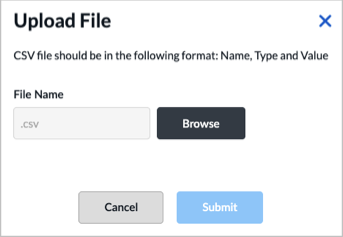
- In the Upload File popup window, click Browse the locate the file to upload. The file must be in .csv format with three columns: Name, Type, and Value.
- Click Submit.
- Address Object
Select an address object. - Address Group
Select an address group. - Dynamic Address
Enter a dynamic address value. - FQDN
Enter an FQDN. - IP Range
Enter an IP address range. - IP Wildcard
Enter an IP wildcard. - IPv6 Subnet
Enter an IPv6 subnet. - Address Feed
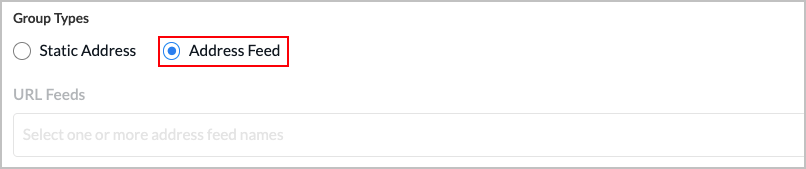
- URL Feeds
Click Address Feed, then select one or more URL address feed names.
- Click Next or select step 2, Review & Submit.

- Enter a name for the address group.
- Review the configuration. Click the Edit icon to make changes.
- Click Submit.
Configure Applications
To configure applications:
- In Tenant view, select Configure > Security Service Edge > User-Defined Objects > Applications.

The Applications > User-Defined Applications screen displays.

- To customize which columns display, click the
 Column Selector icon, and then click the columns select or deselect the columns you want to display. Click Reset to Default to return to the default columns settings.
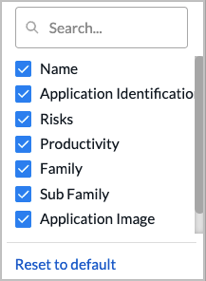
The column options are:
—Name
—Application Identification
—Risks
—Productivity
—Family
—Subfamily
—Application Image
—Last Modified
- Click the Add icon. The workflow to create a user-defined application displays step 1, Application Identification.

- Enter information for the following fields.
Field Description IP Prefix Enter an IP prefix, such as 10.1.1.0/24. Host Pattern Enter the host pattern to match. Protocol Select a protocol name or number from the drop-down list. Source Port Enter the source port number or a range of port numbers.
Range: 0 to 65535
Default: None
Destination Port Enter the destination port number or a range of port numbers.
Range: 0 to 65535
Default: None
Application Precedence Enter a value for the priority of the application.
Range: 0 to 65535
Default: None
- Click Next or select step 2, Application Attributes.
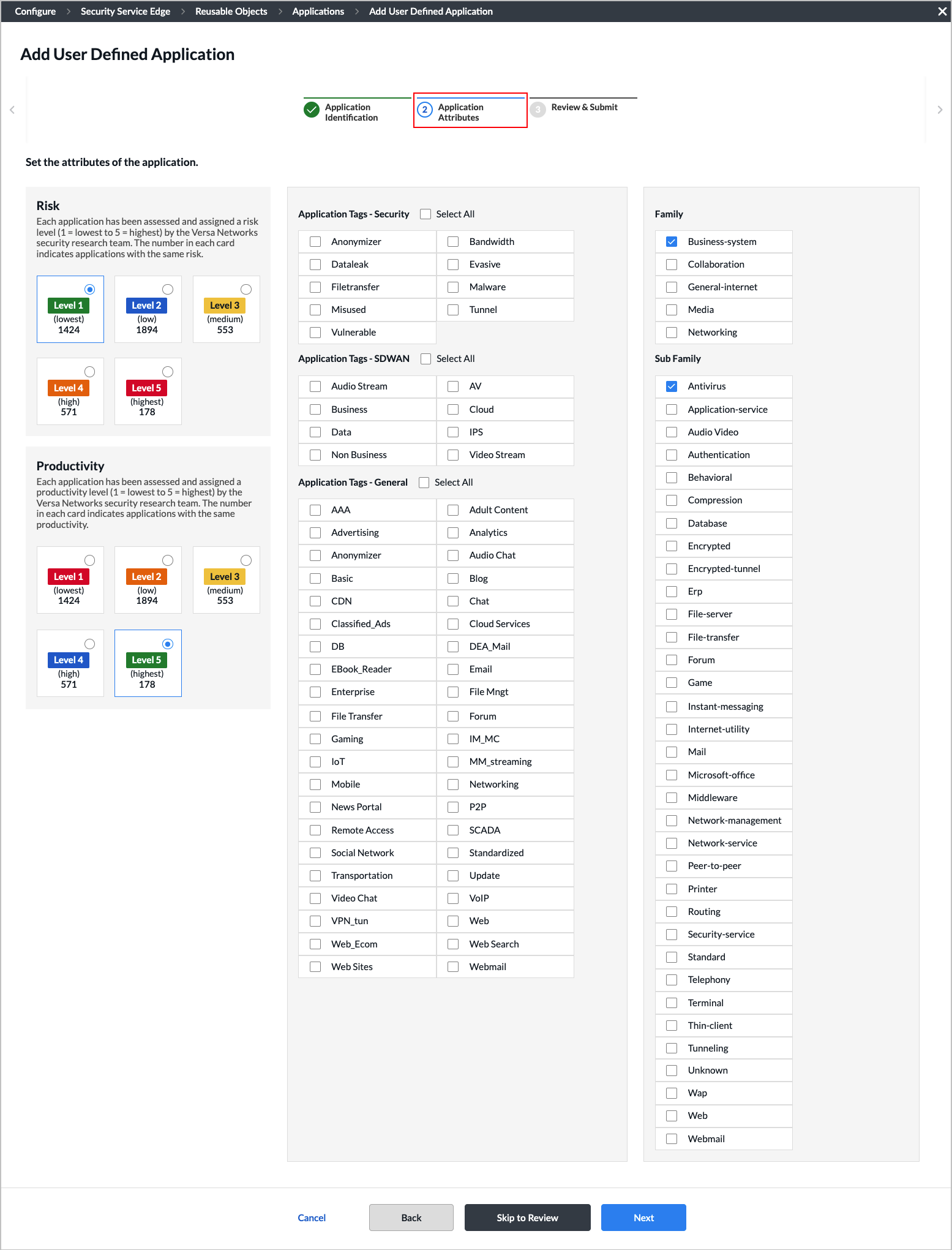
- Enter information for the following fields.
Field Description Risk Select a risk level for the application. Each application has been assessed and assigned a risk level (1 = lowest to 5 = highest) by the Versa Networks security research team. The number in each card indicates applications with the same risk.
- Level 1 (lowest)—1424
- Level 2 (low)—1894
- Level 3 (medium)—553
- Level 4 (high)—571
- Level 5 (highest)—178
Productivity Select a productivity level for the application. Each application has been assessed and assigned a productivity level (1 = lowest to 5 = highest) by the Versa Networks security research team. The number in each card indicates applications with the same productivity.
- Level 1 (lowest)—1424
- Level 2 (low)—1894
- Level 3 (medium)—553
- Level 4 (high)—571
- Level 5 (highest)—178
Application Tags–Security Select one or more security action tags for the application. Applications Tags–SD-WAN Select one or more SD-WAN action tags for the application. Applications Tags–General Select one or more general action tags for the application. Family Select an application family. Sub Family Select an application sub family. - Click Next or select step 3, Review & Submit.

- Enter a name for the application.
- (Optional) Enter a description and tags.
- (Optional) Click the
 Upload File icon to upload a logo for the user-defined application. The following file formats are supported: png, svg, and jpg.
 - Review the configuration. Click the Edit icon to make changes.
- Click Submit to create the user-defined application.
Select and Modify Predefined Applications
You can select which predefined applications a tenant is allowed to access. You can also modify a predefined application for use by a tenant.
To select predefined applications:
- In Tenant view, select Configure > Security Service Edge > User-Defined Objects > Applications.
- Select the Predefined Applications tab.

- Select a predefined application from the list to allow a tenant to access it. You can use the Search box to locate an application.
- To refresh the list of applications, click the
 Refresh icon.
 - You can also select an application and then perform the following actions:
- Copy to Subtenant—If the current tenant has subtenants, you can click the
 icon to copy the application to one or more subtenants. Note that if the current tenant does not have any subtenants, this icon does not display.
Select one or more tenants, then click Submit to copy the application.

- View Audit Log—Click the
 icon. The audit log screen for the application displays. You can click the
  Download CSV icon to download the audit log in CSV format.

- Copy to Subtenant—If the current tenant has subtenants, you can click the
- To modify a predefined application, click the application link in the Predefined Applications screen. The Edit <Application-Name> screen displays.
For example, in the following screenshot, the 01NET application has been selected.

- Change any of the attributes of the predefined application. You can change multiple attributes.
- Click Submit. The modified predefined application—in this example, 01NET—is now listed under the User Modified Predefined Applications tab.
Note: The original predefined application is still available under the Predefined Applications tab.

Select User Modified Predefined Applications
To select user-modified predefined applications that a tenant is allowed to access:
- In Tenant view, select Configure > Security Service Edge > User-Defined Objects > Applications.
- Select the User Modified Predefined Applications tab.

- Select a user-modified predefined application from the list. You can use the Search box to locate an application.
- To refresh the list of applications, click the Refresh icon.
- You can also select an application and then perform the following actions:
- Delete—Click the
 icon to delete the application.
 - Copy to Subtenant—If the current tenant has subtenants, you can click the icon to copy the application to one or more subtenants. Note that if the current tenant does not have any subtenants, this icon does not display.
- View Audit Log—Click the icon. The audit log screen for the application displays. You can click the Download CSV icon to download the audit log in CSV format.
- Delete—Click the
Configure Client-Native Applications
You use client-native applications when you configure secure client access rules, but you cannot use client-native applications when you configure internet protection rules or private application rules.
To configure client-native applications:
- In Tenant view, select Configure > Security Service Edge > User-Defined Objects > Applications.
- Click the Client Native Applications tab. The screen displays any client-native applications that you have previously defined.

- Click the
 Add icon. The workflow to add a new client application displays.
 - In step 1, Application Details, enter information for the following fields.

Field Description FQDN Enter the fully qualified domain name (FQDN) to use to access the new client application on a remote server. Click the  Add icon to enter additional FQDNs. Note that if you specify the FQDN, you cannot also specify the file path.
File Path Enter the path to the new client application on your local computer or laptop. For example, the path to the Outlook application on your local computer or laptop might be /var/lob/apps/outlook.app. Note that if you specify the file path, you cannot also specify the FQDN.

Digital Experience Monitoring (Group of Fields) (For Releases 12.2.2 and later.) You configure DEM settings so that DEM can send probes to client-native application servers. In addition, when creating a DEM profile, you can select applications that are based on FQDNs or file paths. The DEM settings are independent of the FQDN or file path selection. - Host
Enter the IP address or the FQDN of the server that hosts the client-native application. - Protocol
Enter the protocol to use. The options are:
- TCP
- UDP
- Custom Port
Enter the custom port number on the host.
Range: 0 through 65535
Default: None
- URI Path
Enter a numeric value for the uniform resource identifier (URI). - App Protocol
Select the protocol to use. The options are:
- HTTP
- HTTPS
- Ignore SSL Warning
Click the slider bar to enable SSL warnings. SSL warnings are disabled by default. - Click Next or select step 2, Review & Submit.
- Enter information for the following fields.

Field Description Name (Required) Enter a name for the application. Description (Optional) Enter a description of the application. Tags (Optional) Enter one or more tags to to associate with the application. A tag is an alphanumeric text descriptor with no spaces or special characters that you use for searching objects. Upload Application Image (Optional) Click the Upload File icon. In the popup window, select an application image and upload it. Images must be in .png or .svg format. - Review the configuration. Click the Edit icon to make changes.
- Click Submit to add the client-native application.
Configure Application Categories
For Releases 12.2.1 and later.
Application categories are used to match information based on the attributes of predefined or custom applications when you set up a SASE policy rule. You can define custom application categories in addition to the predefined application categories provided. Versa currently provides 4,554 predefined applications.
For each category, you can create one or more filters:
- Risk—Each application has been assessed and assigned a risk level (1 = lowest to 5 = highest) by the Versa Networks security research team.
- Productivity—Each application has been assessed and assigned a productivity level (1 = lowest to 5 = highest) by the Versa Networks security research team.
- Tags—You can configure up to three types of application tags:
- Security
- SD-WAN
- General
- Family and Sub-family—You can select any of five application families and 34 application sub-families.
To configure application categories:
- In Tenant view, select Configure > Security Service Edge > User Defined Objects > Application Categories.

The Add Application Category screen displays with the Settings tab selected by default.

As categories are selected, the application list adjusts to only show the applications the match selected categories. For example, in the sample screen above, 4,552 predefined applications and 68 user-defined applications are selected. Because no filters have yet been configured, these numbers represent the total number of predefined and user-defined applications that are available. The numbers will change you configure the various application filters. If you select multiple filters, the list changes to display the applications that meet all of the filters you selected.
- To customize the application risk filter, select one or more application risk filters.
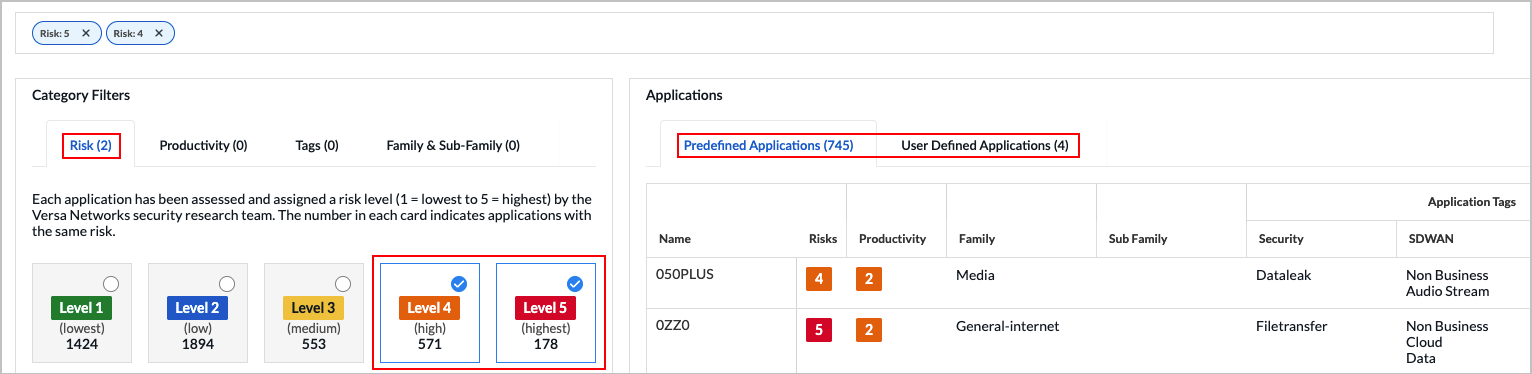
In this example screen, we have selected two risk levels, Level 4 and Level 5. There are 571 Level 4 (high risk) applications and 178 Level 5 (highest risk) applications, for a total of 749 applications. This total matches the sum of the numbers displayed in the Predefined Applications (745) and User Defined Applications (4) tabs. - To customize the application productivity filter, click the Productivity tab and select one or more application productivity filters.

In this example screen, one productivity level, Level 1, is selected. There are 730 Level 1 (lowest) applications. Of these 730 applications, 471 match the combined filter criteria of Level 4 and Level 5 application risk plus Level 1 application productivity. This total matches the sum of the numbers displayed in the Predefined Applications (469) and User Defined Applications (2) tabs.
- To customize the application tags filter, click the Tags tab and select one or more application tag filters.

In this example screen, one application security tag is selected (Bandwidth). There are 177 predefined applications and 0 user-defined applications, for a total of 117 applications that match all of the selected filters. This total matches the sum of the numbers displayed in the Predefined Applications (177) and User Defined Applications (0) tabs.
- To customize the application family and sub-family filter, click the arrow next to Application Family and Sub-Family, then select one or more filters.

In this example screen, one family tag is selected. There are 37 predefined applications and 0 user-defined application, for a total of 37 applications that match all of the selected filters. This total matches the sum of the numbers displayed in the Predefined Applications (37) and User Defined Applications (0) tabs. - Click Next or select step 2, Review & Submit. Enter information for the following fields.

Field Description Name (Required) Enter a name for the application. Description (Optional) Enter a description of the application. Tags (Optional) Enter one or more tags to to associate with the application. A tag is an alphanumeric text descriptor with no spaces or special characters that you use for searching objects. - Review the configuration. Click the Edit icon to make changes.
- Click Submit to add the new application category.
Configure Application Groups
You can configure a user-defined application group and select a predefined application group to make it accessible to a tenant.
Configure a User-Defined Application Group
- In Tenant view, select Configure > Security Service Edge > User-Defined Objects > Application Groups.
Note: For Releases 12.1.1 and earlier, User-Defined Objects is located at Configure > Security Service Edge > Settings.

The Application Groups screen displays with the User Defined Application Groups tab selected by default.

- To customize which columns display, click the Column Selector icon, and then select or deselect the columns to display. Click Reset to return to the default columns settings. The options are:
- Total Apps
- Applications
- Application Image
- Last Modified
- Click Add to add a new application group. The workflow to add a user-defined application group displays.

- In step 1, Applications, click one or more of the user-defined and predefined applications to add. You can use the search bar to find an application.
- Click Next or select step 2, Review & Submit.
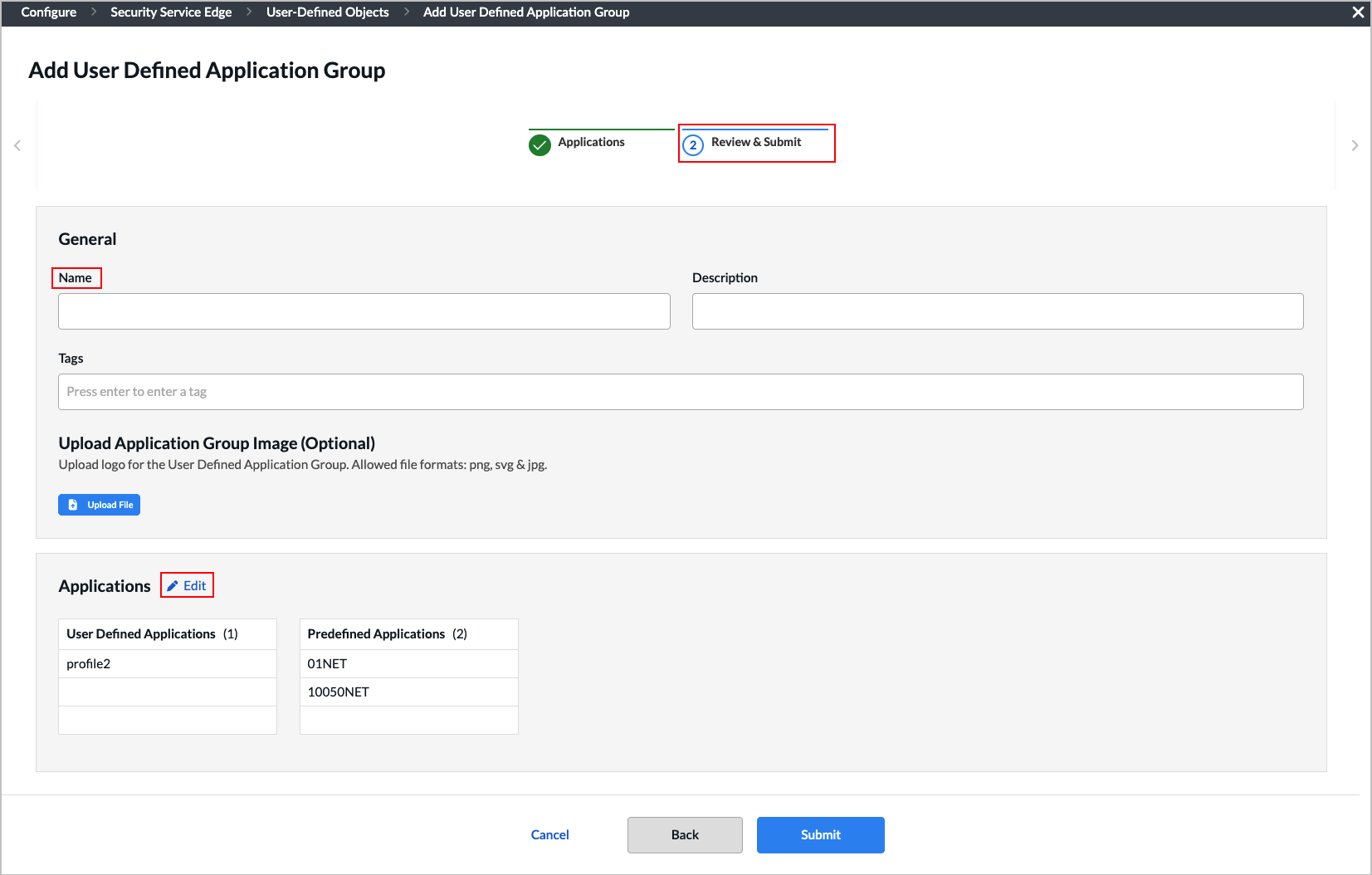
- Enter a name for the application group and, optionally, a description and one or more tags to include. Click the Enter key to add each tag. A tag is an alphanumeric text descriptor with no spaces or special characters that you use for searching objects.
- (Optional) Click the Upload File icon. In the popup window, select an application image and upload it. Images must be in .png or .svg format.
- Review the configuration. Click the Edit icon to make changes.
- Click Save to create the user-defined application group.
Select a Predefined Application Group for a Tenant
To select a predefined application group for a tenant:
- In Tenant view, select Configure > Security Service Edge > User-Defined Objects > Application Groups.
Note: For Releases 12.1.1 and earlier, User-Defined Objects is located at Configure > Security Service Edge > Settings.
- Select the Predefined Application Groups tab. The screen displays the available predefined application groups.

- Select an application group by clicking the box to the left of the group name.
- You can also select an application group and then perform the following actions:
- Delete—Click the icon to delete the application group.
- Copy to Subtenant—If the current tenant has subtenants, you can click the icon to copy the application group to one or more subtenants. Note that if the current tenant does not have any subtenants, this icon does not display.
- View Audit Log—Click the icon. The audit log screen for the application group displays. You can click the Download CSV icon to download the audit log in CSV format.
- Delete—Click the
Add Operating System Objects
You can create user-defined operating systems to complement the predefined ones. User-defined operating systems can be used in the match criteria of client-based secure access rules to identify devices connecting to SSE gateways based on their operating system and apply appropriate actions. For information about client-based secure access rules, see Configure SASE Secure Client-Based Access Rules.
To create a custom operating system:
- In Tenant view, select Configure > Security Service Edge > User-Defined Objects > Operating Systems.

If you have not previously added an operating system, the following screen displays. Click Add Operating System and go to Step 2.

If you have previously added an operating system, the following screen displays. Click the Add icon.

- The workflow to add an operating system system displays step 1, Operating Systems & Versions.
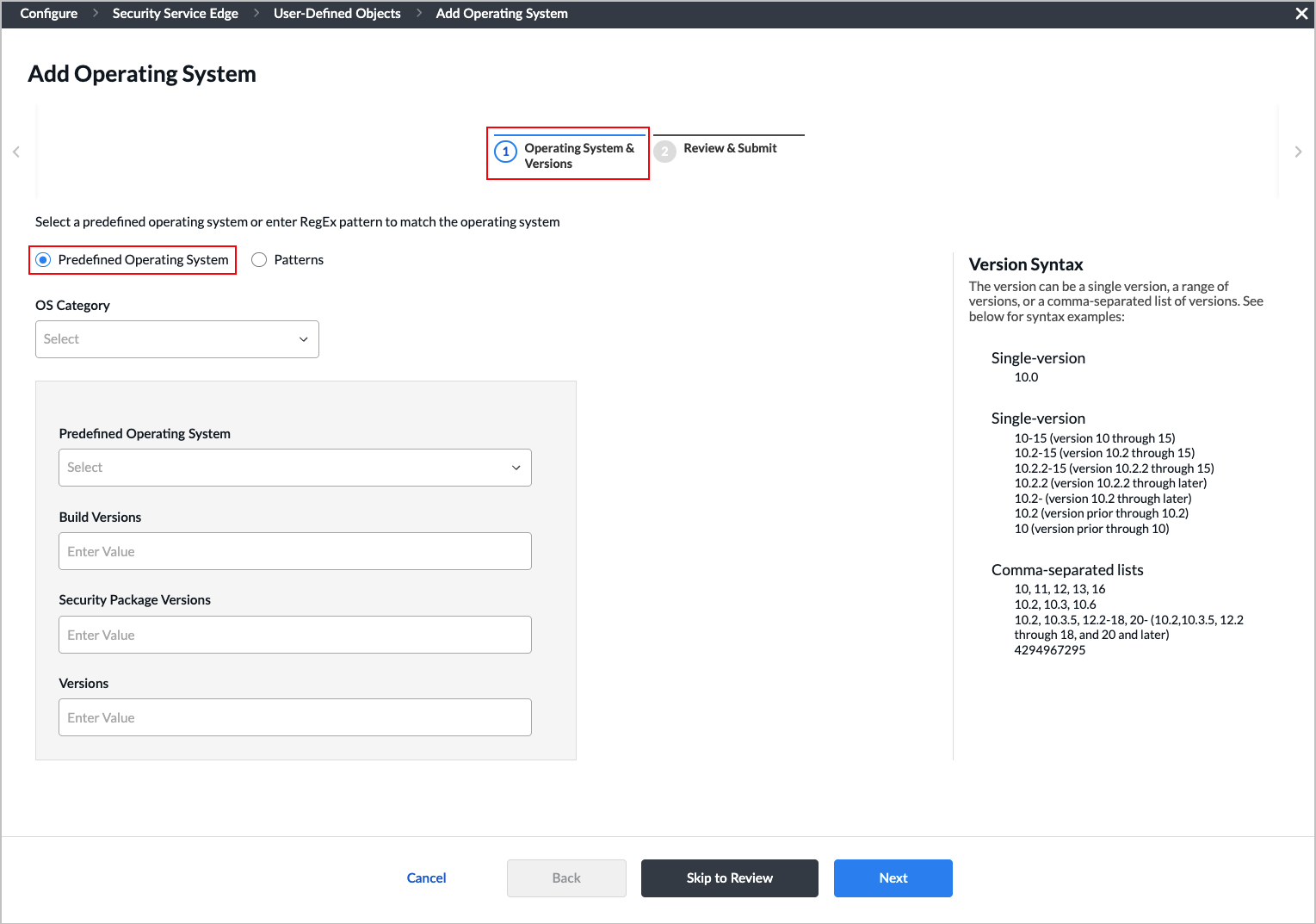
- To use a predefined operating system, select the Predefined Operating System option, and then enter information for the following fields.
Field Description OS Category Select the operating system category:
- Windows
- Apple
- Linux
- Android
Predefined Operating System Select a predefined operating system from the drop-down list. Build Versions Enter a build version for the operating system object. The version can be a single version, a range of versions, or a comma-separated list of versions. For syntax examples, see the description of the Versions field, below. Security Package Versions Enter the security package version of the operating system object. The version can be a single version, a range of versions, or a comma-separated list of versions. For syntax examples, see the description of the Versions field, below. Versions Enter the version of the operating system object that you selected in the Security Package Versions field. The version can be a single version, a range of versions, or a comma-separated list of versions, using the syntax in the following examples:
- Example of a single-version
- 10.0
- Examples of ranges
- 10-15 (version 10 through 15)
- 10.2-15 (version 10.2 through 15)
- 10.2.2-15 (version 10.2.2 through 15)
- 10.2-15.2 (version 10.2 through 15.2)
- 10.2.2- (versions 10.2.2 and later)
- 10.2- (versions 10.2 and later)
- -10.2 (versions prior to 10.2)
- -10 (versions prior to 10)
- Examples of comma-separated lists
- 10, 11, 12, 13, 16
- 10.2, 10.3, 10.6
- 10.2, 10.3.5, 12.2-18, 20- (10.2,10.3.5, 12.2 through 18, and 20 and later)
- To use a regular expression (regex) pattern to match the operating system, select the Patterns option, and then enter information for the following fields.

Field Description OS Category Select the operating system category:
- Windows
- Apple
- Linux
- Android
Patterns Enter a regex pattern to match the operating system object, and then click the
 Add icon to enter the pattern. Enter the pattern using the syntax /regex/regex-options. In this field, you can use the standard Perl-compatible regular expression (PCRE) pattern i, to indicate a case-insensitive match). You cannot use other PCRE patterns.
For example, to match any Windows version, enter the pattern /windows/i, where i ignores the case. This pattern matches a query for Windows regardless of the case, matching, for example, windows, Windows, and WINDOWS.
- Click Next or select step 2, Review & Submit.

- Enter a name for the operating system. Optionally, enter a description and tags.
- Review the configuration. Click the Edit icon to make changes.
- Click Submit to add the operating system.
Configure SASE Schedules
Security policy rules work at all dates and times. You can define a schedule object to limit a security policy to specific times, and you then use the schedule objects when defining internet protection rules, private application rules, and secure client access rules.
Policy objects support match criteria based on the time of day. For example, you can define a policy rule that is effective only during certain times of the day, such as lunch hours or after normal working hours.
To configure a schedule object, you configure either a fixed date and time range or a recurring daily or weekly schedule.
To configure schedule objects:
- In Tenant view, select Configure > Security Service Edge > User-Defined Objects > Schedules in the left menu bar.
Note: For Releases 12.1.1 and earlier, User-Defined Objects is located at Configure > Security Service Edge > Settings.

The Schedules screen displays the schedules that are already configured.
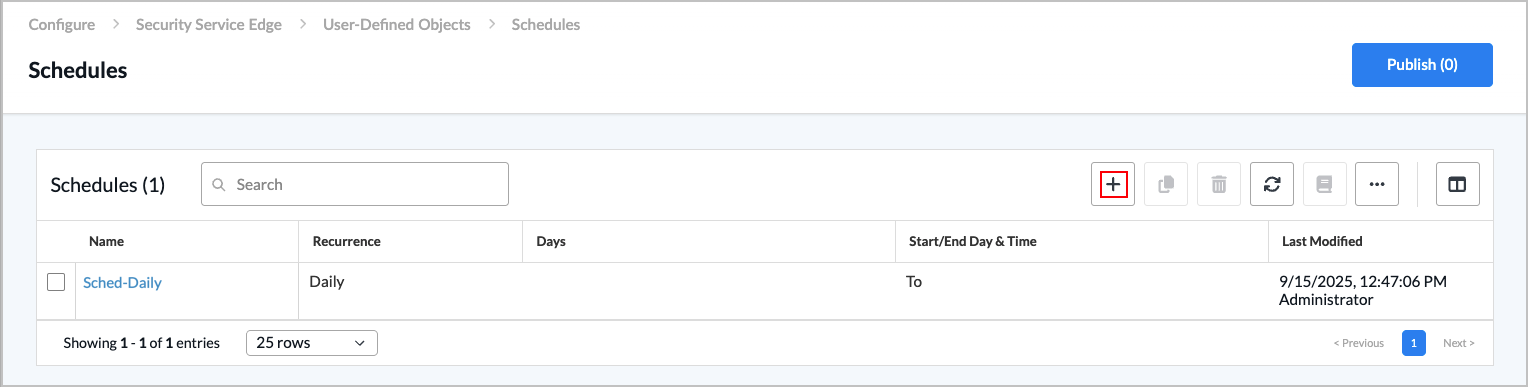
- Click the Add icon to add a schedule. The workflow to add a schedule displays.

- In step 1, Recurrence & Time Interval, enter information for the following fields.
Field Description Recurrence Select None, Daily, or Weekly. - None
If you select None, the schedule does not repeat and only occurs once. Enter the following information:
- Start Date—Select a start date.
- Start Time—Select a start time.
- End Date—Select an end date.
- End Time—Select an end time.
- Daily
If you select Daily, enter information for the following fields:

- All Day—Click to schedule the security policy to be in effect all day.
- Start Time—If you do not select All Day, select a start time from the drop-down list.
- End Time—If you do not select All Day, select an end time from the drop-down list.
- Weekly
If you select Weekly, enter information for the following fields:

- All Day—Click to schedule the security policy to be in effect all day.
- Start Time—If you do not select All Day, select a start time.
- End Time—If you do not select All Day, select an end time.
- Select the days the security policy is to be in effect.
- Click Next or select step 2, Review & Submit.
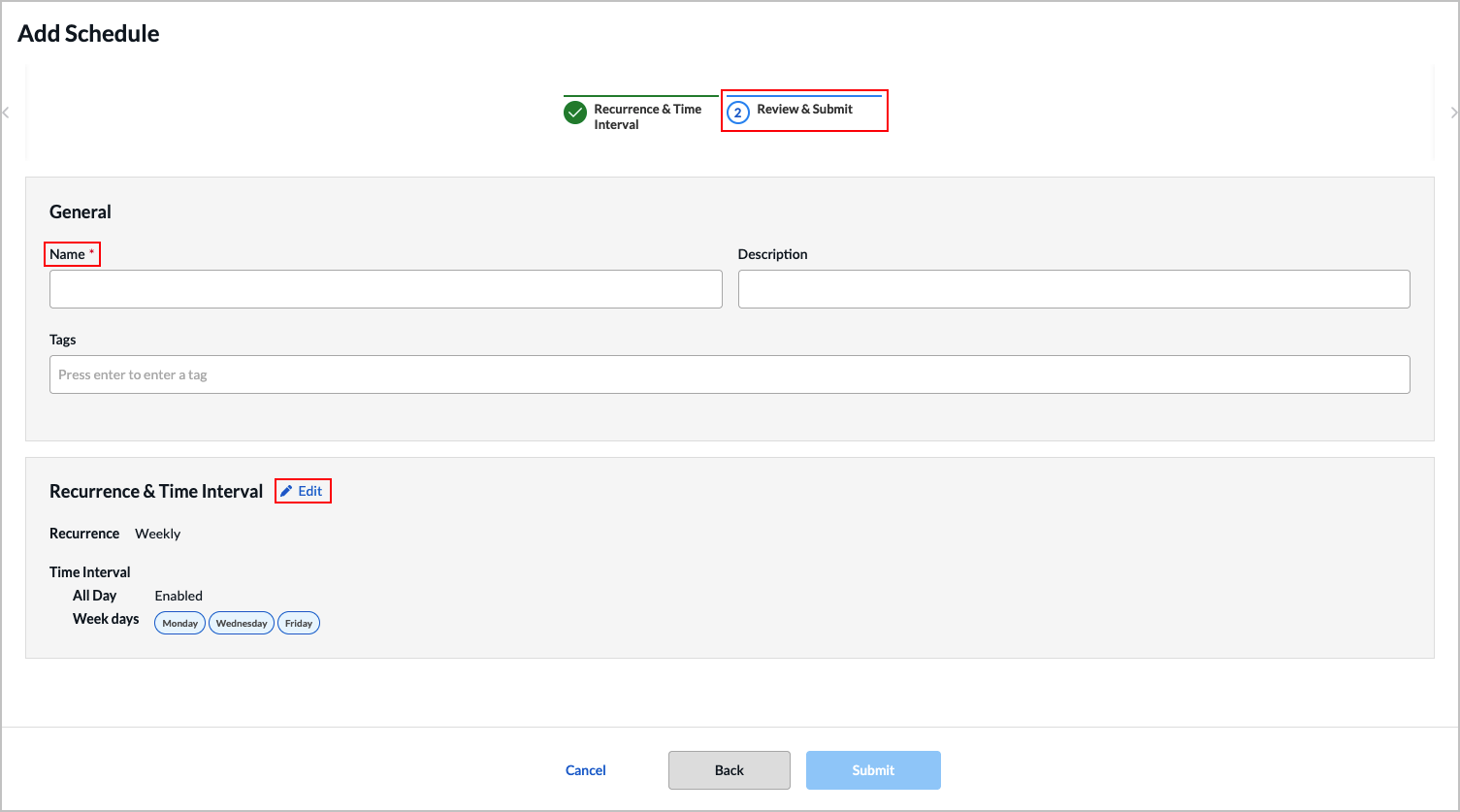
- Enter a name for the new schedule and, optionally, a description and one or more tags to include. A tag is an alphanumeric text descriptor with no spaces or special characters that you use for searching objects.
- Review the configuration. Click the Edit icon to make changes.
- Click Submit to add the new schedule.
Configure Custom Security Actions
For Releases 11.4.1 and later.
For URL filtering, you can can select a user-defined action as the action to take when a filter matches.
To configure user-defined security actions:
- In Tenant view, select Configure > Security Service Edge > User-Defined Objects > Security Actions.
Note: For Releases 12.1.1 and earlier, User-Defined Objects is located at Configure > Security Service Edge > Settings.

The Security Actions screen displays the security actions that are already configured. To locate a particular action, use the search box.

- Click the Add icon to add a new action. The workflow to add a security action displays.
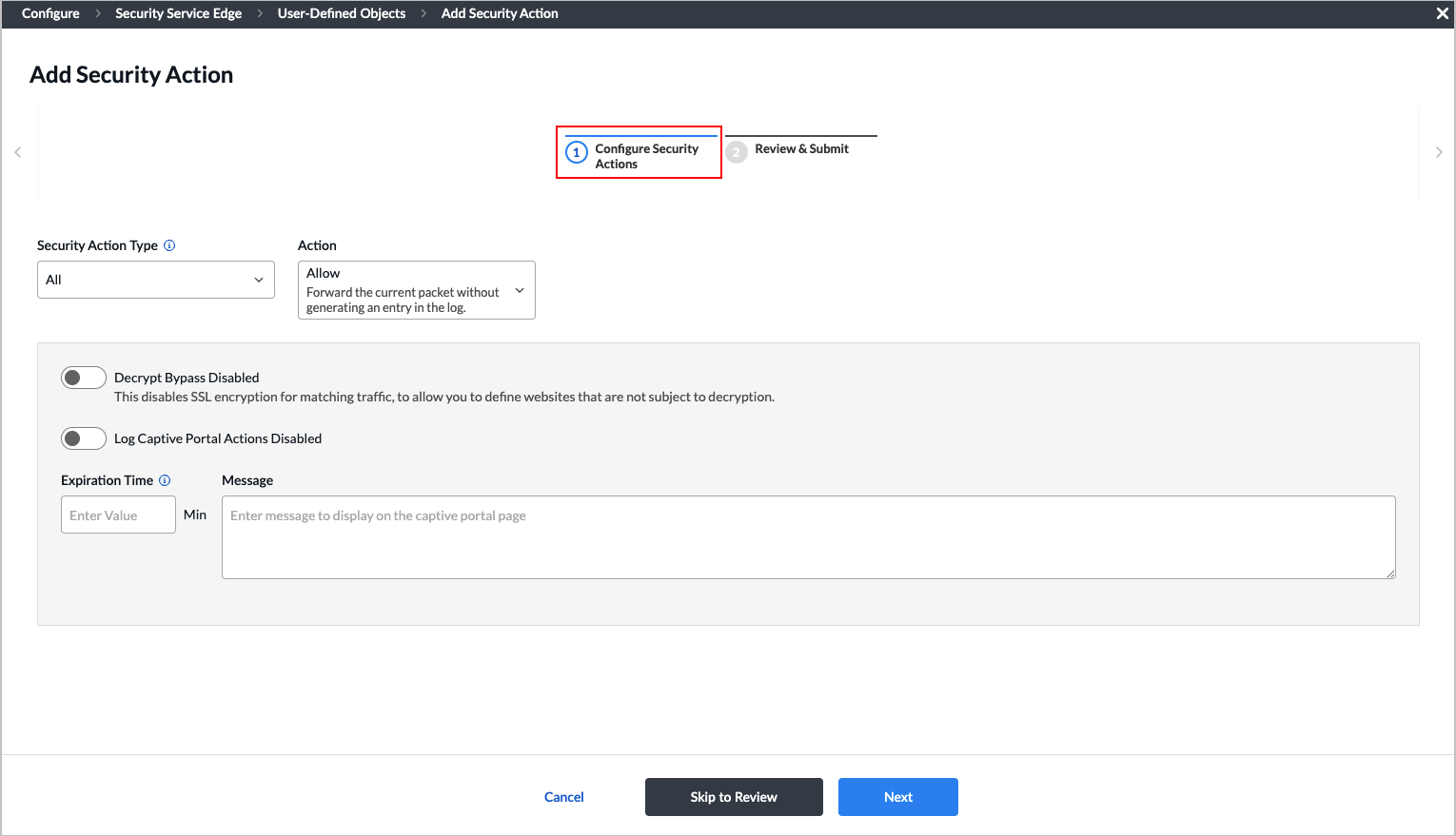
- In step 1, Configure Security Actions, enter information for the following fields.
Field Description Security Action Type Select the type of action to which to apply the action when the page is redirected. The action type options represent the module for which the user-defined action was configured. For example, if you select URLF, the action can be used only in URL-filtering profiles.
- All—Apply to all action types.
- CASB—Apply to cloud access security broker (CASB) profiles.
- Decryption—Apply for decryption.
- DNS—Apply for DNS traffic.
- Intrusion Prevention System (IPS)—Apply for IPS profiles.
- IP Reputation—Apply for IP-filtering profiles.
- URL Filtering (URLF)—Apply for URL-filtering profiles.
Action Select the action to take when the user is redirected to a captive portal. Note that not all actions are available for all action types.
- Allow—Forward the current packet without generating an entry in the log.
- Drop Packet—The browser waits for a response from the server and then drops the packets.
- Drop Session—The browser waits for a response from the server and then drops the session.
- Reset Client—The host responds by sending a TCP Reset packet to the client, and the browser displays an error message indicating that the connection has been reset.
- Reset Server—The host responds by sending a TCP Reset packet to the server. The browser waits for a response from the server and then drops the session.
- Reset Client and Server—The host responds by sending a TCP Reset packet back to the client and server. The browser displays an error message indicating that the connection was reset. It is not possible to determine whether the web server reset the connection or the firewall reset the session.
- Block—Present an alert page to the user and block the user from continuing (in the case of HTTP/HTTPS).
- Inform—The browser presents an information page that prompts the user to continue after clicking OK.
- Ask—The browser presents an information page that allows the user to either cancel the operation by clicking Cancel or continue with the operation by clicking OK.
- Justify—The browser presents an information page that allows the user to either cancel the operation by clicking Cancel or continue with the operation after entering a justification message and clicking OK.
- Override—The browser prompts you to enter an override PIN (4 to 6 digits).
- Custom Redirection—The browser redirects you to the URL that you configure in the Redirection URL field. The URL should be a valid URL with a protocol (such as, https://acme.com). A redirection URL is a URL that is used to redirect your web browser from one URL to another.
- Sinkhole—A DNS sinkhole spoofs DNS servers to prevent the resolution of the hostnames associated with URLs and returns a false IP address to the URL, blocking a DNS sinkhole. This action can help you identify infected hosts in a network if a firewall is unable to find the original source IP address of DNS request sender. Sinkhole malware DNS queries create responses to the client host queries directed at malicious domains and try to connect to a sinkhole IP address instead of connecting to malicious domains. You can check the traffic logs to identify infected hosts. You can apply the sinkhole to all, DNS, IP reputation, and URL-filtering action types. Configure the following sinkhole parameters:
- Domain Name—Enter the domain name in which the LDAP server resides.
- IP Address—Click the Add icon to enter one or more IP addresses.
- TTL—Enter the time-to-live (TTL) value, in seconds. TTL refers to the amount of time the action is valid before it expires.
Range: 1 through 65535 seconds
Default: None
Decrypt Bypass Click the toggle to disable SSL encryption for matching traffic, which allows you to define websites that are not subject to decryption. Log Captive Portal Actions Click the toggle to log captive portal actions. If you do not enable logging, the custom message that you enter in the Message field is not displayed in the log displayed in Versa Analytics. Expiration Time Enter how often to redirect a user to the URL, in minutes. When a user first enters a URL and is redirected to a captive portal page, the Versa Operating SystemTM (VOSTM) device creates a cache entry, which expires after a global expiration time. While the cache entry is active, the device does not enforce the captive portal action, and users can view the webpage at the initial URL and at all URLs that belong to the same URL category, without seeing the captive portal page, with one exception. If the action is Block, all URLs are redirected to the Block page, regardless of the expiration time
Range: 1 through 65535 minutes
Default: 1 minute
Message Enter a message to display on the captive portal page. - Click Next or select step 2, Review & Submit.
- Enter information for the following fields.

Field Description Name (Required) Enter a name for the security action. Description Enter a text description. Tags Enter one or more tags. A tag is an alphanumeric text descriptor with no spaces or special characters that you use for searching tunnels. - Review the configuration. Click the Edit icon to make changes.
- Click Submit to add the new security action.
Configure SASE Services
Security policies can reference service objects, which define match criteria based on protocol name and number, and on source and destination port number. Versa provides default predefined services and object definitions, and also provides periodic updates to the default services and objects.
You can also create custom service objects. One reason to do this might be if a well-known service runs on a non-standard port or if the predefined services are missing the desired port and protocol combination. Another reason might be to limit the number of ports that an application can use. For example, you could limit FTP to use only port 21 instead of ports 20 and 21.
The custom service objects that you define for a tenant can be used only by that tenant, and they are not visible to any other tenants.
To define service objects:
- In Tenant view, select Configure > Security Service Edge > User-Defined Objects > Services.
Note: For Releases 12.1.1 and earlier, User-Defined Objects is located at Configure > Security Service Edge > Settings.

The Services screen displays all services that are already configured. To find a particular service, use the search box.

- Click the Add icon to add a new service. The workflow to add a service displays.
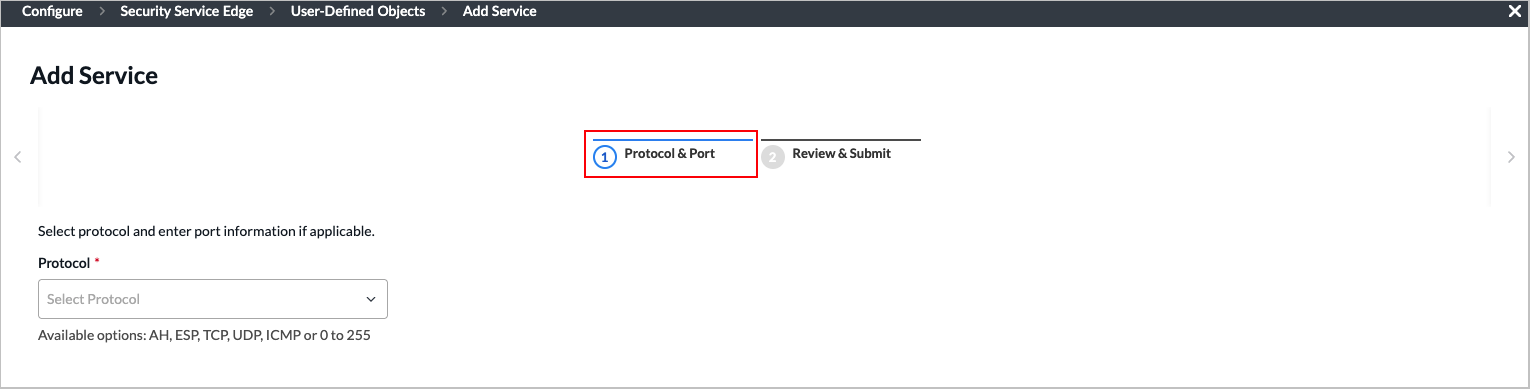
- In step 1, Protocol & Port, enter information for the following fields.
Field Description Protocol Select a protocol. The options are:
- TCP
- UDP
- TCP_OR_UDP
- ICMP
- AH
- ESP
- 0 to 255
Source OR Destination (Required) (For TCP, UDP, or TCP_OR_UDP protocols only.) Enter the source or destination port for the protocol. For multiple entries, use comma-separated single port values or range of port values (using hyphens), for example, 1-100,2-200,3.
Note: If you select Source OR Destination, you cannot also select Source AND Destination.

Source AND Destination (For TCP, UDP, or TCP_OR_UDP protocols only.) Enter the source port and the destination port for the protocol. For multiple entries, use comma-separated single port values or range of port values (using hyphens), for example, 1-100,2-200,3.
Note: If you select Source AND Destination, you cannot also select Source OR Destination.

- Click Next or select step 2, Review & Submit.

- Enter information for the following fields.
Field Description Name (Required) Enter a name for the service. Description Enter a text description. Tags Enter one or more tags. A tag is an alphanumeric text descriptor with no spaces or special characters that you use for searching tunnels. - Review the configuration. Click the Edit icon to make changes.
- Click Submit to add the new service.
Configure Service Groups
You can define custom service groups in addition to the predefined service groups that are provided. Service groups are used when setting up an SASE policy rule.
To configure service groups:
- In Tenant view, select Configure > Security Service Edge > User-Defined Objects > Services Groups.
Note: For Releases 12.1.1 and earlier, User-Defined Objects is located at Configure > Security Service Edge > Settings.

The Service Groups screen displays all service groups that are already configured. To find a particular service, use the search box.

- Click the Add icon to create a new service group.

- Select one or more user defined and pre-defined services to add to the group. To add additional services, click the Add icon. See Configure SASE Services for information about adding a new service.
- Click Next or select step 2, Review & Submit.

- Enter information for the following fields.
Field Description Name (Required) Enter a name for the service group. Description Enter a text description. Tags Enter one or more tags. A tag is an alphanumeric text descriptor with no spaces or special characters that you use for searching tunnels. - Review the configuration. Click the Edit icon to make changes.
- Click Submit to add the new service group.
Configure Custom URL Categories
For Releases 11.4.1 and later.
You can create custom URL category objects on a per-tenant basis. You assign a unique name to each custom URL category, and you use a string or pattern match to define information about the URLs. You also associate a reputation value with the URL category. You can use a custom URL category in NGFW and SD-WAN policy rules to specify match criteria for a Layer 7 URL category. You can also specify custom URL categories in the category-based action rules and reputation-based action rules of a URL-filtering profile.
Do not include "http://" or "https://" in the URL pattern or string. Enter only the domain and path (for example, www.example.com or .*example.*). VOS performs URL matching against the normalized URL, which excludes the protocol prefix.
To configure custom URL categories:
- Go to Configure > Security Service Edge > User-Defined Objects > URL Categories.
Note: For Releases 12.1.1 and earlier, User-Defined Objects is located at Configure > Security Service Edge > Settings.

The URL Categories screen displays the URL categories that are already configured. To find a particular category, use the search box.

- To customize which columns display, click the Column Selector icon, and then select or deselect the columns to display. Click Reset to return to the default columns settings. The options are:
- File Name
- URL Feeds
- Confidence Level
- Last Modified
- Click the Add icon to add a new URL category. The Add URL Category screen displays with Step 1, Settings, selected by default. Enter information for the following fields.
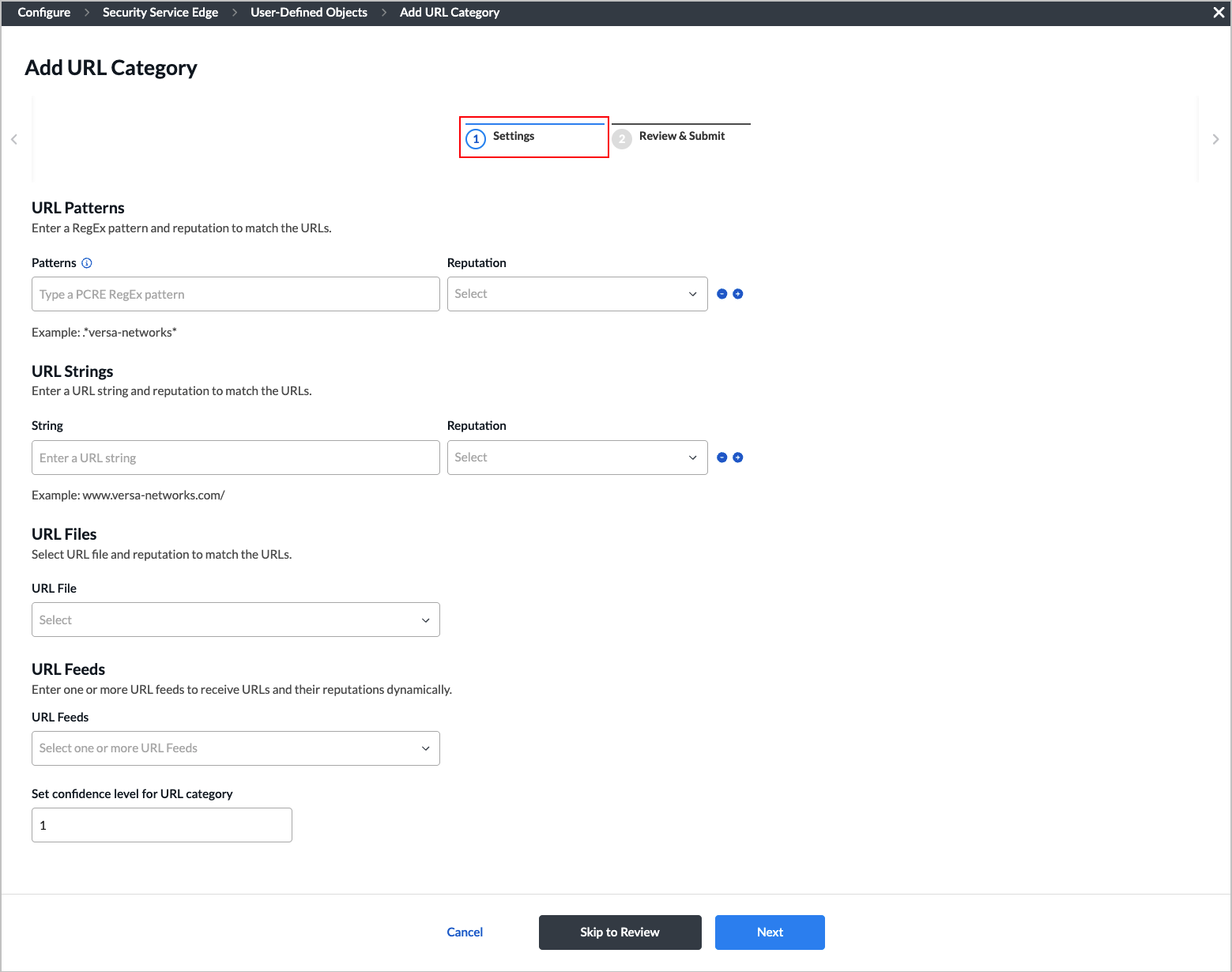
Field Description URL Patterns (Group of Fields) Enter a RegEx pattern and reputation to match the URLs.
- Patterns
Enter a URL pattern to match and group the URLs. Note that the pattern must be a regular expression in PCRE syntax, subject to the limitations of the Hyperscan library. For example, use "^(www\.)?versa-networks\.com\/" to match Versa Networks URLs. If your regex includes special characters such as a backslash (\) or an open curly brace ({), you must escape them by preceding with an extra backslash. - Reputation
Select a predefined reputation, and then assign it to the URL match pattern. The options are:
- Trustworthy
- Low Risk
- Moderate Risk
- Suspicious
- High Risk
- Undefined
URL Strings (Group of Fields) Enter a URL string and reputation to match the URLs. - String
Enter a URL string, such as www.versa-networks.com. - Reputation
Select a predefined reputation, and then assign it to the URL match pattern. The options are:
- Trustworthy
- Low Risk
- Moderate Risk
- Suspicious
- High Risk
- Undefined
URL Files (For Releases 12.1.1 and later.) Select a URL file containing URLs and reputations to match the URLs. Click
 Create New in the drop-drop list to upload a new URL file in .csv format.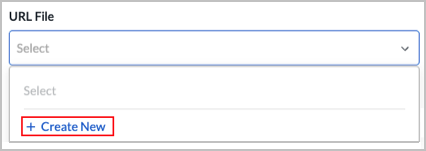
URL Feeds Select one or more URL feeds to receive URLs and their reputations dynamically. - Set confidence level for URL category
Enter a confidence level for the URL categories.
Range: 1 through 100
Default: 1
- Click Next to go to Step 2, Review & Submit.

- Enter a name for the new URL category in the Name field.
- Review the configuration. Click the Edit icon to make changes.
- Click Submit to add the URL category.
Associate Custom Security Actions and Custom URL Categories with Security Profiles
For Releases 11.4.1 and later.
You can associate custom security actions and custom URL categories that you configure with the following security profiles:
- CASB
- Decryption
- DNS filtering
- IP filtering
- IPS
- IPS override
- URL filtering
The following use case describes how to associate a custom security action and a URL category with the URL-filtering profiles. You can use the same method for other security profiles, and to associate the predefined security actions with the security profiles. For more information, see Configure Custom URL-Filtering Profiles.
To associate a security action with a URL-filtering profile:
- Go to Configure > Security Service Edge > Real-Time Protection > Profiles.
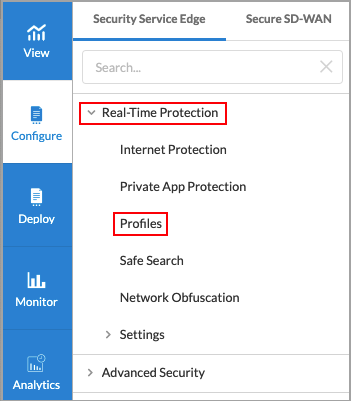
The following screen displays:
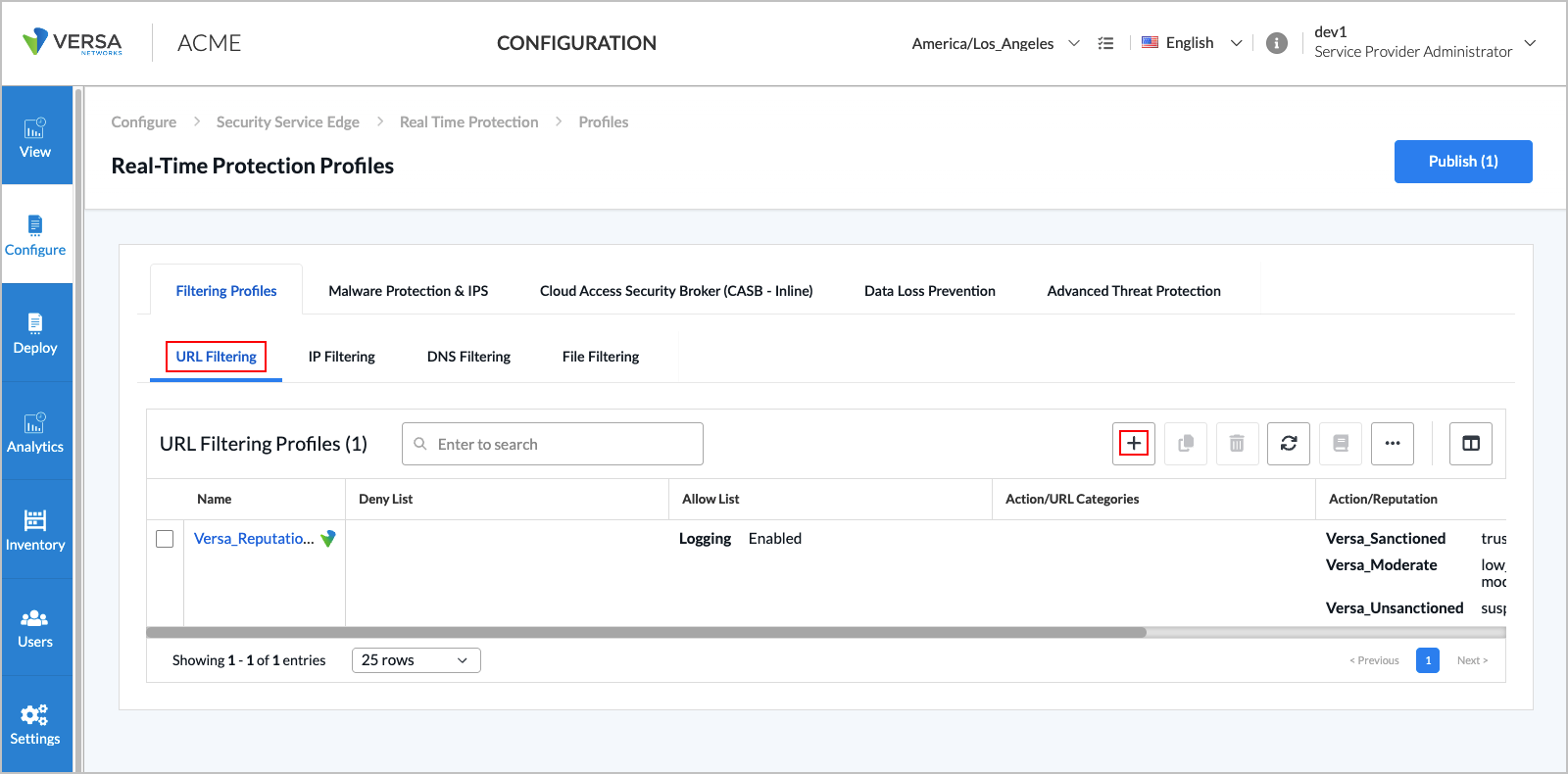
- To customize which columns display, click the Select Columns arrow, and then select or deselect the columns to display. Click Reset to return to the default columns settings. The options are:
- Name
- Deny List
- Allow List
- Action/URL Categories
- Action/Reputation
- Default Action
- Last Modified
- Click the Add icon to create a profile. The Create URL Filtering Profile screen displays.
- In Step 1, Deny and Allow List, enter information for the following fields.

Field Description Deny List (group of Fields) Choose which actions and URLs to deny (blacklist). - Action
Select a custom or predefined action to take. The predefined options are:
- Alert
- Allow
- Ask
- Block
- Drop Packet
- Drop Session
- Justify
- Reject
- Add New
Click the Create New to add a custom security action. For more information, see Step 2 in Configure Custom Security Actions, above.- Patterns
Enter a regular expression pattern, such as example-pattern. Click the Plus icon to add additional patterns. Note that if you include special regex characters, you must precede them with a backslash.- Strings
Enter a comma-separated list of strings, such as example1,example2,example3. Allow List (Group of Fields) Choose which URLs to allow (whitelist). - Patterns
Enter a regular expression pattern, such as example-pattern. Click the  Add icon to add additional patterns. Note that if you include special regex characters, you must precede them with a backslash.
- Strings
Enter a comma-separated list of strings, such as example1,example2,example3. - Logging Disabled
Click to enable logging to Versa Analytics. - Click Next to go to Step 2, Category and Reputations List, to specify an action, URL category, and reputation. If you specify both category and reputation lists, URLs must match both the category and the reputation. For category list, select a custom URL category or click the Plus icon to add another URL category. For more information, see Configure Custom URL Categories, above.

- Click Next to go to Step 3, Action, and then select a default action to enforce if none of the criteria are matched. If you do not specify an action in the category and reputation lists, the default action is taken.

- Click Next to go to the Review and Submit screen.

- Enter a name for the URL filtering profile.
- Review the configuration. Click the Edit icon in any section to make changes as needed.
- Click Submit.
Supported Software Information
Releases 11.1.1 and later support all content described in this article, except:
- Release 11.4.1 adds support for custom security actions and custom URL categories.
- Release 12.1.1 adds support for uploading address group files and URL files.
- Release 12.2.1 adds support for configuring custom operating systems and application tags for user-defined applications, and for configuring application categories; the User Defined > Services screen allows you to choose which services to display (All Services, User Defined, Predefined); the Add Service screen is redesigned and contains additional fields; deprecated predefined applications are not displayed in the Concerto UI screens; and supports three new built-in security actions: GenAI_sanctioned, GenAI_tolerated, and GenAI_unsanctioned.
- Release 12.2.2 adds support for Digital Experience Monitoring (DEM) of client-native applications.