
Configure Email Templates
 For supported software information, click here.
Versa Networks provides email templates at the system level that you can use as-is, or you can customize them for your organizational requirements. You can use the template for sending emails to users for events such as registration codes, user password details, and subscription reports.
To customize a system email template, you copy a template to the organization level and make the required edits. You cannot directly modify system email templates. You can also upload and change images when you modify a template.
Copy a System Email Template
To copy or clone a system-level email template:
- In Director view, select the Administration tab in the top menu bar.
- Select Notification Configuration > Email Template > System in the left menu bar.

- Click on the email template that you want to copy for customization. The email template displays. The screenshot below shows the Registration Code email template.

- Click Clone to copy the template.
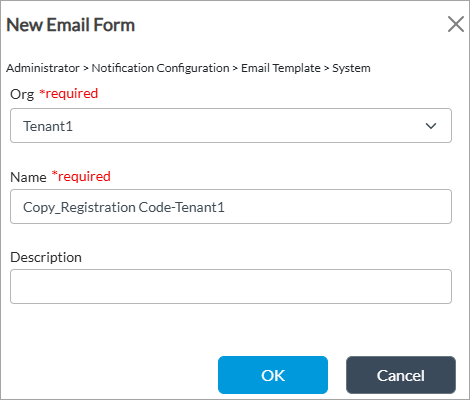
- In the New Email Form popup window, enter the following information:
- Select the organization (here, Tenant1) for which you want to copy the template from the Org field.
- Enter a name for the template. The text Copy_template_name is filled by default and you can edit or replace this name.
- Optionally, enter a description for the template.
- Click OK.
- To send a test email, click Send Test Email on top of the template. The Send Test Email popup window displays. Note that you must configure Simple Mail Transfer Protocol (SMTP) notifications to receive emails. For more information, see Configure SMTP Notifications.

- Enter the email address in the To field and optionally, in the cc field.
- Click OK.
Modify a Copied Email Template
To customize or modify an email template that you copied:
- In Director view, select the Administration tab in the top menu bar.
- Select the organization (here, Tenant1) for which you copied the email template in the Organization field.
- Select Notification Configuration > Email Template > Organization in the left menu bar. The Organization Email Templates screen displays the system email templates that you copied in Copy a System Email Template, above.

- Click the email template you want to modify. The copy of the system email template displays. For example:

- To edit the text in the email template, double click on the text. The following screen displays.

- Enter the text in the field (here, Device Name).
- Enter the required values in the fields under Padding and Margin to change the size of text boxes.
- To change the image on top of the template, click the image, and then click Select Images. The Select Image popup window displays the images you upload from the Image Inventory menu. For more information, see Upload Images for Email Templates, below.
- Select an image, or click Select Image to upload a new file. Note that the image size cannot be more than 2 MB. The images you upload are saved under the Image Inventory menu.
- Click Save.
Upload Images for Email Templates
You can upload images to use in email templates. Note that the image size cannot be more than 2 MB.
To upload images:
- In Director view, select the Administration tab in the top menu bar.
- Select Notification Configuration > Email Template > Image Inventory in the left menu bar. The Organization Email Template Images screen displays uploaded images.

- Click + Add to add a new image. The Upload New Image popup window displays.
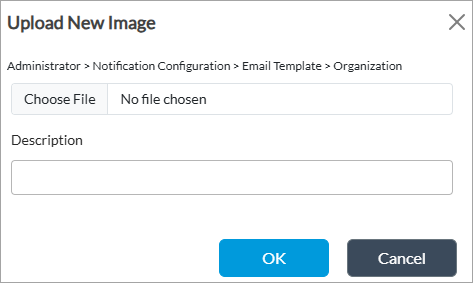
- Click Choose File and upload the required image.
- Click OK.
Supported Software Information
Releases 23.1.1 and later support all content described in this article.