
Concerto Home Screen Overview
 For supported software information, click here.
When you log in to the Concerto orchestrator, the home screen displays. The home screen has a top menu bar, a left navigation bar, and a center pane. This article describes the items on the Concerto home screen.
Concerto Home Screen for Service Provider Administrators
The initial Concerto screen that displays is determined by the role you have been assigned. If you are a Service Provider Administrator, the home screen displays the Tenants lifecycle screen and displays all the service provider's subtenants. The left navigation bar on the Service Provider Administrator home screen contains the following items, which are described below.
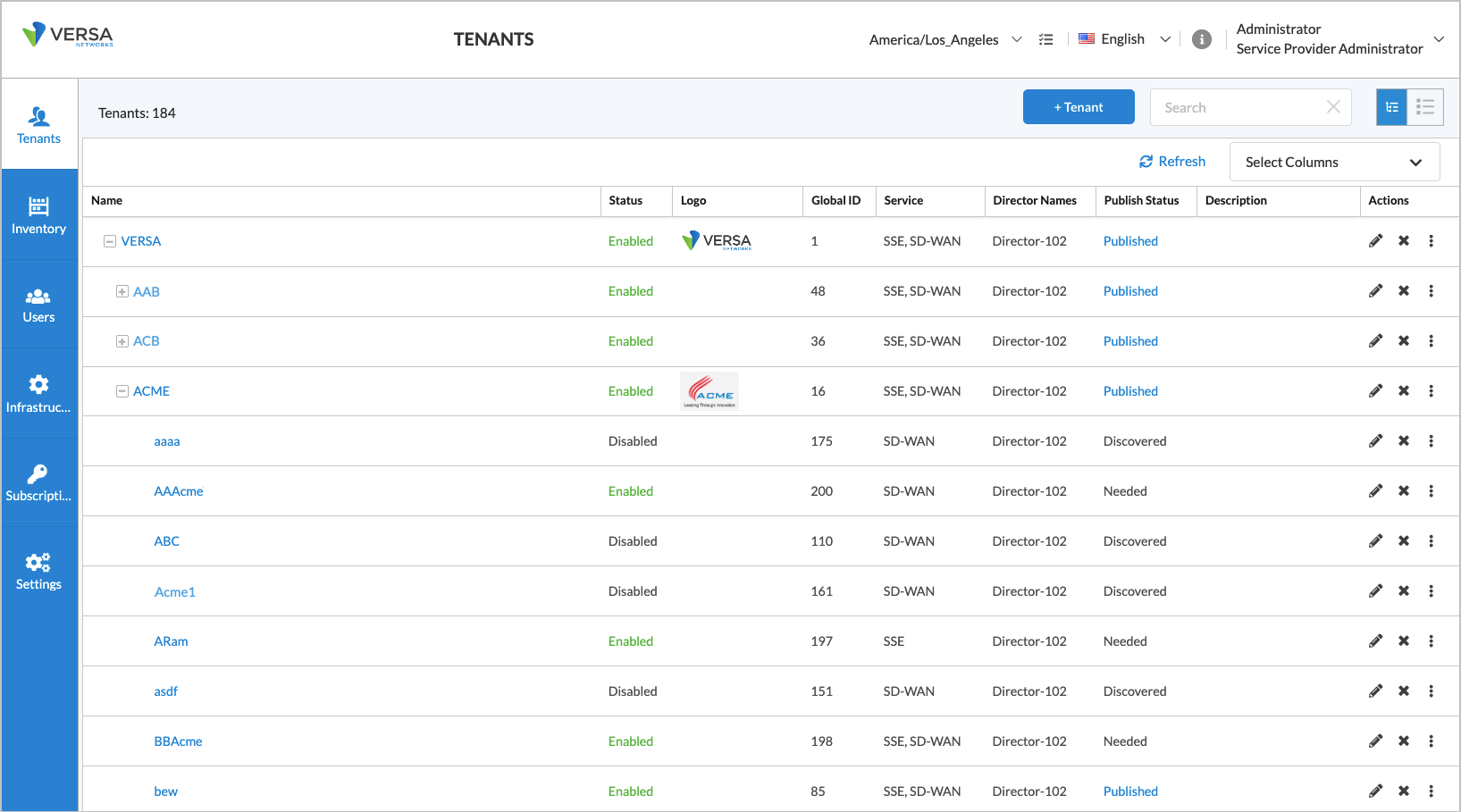
- Tenants—Displays all the subtenants under a the parent service provider tenant. For each subtenant, you can edit the tenant configuration, delete the tenant, or take various actions by clicking the three-dot icon in the Actions column.
For each tenant, the main Tenants pane displays information in the following columns for each tenant and subtenant:
- Name—Name of the tenant.
- Status—Tenant's status, either Enabled or Disabled.
- Logo—Image of the tenant's logo, if one has been uploaded.
- Global ID—Global ID number assigned to the tenant.
- Service—Service or services running on the tenant. The services can be SD-WAN, SSE, or both SD-WAN and SSE.
- Director Names—Name of the Director node or nodes that are associated with the tenant.
- Publish Status—Publish status of the tenant. The possible publish states include Published, Discovered, and Needed. For Releases 12.1.1 and later, the progress of the publish operation displays, and there is no Progress column. For Releases 12.1.1 and later, click Published in the Publish Status column to display the Publish Result popup window, which displays the publication and gateway onboarding status.

- Description—(For Releases 12.2.1 and later.) Description of the tenant. In the Tenants home page, you can search for tenants with a particular description.
- Actions—(For Releases 13.1.1 and later.) Five icons display at the end of the row for each tenant:
- Publish—Publish a tenant. See the Publish a Tenant Configuration to Versa Director section in Configure a Secure SD-WAN Tenant.
- Upload Logo—Upload a logo for a tenant. See the Upload a Logo section in Configure User Account Settings.
- Appliance Discovery—Click to perform the following operations: Publish, Upload Logo, Appliance Discovery, Clean and Delete, and Propagate SD-WAN Configuration. See the Discover VOS Devices for a Published Tenant section in Configure a Secure SD-WAN Tenant.
- Clean and Delete—Clean and delete a published tenant. See the Clean and Delete section in Configure a Secure SD-WAN Tenant.
- Propagate SD-WAN Configuration—Propagate the SD-WAN configuration to another tenant.
To create a new SD-WAN tenant, see Configure a Secure SD-WAN Tenant.
To create a new SASE tenant, see Configure SASE Tenants.
- Inventory—Displays the inventory information for service providers and tenants. The information is organized into four tabs:
- Appliance Inventory—Displays the details of the tenant's appliances and allows you to upgrade the software packages on the appliances and download the Appliance Inventory page in CSV format.
- Software packages
- OS Security—Displays the OS Security (OS SPack) packages on each appliance and allows you to delete the package, download the OS Security package, and edit the OS Security Package configuration.
- Security Package—Displays the Security (SPack) packages on each appliance and allows you to delete or add an SPack, cancel a package download, and edit the OS Security Package configuration.
- Software—Displays the software packages on each appliance and allows you to add or delete a software package.
- SSE Gateways—Displays the tenant gateways and allows you to edit the gateway configurations.
- Scheduled Jobs—Displays all scheduled jobs.
- Users—The Users lifecycle has six submenus relating to all users on the system, as follows:
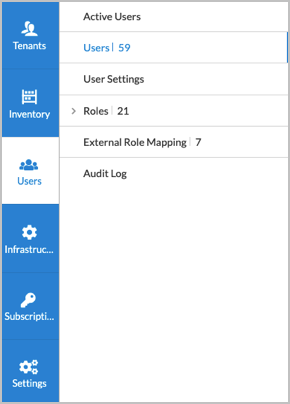
- Active Users—Displays users who are currently logged in.
- Users—(Default view) Displays all users regardless of their login status.
- User Settings—Displays the global user settings and allows you to modify them.
- Roles—Displays how many users are assigned certain roles, such as Service Provider Administrator or Service Provider Operator.
- External Role Mapping—Displays the users that have account on an external server, such as an LDAP, a RADIUS, a TACACS+, or other server.
- Audit Log—Displays log information for all users who access the system.
- Infrastructure—Displays the currently configured Directors and allows you to create and edit the Directors. The Infrastructure lifecycle has seven submenus, as follows:
- Director—Displays the configured Directors, allows you to add or delete a Director, and allows you to discover the tenants associated with the Directors and check the Director connectivity.
- Analytics Aggregator—Allows you to create, edit, and delete an Analytics aggregator cluster.
- Analytics Cluster—Displays the configured Analytics clusters.
- System Health—Displays the cluster status, database status, and service status.
- ATP/DLP Instances—Allows you to create a new ALP/DLP instance or edit any existing instance.
- RBI Instances—Allows you to configure region-specific RBI instances to be used in the advanced security cloud step during tenant creation.
- Clientless Access Instances—Allows you to configure Guacamole-based clientless access instances to provide portal-based access to non-HTTP applications.
- Subscriptions—Displays subscription information for tenants that are using the Secure Service Edge (SSE) service, and includes the following submenus:
- SSE Users Based Subscription—Displays the subscriptions purchased for each tenant along with licensing and compliance information.
- SSE Gateways Capacity Report—Displays the amount of provisioned bandwidth and the number of provisioned users for each tenant and allows you to download the reports in CSV format.
- SSE Gateways Monthly Report—Displays downloadable monthly reports for tenant and gateway provisioned bandwidth and users.
- Settings—The Settings lifecycle has four submenus, as follows:
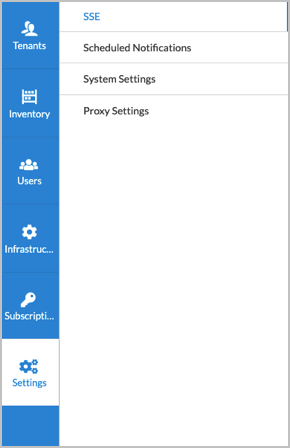
- SSE—Displays the current SSE infrastructure settings and allows you to edit them. The General tab allows you to configure various SSE infrastructure items and the Certificate tab allows you to upload custom certificates and apply them to existing tenants.
- Scheduled Notifications—Allows you to view scheduled notifications and to create new ones.
- System Settings—Allows you to view and configure system settings.
- Proxy Settings—Allows you configure proxy settings for downloading OS SPack, SPack, and SASE client files.
Concerto Home Screen for Enterprise Administrators
If you are an Enterprise Administrator for a tenant, the initial screen that displays is the home screen for your tenant, and the default landing lifecycle displays. The default landing lifecycle is configurable. In Enterprise Administrator view, the menu items in the left navigation bar allow tenant-level configurations. In the example below the Configure lifecycle screen has been set as the default for this user.

For an Enterprise Administrator, the left navigation bar lists the Concerto lifecycles:
- View—Display information about the Secure Access, Security, and Secure SD-WAN dashboards and the Analyzer logs.
- Configure—Configure the features for both Security Service Edge and Secure SD-WAN services.
- Deploy—Create and manage sites and regions and publish them.
- Analytics—Access Analytics information for the tenant.
- Inventory—Display the inventory information for the tenant.
- Users—Display tenant users, view manage roles, map users' external roles, and view the users audit log.
- Settings—
- SD-WAN Overlay—Select an IPsec branch-to-branch transform and a branch-to-branch Diffie-Hellman group.
- SD-WAN Profile—Configure whether and when to delete unused profile versions.
- Subscriptions—For tenants configured with the Security Service Edge (SSE) service, view users-based subscription information.
- Portal Access Control—Create access control rules that define where tenant users can access the Concerto portal from, based on their source IPv4 or IPv6 address. If no rules are configured, the portal will be accessible from all source IP addresses.
- Tenants—Display information on any subtenants of the main tenant.
Top Menu Bar
The top menu bar is present on all Concerto screens and displays the following:
- Tenant logo (if configured)
- Name of the currently selected lifecycle
- Geographic location
- Tasks icon

- Language list
- System information icon

- User account settings

Location
To choose a tenant location, use the Location drop-down list.

Tasks
To display a list of tasks in progress, click the Tasks icon. To display details about a task, click the  Arrow icon. Click the slider bar to enable automatic screen refresh every fifteen seconds.

Language List
To choose a language for the Concerto user interface, click the language list and then select a language:

System Information
To display system information, click the system information icon.
The following popup window displays.

User Account Settings
To display the user account menu, click the  Down Arrow icon next to the username.
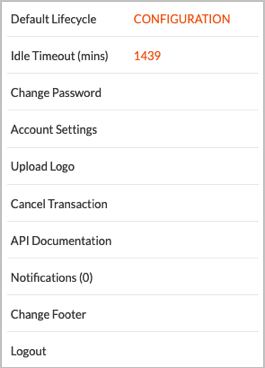
The user account menu contains the following items.
| Field | Description |
|---|---|
| Default Lifecycle | Default lifecycle screen that displays when you first access a tenant site. |
| Idle Timeout | How long, in minutes, a user session can remain idle before the user is logged out. |
| Change Password |
Click to change your password. |
| Account Settings | Click to edit your user account settings. |
| Upload Logo |
Click to upload a logo image file. |
| Cancel Transaction | Select to cancel all configuration changes initiated by users. This menu item is visible to root users only. |
| API Documentation | (For Releases 11.3.1 and later.) Click to view the Concerto online API documentation. |
| Notifications | Click to view Notifications and to mark them as read. |
| Change Footer | Click to change the text in the page footer. |
| Log Out | Log out of Concerto orchestrator. |
For information about configuring the user account settings, see Configure User Account Settings.
Inventory Screen
The Inventory screen at the tenant level displays the information associated with each tenant. In Releases 10.2.1 and later, the Inventory screen displays inventory information for service providers and tenants. You can can view the software, security package (SPack), and OS SPack version on each VOS device, and you can upgrade the software packages from Concerto portal. For Releases 11.3.2 and later, you can download a CSV file containing a tenant's inventory information, and you can view alarms and alarm details for devices.

For more information, see Concerto Inventory Lifecycle.
Users Screen
The Users screen display service-provider users and their roles. Two roles are available: Service Provider Operator and Service Provider Administrator.
For Releases 10.2.1 and later, the Users screen contains the Active column to show which users are currently active.
If a user has an account on an external server, such as a TACACS+, RADIUS, LDAP, or other server, the External User column displays Yes in the row for that user.

Versa uses technology-driven insights to continuously enhance your experience with the console. This includes tracking session length, feature utilization, task success rate, time on task, and load times. We also use analytics and heatmaps to understand how users interact with the interface and where engagement drops off.
Settings Screen

If you are a service provider that offers hosted, on-premises SASE services to your customers, you can use the SASE settings screen to use the following menu items:
- SD-WAN Overlay—
- IPsec—Select an IPsec branch-to-branch transform. By default, Concerto uses predefined IPsec branch-to-branch transforms and branch-to-branch Diffie-Hellman (DH) groups to program a tenant's appliances. If you want to use different algorithms, you can select a different branch-to-branch transform and branch-to-branch DH group to program a tenant's appliances. For more information, see Configure the IPsec Transform and DH Group for Branch-to-Branch Deployments.
- Tunnel CoS—Select a rewrite rule and interface scheduler for CoS tunnels for overlay traffic. See Configure CoS.
- SD-WAN Profile—Enable the deleting of unused profile versions and configure the age limit for unused profile versions.
- Subscriptions—Display information for user-based SSE subscriptions. See Configure SASE Tenants.
- Portal Access Control—Creating access control rules that define where tenant users can access the Concerto portal from, based on their source IPv4 or IPv6 address. If no rules are configured, the portal will be accessible from all source IP addresses. See Configure Portal Access Control Rules for Tenants.
Supported Software Information
Releases 10.1.1 and later support all content described in this article, except:
- Release 10.2.1 adds the Active column in the Users screen; supports the ability to unlock users from Concerto, change passwords, reset forgotten passwords, force user logout, discover appliances created in Versa Director; supports two-factor authentication.
- Release 11.1.1 adds the Settings lifecycle.
- Release 11.3.1 adds the View lifecycle.
- Release 11.3.2 allows you to download a CSV file of a tenant's inventory from the Inventory lifecycle screen; support the Subscription lifecycle (for Security Services Edge (SSE) subscriptions only) and the Enterprise field in the user account menu; allows service provider administrators to view subscription information for tenants that are using the Secure Service Edge (SSE) service using the Settings lifecycle.
- Release 11.4.1 allows you to configure scheduled notifications.
- Release 12.1.1 allows you to configure a tunnel CoS rewrite rule for overlay traffic; Tenants screen displays publishing status and progress in the Publish Status column.
- Release 12.2.1 adds the Description column for tenant listing in the Tenant's home page.