
Configure Proxy Settings for Concerto
 For supported software information, click here.
You can configure HTTP or HTTPS proxy settings for downloading security packages (SPacks), operating system security packages (OS SPacks), and SASE client files in Concerto.
To configure proxy settings for HTTP or HTTPS:
- Go to Settings > Proxy Settings.

The Proxy Settings for Downloading OSSPack, SPack and SASE Client Files screen displays. Enter information for the following fields.
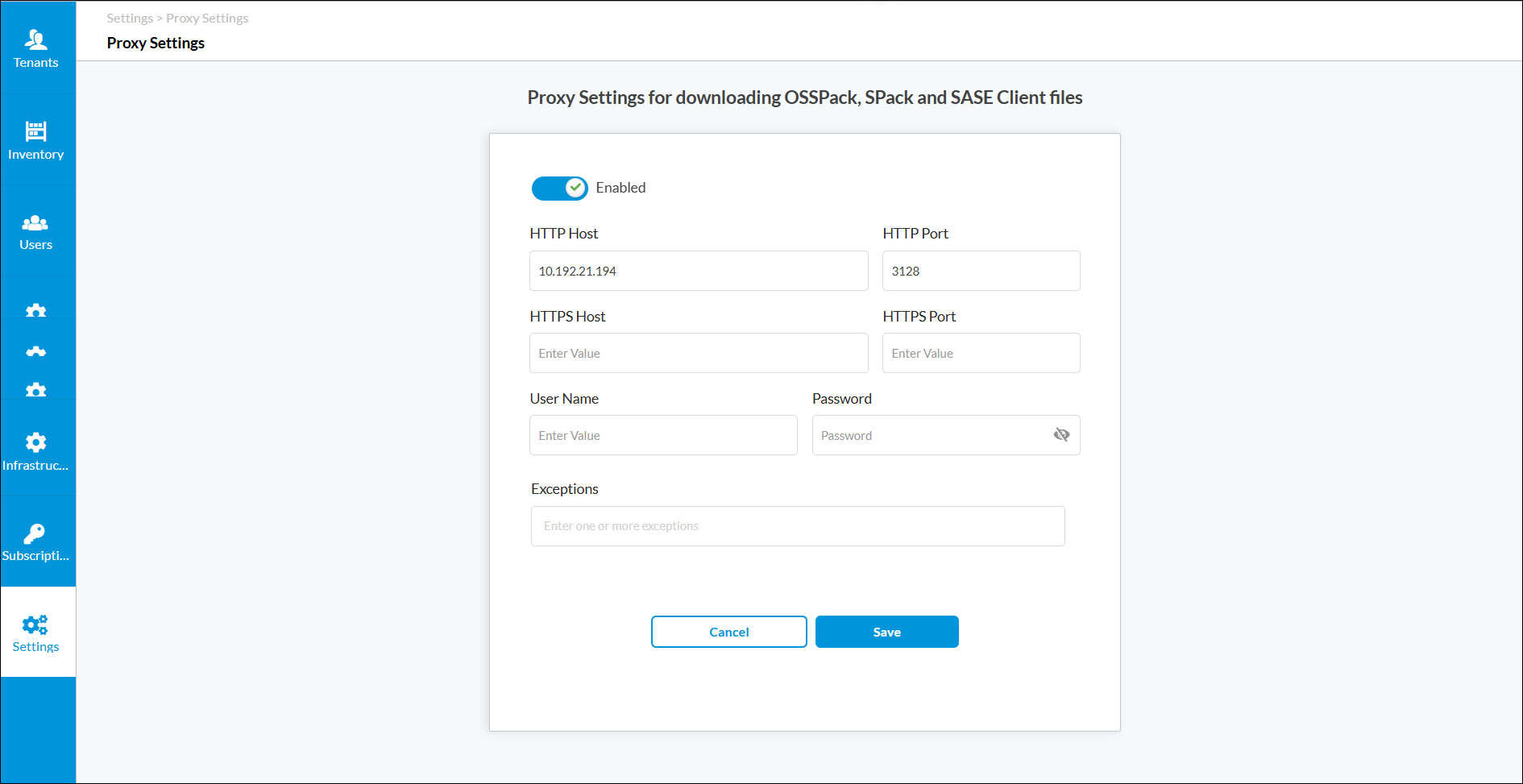
Field Description Enabled Click the toggle to enable or disable proxy settings. HTTP Host Enter the HTTP hostname or IP address of the proxy. HTTP Port Enter the HTTP port number of the proxy.
Range: 1 through 65535
HTTPS Host Enter the HTTPS hostname or IP address of the proxy. HTTPS Port Enter the HTTPS port number of the proxy.
Range: 1 through 65535
Username Enter the login name to access the proxy. Password Enter the password to access the proxy. Exceptions Enter one or more hostname or IP address of exceptions for the proxy. If any hostname or IP address is configured as an exception, the request bypasses the proxy and goes directly through the internet, even if the proxy is enabled.
- Click Save.
Supported Software Information
Releases 12.2.2 and later support all content described in this article.