
Step-By-Step Configuration Authentication Profiles
 For supported software information, click here.
Authentication serves as a mechanism for verifying users’ identities to ensure that only authorized individuals gain access to applications. You can configure multiple methods to authenticate end users, including the use of a local database, a Lightweight Directory Access Protocol (LDAP) server, Security Assertion Markup Language (SAML), and Kerberos. You can also configure either user-based or group-based policies to permit or deny access.
This article describes how to configure the following authentication methods:
- LDAP
- SAML with Okta
- SAML with Entra
- Versa Directory
- Second-factor authentication:
- Device certificates
- User certificates
Before You Begin
In order to perform the procedures below:
- Your provider administrator must complete your tenant configuration.
- You must have Enterprise Administrator credentials for the Versa SASE portal, also called the Concerto User Interface. For credential information, contact your managed service provider or account manager.
Authentication Profile
Configure LDAP Active Directory
LDAP is a client-server protocol that enables network devices to access directory services storing attribute-based information, allowing for user authentication through querying a directory server. The SSE gateway queries the LDAP server to validate the user, granting or denying access based on the authentication result. Users can be validated individually or within groups. To configure LDAP authentication, you specify server details, SSL settings, and profiles.
In most enterprise environments, user authentication is centralized through active directory (AD) or LDAP servers in the data center. In cases of Versa Secure Private Access (VSPA) or Versa Secure Internet Access (VSIA), users securely connect to the secure service edge (SSE) gateways using the Versa SASE client from remote locations, branches, or corporate offices. Authentication requests from the SASE client are directed to the Versa Secure Access Gateway, which communicates with LDAP over IPsec tunnels to validate credentials and retrieve group or role attributes for policy enforcement.
Upon successful authentication, users are granted secure access to resources hosted within data centers and to SaaS/cloud applications such as Microsoft Teams, Skype, and Office 365. This configuration ensures consistent, identity-based access for both remote and on-premises users, facilitating streamlined policy enforcement based on identity.

Configure an LDAP Authentication Profile
To configure an LDAP authentication profile in Concerto and then publish the profile to gateways:
- In Tenant view, go to Configure > Security Service Edge > User and Device Authentication > Profiles.

- Click +Add. The following screen displays.

- Select LDAP and then click Get Started. The Add LDAP Authentication Profile workflow displays.

- In step 1, Settings, enter information for the following fields.
Field
Description Server Type Select Active Directory. FQDN or IP Address Select either FQDN or IP Address, and then enter the fully qualified domain name (FQDN) or IP address of the AD server. For example, enter adserver.company.local for the FQDN or 10.163.106.33 for the IP address.
VPN Name Enter the VPN instance or network segment this authentication profile applies to. For example, ACME-ONE-Enterprise. Port Enter the port number to use for communication with the AD server. For example, port 389 which is the default LDAP port, or port 636 which is the default LDAP over SSL (LDAPS) port. Enable/Disable SSL Click the toggle to enable or disable SSL/TLS for the connection between Versa and the AD server. If enabled, you must also select the SSL mode and CA certificate in the next two fields.
Default: Disabled.
- Scroll down to enter information for additional fields.

Field
Description SSL Mode If SSL is enabled, select the encryption method: LDAPS or STARTTLS.
CA Certificate Select the CA certificate. Bind DN Enter the bind distinguished name (DN). The bind DN is the service account Versa uses to connect to and query the AD directory. The bind DN allows Versa to authenticate itself to the AD server, enabling it to search for users and groups. For information about looking up the bind DN, see Find Base and Bind DNs in Active Directory.
Example: cn=Administrator,cn=users,dc=versa,dc=com
Bind Password The password for the bind DN account. Base DN Enter the base DN. This is the starting point in the LDAP directory tree from which searches begin. It defines the organizational scope of the LDAP search.
Example: cn=users,dc=versa,dc=com
Domain Name The name of the AD domain.
Example: versa.com
Search Timeout (sec) The maximum time, in seconds, Versa waits for a response from the LDAP server during a query.
Default: 30
Cache Expiry Time (mins) How long, in minutes, user or group information retrieved from LDAP is cached before refreshing.
Default: 10
Concurrent Logins The maximum number of concurrent sessions allowed for the same user.
Default: 3
- Click Next or select step 2, User and Group Profiles.

- Enter information for the following fields.
Field Description Group Object Class Enter group. This is the standard AD object class for security and distribution groups and is required in order to identify groups in the directory.
Group Name Enter name. This is the attribute that defines the display name of a group and is used to match groups during policy evaluation. Group Member Enter memberof. This is the attribute that lists group memberships for a user object and is used to apply policies based on AD group membership. User Object Class Enter user. This is the standard AD object class for user account and is required for identifying users in the directory. User Name Enter the attribute used for login. Note that userPrincipalName (for example, user@versanetworks.com) is preferred, but sAMAccountName is supported. Refresh Interval (sec) The interval at which Versa refreshes user and group information from LDAP, in seconds. This value can be tuned based on the frequency of directory changes.
Default: 21600 (6 hours)
Password Last Set Enter pwdLastSet. This attribute records the date and time a user’s password was last changed, and is useful for enforcing password expiration policies. Password Max Age Enter maxPwdAge. This attribute defines the maximum password lifetime and is derived from the AD domain password policy. - Click Next to go to step 3, Review and Submit.
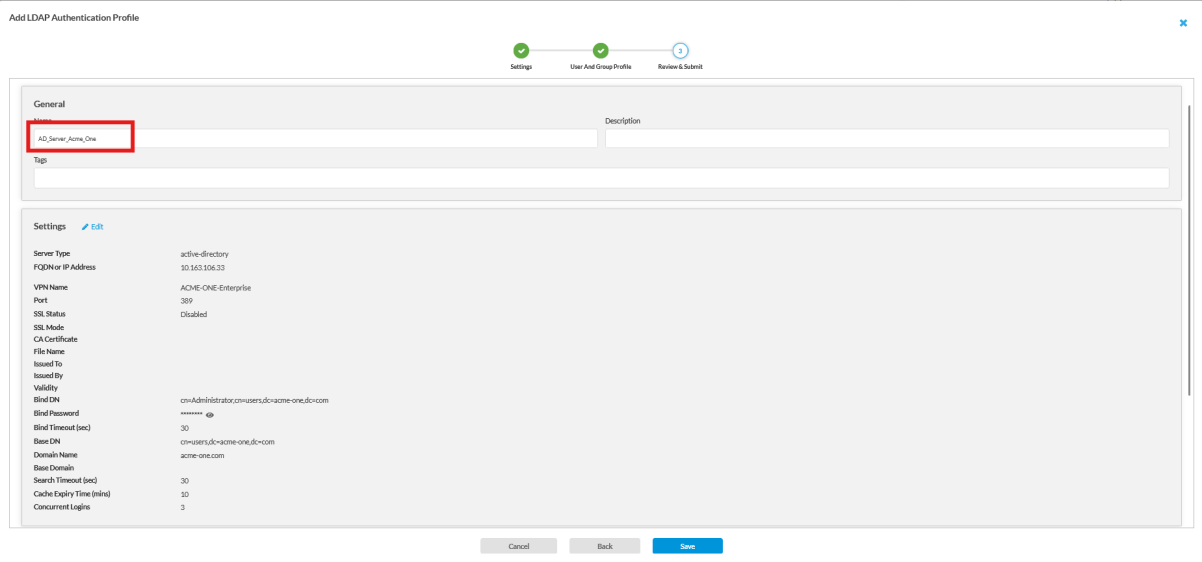
- Enter a name for the profile and review all parameters to ensure they are correctly configured.
- Click Save to save the profile to Concerto.
- Click Publish to publish the profile to gateways. You must publish the profile for it to take effect.

Verify the LDAP Configuration
To verify that LDAP authentication is working, create a secure-access test rule and then check whether the user or group list is populated.
To verify the LDAP configuration in Concerto:
- In Tenant view, select Configure > Security Service Edge > Secure Access > Client-Based Access > Rules. The Client-Based Access Rules table displays.
- Click + Add to create a new Secure Access client rule, or edit an existing rule. The workflow for the client-based access rule displays.

- Go to step 2, Users & Groups.
- Click Customize. The following screen displays.

- Click Selected Users in the User Type field.
- In the Enable Rule field, select your authentication profile from the drop-down list. This allows the policy to enforce access control based on AD group membership.
- To add specific users or groups, select the User Groups or Users tab, and then add or select user groups and users for which to enforce security policies.

- Click Skip to Review.
- After reviewing all configuration sections, click Save to apply the settings to the current secure access profile. The screen returns to the Client-Based Access Rules table.
- Click Publish to publish the updated profile to gateways.
Configure SAML With Okta
Security Assertion Markup Language (SAML) is an open standard for secure authentication and authorization between an identity provider (IdP) and service providers. It allows users to authenticate once with the IdP and then seamlessly access multiple applications without re-entering credentials. SAML uses XML-based assertions to securely pass identity and authorization data between parties, enabling web-based single sign-on (SSO) to services like Salesforce, Office 365, or Slack. In this workflow, platforms like Okta act as the IdP, verifying the user's identity and issuing a SAML assertion (secure token) to the service provider, which grants access based on the trusted authentication without additional logins. Okta's SAML implementation is widely used for integrating third-party applications and simplifying enterprise authentication.
Within the enterprise, Okta functions as the centralized IdP responsible for managing user identities and is integrated with Versa SASE. When a user initiates a connection, the Versa SSE Gateway redirects the login request to Okta, which performs identity validation and returns a SAML assertion. Access is then granted based on the user or group.
To configure the Okta portal you do the following:
- Configure SAML integration in Okta.
- Add users to the application.
Configure SAML Application Integration
- Log in to your Okta admin console.
- Go to Applications > Applications, and then click Create App Integration.

- In the Create a new app integration window, click SAML 2.0, and then click Next.

- In the General Settings section, select App Name, and then enter an application name.
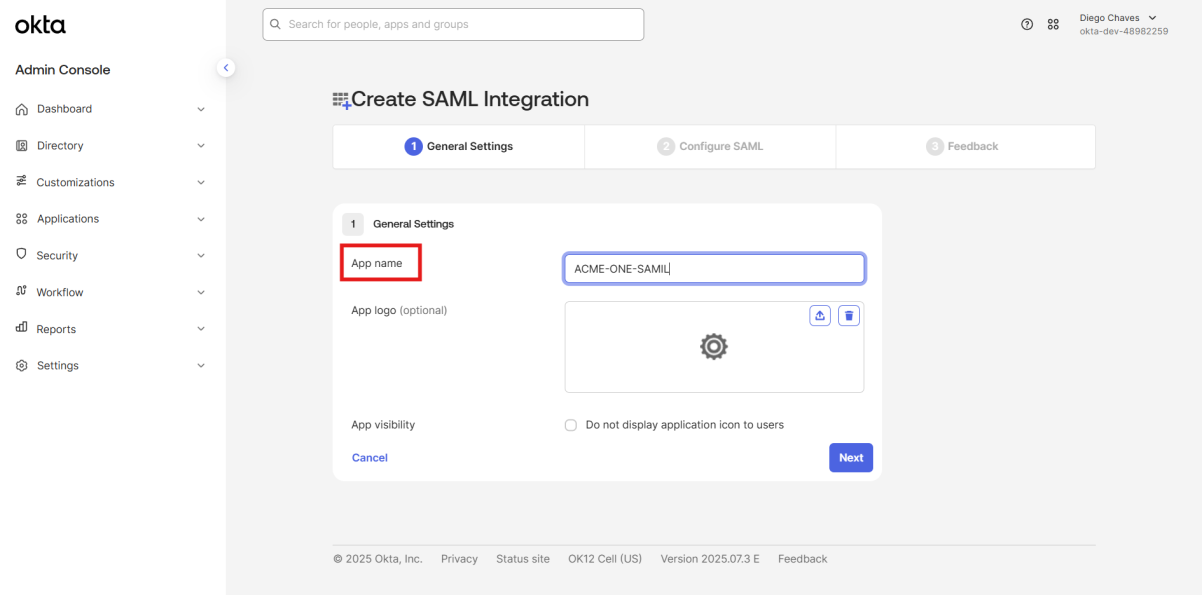
- Click Next. The following screen displays.

- Enter information for the following fields.
Field Description Single Sign-On URL Enter the URL where Okta sends SAML responses in the following format:
For example:
https://<sase-gateway-fqdn>/versa-flexvnf/saml/login-consumer
https://acme-one-sasegwdiegos-lab.versanow.net/versa-flexvnf/saml/login-consumerAudience URI (SP Entity ID) Enter the Service Provider (SP) entity ID in the following format:
https://<sase-gateway-fqdn>/metadataFor example:
Default Relay State Enter the state used for IdP-initiated SSO in the following format:
- System user: vd-ui::system
- Tenant user: vd-ui::<organization-name>
Attribute Statements Enter attributes such as role, organization, and idle timeout. This field is case sensitive. Group Attribute Statements (optional) Enables Versa to import user-to-group mappings from the Okta configuration.
- Name—For example, https://schemas.microsoft.com/ws/2008/06/identity/claims/group
- Name Format—For example, unspecified.
- Filter—Select a filter and then enter the regular expression.
.*This group of statements ensures all groups a user belongs to are included in the SAML assertion, enabling group-based policies such as Internet Protection and Private App Protection,
Preview the SAML Assertion Click to preview the assertion, as displayed in the following screen shot. Use this to copy the metadata and save it as an XML file for the Versa configuration.

- Click Next.
- In the Help Okta Support Understand How you Configured this Application section, you can optionally provide information for Okta Support.
- Under App type, check. This is an internal app that is recommended for internal SSO integrations like Versa.
- Click Finish to complete the SAML integration setup.
- Retrieve the SAML integration details. Okta displays the SAML configuration details required to set up the SAML profile in Versa Concerto.

- Copy the Sign on URL and the Issuer value.
- Download the Signing Certificate file. Note that the certificate file has a .cert file extension. You must rename the file to have file extension .crt before use.
Add Users to the Application
- In Okta, go to Directory > Groups, then click Add group.

- In the Name field, enter a group name.
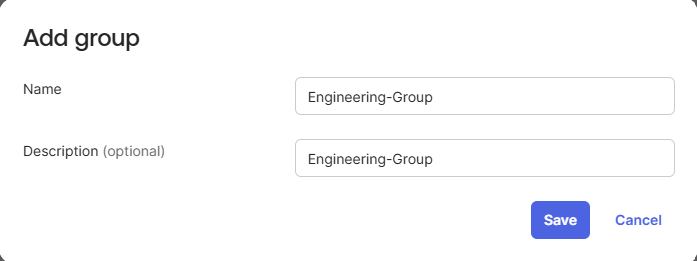
- Refresh the page and click the newly created group.
- Select the Applications tab, and then click Assign applications.

- Select the SAML application you previously created.

- To create users, go to Directory > People.

- Click Add Person. The following screen displays.
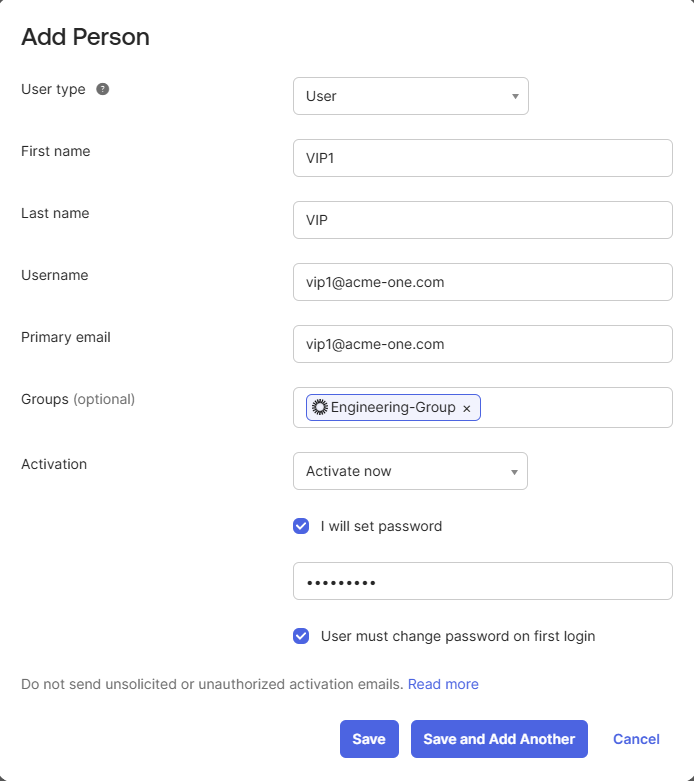
- Enter information for the following fields.
Field Description User Type Select User. First Name Enter a first name. Last Name Enter a last name. User Name Enter a user name. Primary Email Enter an email address. Groups Select the group you previously created. Activation Select Activate Now, and then click one of the following fields:
- I Will Set Password—Click to set the password immediately, and then enter a password.
- User Must Change Password on First Login—Click to force the user to change password on first login.
- Click Save.
- Enter information for the following fields.
Configure an Okta Authentication Profile
To configure an Okta authentication profile in Concerto and then publish the profile to gateways:
- In Tenant view, select Configure > Security Service Edge > User and Device Authentication > Profiles.

- Click +Add. The following screen displays.

- Select SAML, and then click Get Started. The Add SAML Authentication Profile workflow displays.

- In the SAML Type field, select the OKTA icon.
- Enter information for the following fields. The values you enter here should match the information you entered in the Okta admin console (see Configure SAML Application Integration, above).
Field Description Single Sign-on URL Enter the URL of the IdP to use for single sign-on.
Service Provider Entity ID Enter the entity ID of the service provider. For example, https://acme-one-sasegwdiegos-lab.versanow.net/metadata.
Identity Provider Entity ID Enter the entity ID that uniquely identifies the SAML IdP. For example, http://www.okta.com/exkXXXXXXXXXXXXXXXXX.
To add a new service provider certificate, see the next step in this procedure.
Prefix ID Enter OKTA. - (Optional) To upload an identity provider certificate:
- Click + Add New to the right of the Identity Provider Certificate field. Rename the downloaded certificate file from .cert to .crt before using it in Concerto.

The following window displays.

- Enter a CA-chain name in the CA-Chain Name field.
- Click Upload File. The certificate uploads and its name is displayed on the screen.
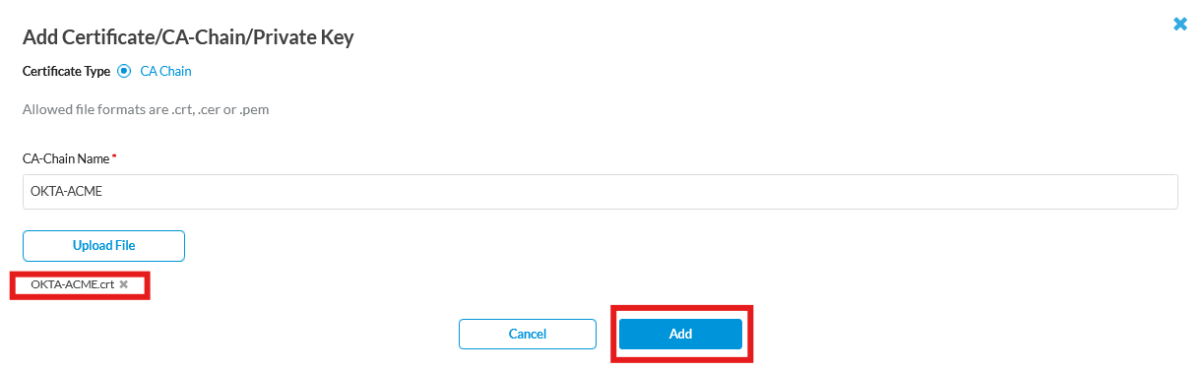
- Click Add. The screen returns to the Add SAML Authentication Profile workflow.
- Click + Add New to the right of the Identity Provider Certificate field. Rename the downloaded certificate file from .cert to .crt before using it in Concerto.
- Click Next to go to step 2, Users and User Groups. You can associate either an individual user list or a complete group list with the SAML authentication profile. The advantage of this approach is that a group or user list can be adjusted and applied within the authentication profile, allowing you to enforce a specific secure access rule for those users.
- Select either the User or Group tab, enter information into the window, and then click +Add.

- Click Next to go to workflow step 3, Review and Submit.
- Enter a name and description for the profile.
- Review all configuration details.

- Click Save to create the SAML authentication profile. The screen returns to the User and Device Authentication Profile table.
- To publish the authentication profile, click Publish. Note: After creating and publishing the authentication profile, you must apply it to a Secure Access client policy to enforce authentication and apply the corresponding security policies.
Verify SAML
When a user connects to the gateway and SAML is enabled, the gateway redirects the login to the configured IdP, such as Okta or Entra ID. After the user enters their credentials, the IdP returns a signed SAML assertion to the gateway. The gateway validates the signature and audience, extracts the NameID and any mapped attributes, such as email and roles. If successful, it establishes the session and applies the matching secure access policy.
You can verify authentication events in Concerto under View > Dashboard > Secure Access > Users > Events, where successful and failed attempts are logged with details such as username, tunnel IP, and applied profile.

The method used and the authenticated user also appear in the authentication logs under View > Dashboard > Secure Access > Logs > Authentication > Events.

Administrators can also confirm active sessions and mapped users from the CLI on the SASE gateway by entering the following commands:
gateway$ cli
gateway> configure
gateway% show orgs org-services <ORG-NAME> user-identification live-users list brief
For example:

Configure SAML With Entra ID
Microsoft Entra ID is a cloud-based identity and access management service that provides SSO to Microsoft 365, SaaS applications, and on-premises resources using standards like SAML, OAuth, and OpenID Connect.
The same scenario described for Okta also applies when using Entra ID as the IdP. Because it is a cloud-based IdP, Entra ID can integrate with Versa SASE using SAML, validating user identities and issuing assertions that grant access to both cloud services and enterprise applications under consistent policy enforcement.
To configure Entra ID you do the following:
- Create a new enterprise application in the Entra ID portal.
- Assign users or groups to the application in the Entra ID portal.
- Configure an Entra ID profile in Concerto.
Create the Enterprise Application
- Log in to your Entra ID/Azure portal and go to Enterprise Applications > New Application.

- To create a new application:
- Click + Create your own application.

- In the What's the Name of your App field, enter the application name (here, ACME-ONE-SAML).
- Select Integrate any other application you don't find in the gallery (Non-gallery).
- Click Create.
- Click + Create your own application.
- Open the newly created application.

- Select Single sign-on, and then click SAML.

- Enter information for the following fields.
Field Description Identifier (Entity ID) Enter the service provider entity ID in the following format:
https://<sase-gateway-fqdn>/metadata.
For example: https://acme-one-sasegwdiegos-lab.versanow.net/metadataReply URL (Assertion Consumer Service URL) and Sign on URL (optional) Enter the URL to which Okta sends OAuth responses in the following format:
https://<sase-gateway-fqdn>/versa-flexvnf/saml/login-consumer
For example: https://acme-one-sasegwdiegos-lab.versanow.net/versa-flexvnf/saml/login-consumerAttribute Statements Enter the role, organization, and idle timeout attributes. The attribute strings are case-sensitive. Group Attribute Statements (Optional) Configure a group attribute statement as follows: - Name: https://schemas.microsoft.com/ws/2008/06/identity/claims/groups
- Name format: Unspecified
- Filter: Select Regex (or equivalent) and enter .*
This allows Versa to receive all user-to-group mappings from Okta and ensures that all groups a user belongs to are included in the SAML assertion. Versa uses this information to apply group-based mappings for Internet Protection rules, Private App Protection, and other user-based policies.
Preview the SAML Assertion Click to preview the SAML assertion. Use this to copy the metadata and save it as an XML file.
For example:
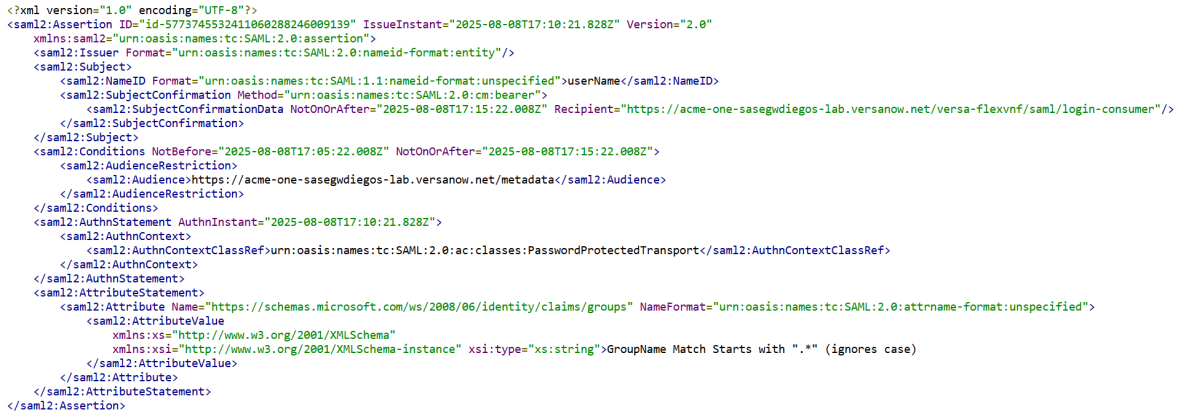
- Click Save.
- Go to Home > Enterprise Applications > <application-name> > SAML-based Sign-on > Attributes & Claims.

- Click +Add New Claim.
- Enter the following values, as shown below:
- Name—givenname
- Source Attribute—user.givenname

- Click Save.
- Click +Add New Claim.
- Enter the following values, as shown below:
- Name—organization
- Source Attribute—Enter the organization name (here, ACME-ONE)

- Click Save.
- Click +Add New Claim.
- Enter the following values, as shown below:
- Name—role
- Source Attribute—user.assignedroles

- Click Save.

- Click + Add a Group Claim. The following screen displays. Note that group claims refer to the Group Attribute Statements field from the previous section.

- Select All Groups, and then select Group ID from the Source Attribute drop-down list.
- Click Advanced options to display additional fields.
groups.
- Click the checkbox for Customize the Name of the Group Claim.
- In the Name field, enter the following value: groups.
- Click the checkbox for Apply Regex Replace to Groups Claim Content.

- Enter the following values, as shown above:
- Regex Pattern— .*
- Regex Replacement Pattern— $0
- Click Save.
- To display SAML integration details. select Home > App Registrations > Enterprise Applications > <application-name>. Entra ID displays the SAML configuration details required to set up the SAML profile in Versa Concerto. Copy the Login URL, Microsoft Entra Identifier, and Logout URL, and download the Signing Certificate file.

Create Groups and Users
- In the Microsoft Entra Admin Center, select Groups in the left menu bar, and then click New Group.

The New Group screen displays.

- In the Group Name field, enter the group name (here, VIP_Group).
- Click Create.
- Refresh the page, and then click the newly created group (here, VIP_Group).
- To create users, go to Users in the Microsoft Entra admin center, and then click New User.

- Select the Basics tab, and then enter the User Principal Name and Display Name, as shown above.
- Select the Properties tab, and then enter the first name, last name, and user type, as shown below.

- Select the Assignments tab.

- Click + Add

- Select the previously created group (here, VIP_Group) or any other relevant group. This ensures the user inherits group-based claims when authenticating using SAML.
- Click the Select icon.

- Click + Add Role. The Directory Roles popup window displays.
- From the Directory Roles table, select security-related roles as required. For example:
- Security Reader—Allows read access to security reports
- Security Administrator—Manages security configuration
Note: Roles are optional for SAML authentication itself but useful if role claims are mapped into SAML tokens for authorization in downstream applications.
- Click the Select icon.
- Click Review and Create, and then confirm the user configuration.
Assign Groups to the SAML Application
Once the group and users are created, assign them to the SAML application so they can authenticate.
- Go to Enterprise Applications (for example, ACME-ONE-SAML) > Users and Groups.

- Click Add User/Group.

- Search for the group (for example, VIP_Group), select it, and assign it to the application.

- Confirm the assignment. The group appears under the application's Users and Groups tab.

- Click Assign. All members of the assigned group inherit SAML access to the application without needing individual assignments.
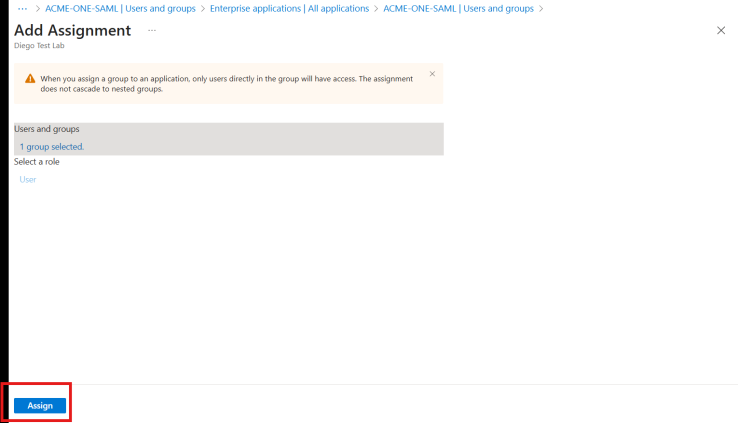
Configure an Entra ID Authentication Profile
To configure an Entra ID authentication profile in Concerto and then publish the profile to gateways:
- In Tenant view, select Configure > Security Service Edge > User and Device Authentication > Profiles.
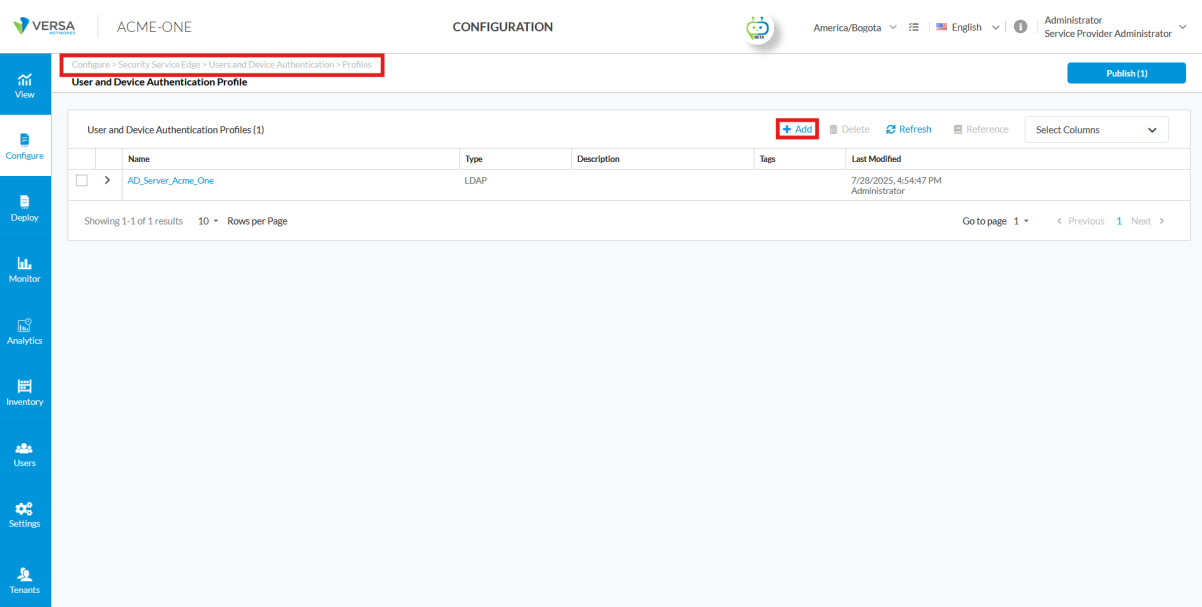
- Click + Add.

- Select SAML, then click Get Started.
- Select ENTRA-ID. The Add SAML Authentication Profile workflow displays.
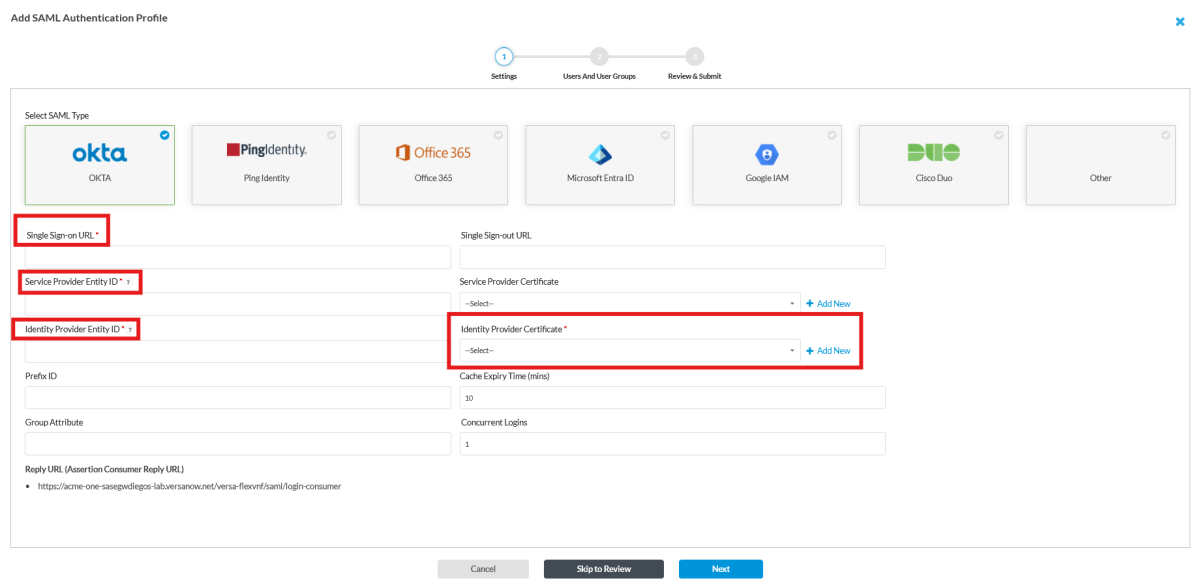
- Collect the following information from Entra:
- Certificate (Base64)—Download the certificate
- Login URL
- Microsoft Entra Identifier/Entity ID
- Logout URL
To view or download the information from the Microsoft Entra Admin Center, go to Entra ID > Enterprise Apps > All applications > ACME-ONE-SAML > Single sign-on (SAML), as shown in the screen shot below.

-
In the workflow, enter information for the following fields.

Field Description Single Sign-on URL Enter the single sign-on URL. For example, https://login.microsoftonline.com/a08ab2d2-a5df-481b-9ffa-bfb7a50a22c4/saml2
Service Provider Entity ID Enter the service provider entity ID. For example, https://acme-one-sasegwdiegos-lab.versanow.net/metadata Identity Provider Entity ID Select the entity provider entity ID. For example, https://sts.windows.net/a08ab2d2-a5df-481b-9ffa-bfb7a50a22c4.
- To upload the IdP certificate, click +Add New to the right of the Identity Provider Certificate field.

The following screen displays.
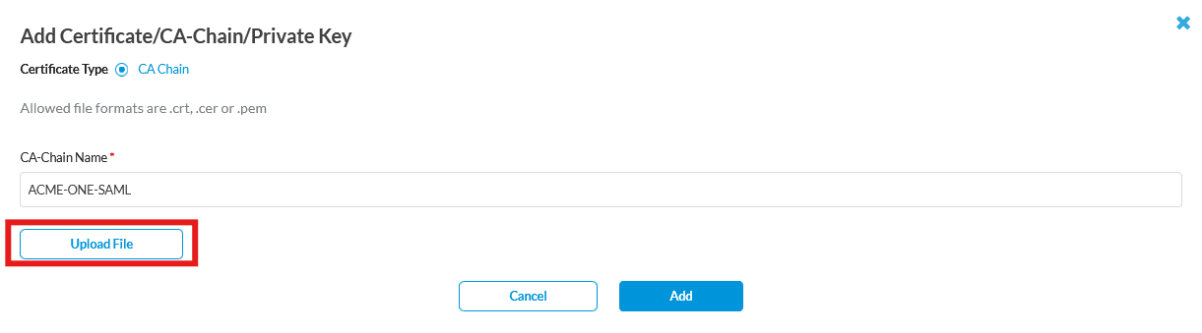
- Enter a CA-Chain Name, then click Upload File. The uploaded file name displays below the Upload file icon.

- Click Add. The certificate information displays beneath the Identity Provider Certificate field.

- Click Next to go to the Users and Groups step.

- Select the User Groups tab.
- Select the group you created in the Okta app (here, VIP_Group).
- Click Add.
- Click Next to go to the Review and Submit step.

- Enter a name and description for the profile, then review all configuration details.
- Click Save to save the profile.
- Click Publish to publish the profile.
Note: After creating and publishing the authentication profile, you must apply it to the Secure Access client policy to enforce authentication and apply the corresponding security policies.
Apply the Entra Profile to a Secure Access Rule
To apply the Entra profile to a secure access rule in Concerto:
- In Tenant view, select Configure > Security Service Edge > Secure Access > Client-Based Access > Policy Rules.
- Click + Add to create a new Secure Access client rule, or edit an existing rule. The Add/Edit Client-Based Access Rule workflow displays.
- Select step 2, Users & Groups.

- Click Customize to specify user-based access rules using the authentication profile you created.
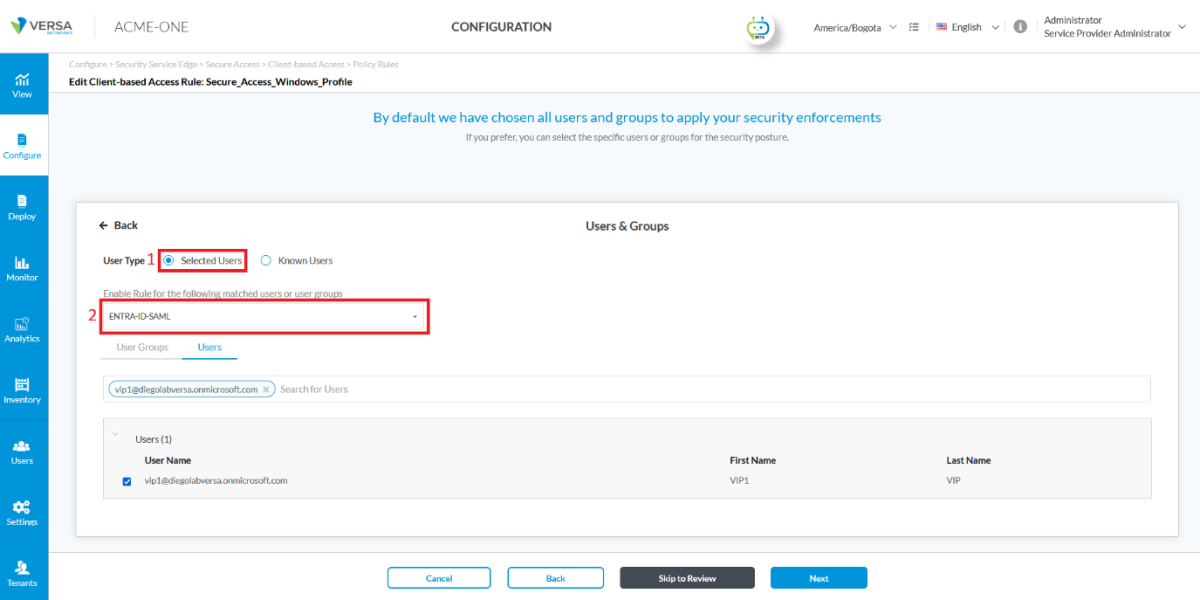
- For the User Type field, click Selected Users.
- For the Enable Rule for the Following Matched Users field, select the authentication profile you configured in section Configure an Entra ID Authentication Profile, above. This allows the policy to enforce access control based on Active Directory group membership.
- To add specific users or groups to enforce security policies, use the User Groups or Users tabs to select the entries.

- Click Skip to Review to go to the Review and Configure workflow step.
- Review all configuration section, and then click Save to apply the settings to the current Secure Access profile. The Client-Based Access Rules table displays.
- Click Publish.
Configure Versa Directory
Versa Directory is a Versa-hosted IdP service based on LDAP, available for Versa-hosted SSE services. To use Versa Directory for your tenant, it must be enabled in the headend at the infrastructure level by Versa Networks, or by your MSP if you use a third-party hosted headend. For more information, see Configure Versa Directory Authentication Using an IAM Server.
To use Versa Directory and create user accounts, see Versa SSE Quick Start Guide, Step 3: Configure User Authentication.
Configure Second-Factor Authentication
Configure Device-Certificate Based Authentication
Device certificate-based authentication strengthens enterprise security by validating not just user credentials but also the identity of endpoint devices before granting access to corporate networks and applications. Unlike traditional password-based mechanisms, this method uses digital certificates issued by a trusted Certificate Authority (CA). During authentication, the device must present a valid certificate that is signed by the trusted CA and has not expired or been revoked. This ensures a strong CA trust relationship, so that only devices with properly issued and trusted certificates are allowed to connect.Common use cases:
- Corporate laptops in bring-your-own-device (BYOD) environments—In BYOD environments, only corporate-issued laptops with valid certificates can establish VPN tunnels, enforcing Zero Trust by validating both the user and the device.
- Regulated industries, such as banking, healthcare, and government—Compliance frameworks like PCI-DSS, HIPAA, and GDPR mandate strong access controls. Device certificates provide tamper-resistant proof of device identity, safeguarding sensitive systems against unauthorized access.
- Remote workforces with layered authentication—Users log in using SAML while their devices authenticate using certificates. This layered approach ensures stolen credentials alone cannot grant access from untrusted devices.
- Pre-logon VPN for domain services—Certificates enable VPN connectivity before user login on Windows or MacOS, allowing group policies, scripts, and security updates from AD to be applied seamlessly at login.
To configure device-certificate based authentication, you do the following:
- Generate the device certificate—If you are using a self-signed certificate, follow the procedure in the section Generate the CA Key, CA Certificate, and Device Certificate of Configure Certificate-Based Device Authentication for Secure Access. If you are using an enterprise certificate, follow your organization's certificate guide.
- Upload the CA chain—You import the root and intermediate CA certificates that will be used to validate client device certificates.
- Configure identity mapping—Select the username identifying field from the certificate (for example, CN, UPN, or SAN).
- Enable validation—(Optional) Enable Online Certificate Status Protocol (OCSP) checks for real-time certificate revocation verification, and select the source VR for the query.
- Configure pre-logon—If required, enable device certificate-based authentication during pre-logon.
- Configure multi-factor support—When combining device certificate authentication with user-based authentication methods (for example, SAML or LDAP), define the order of authentication to align with security policies.
- Finalize—Assign a profile name and save the configuration.
Upload the Root CA Certificate to Gateways
Ensure the root CA certificate is uploaded to the gateways from Concerto and reflected correctly on the device.
To upload the root CA certificate to Concerto:
- In Tenant view, select Configure > Security Service Edge > Settings > Certificates.

- Click +Add. The following screen displays.
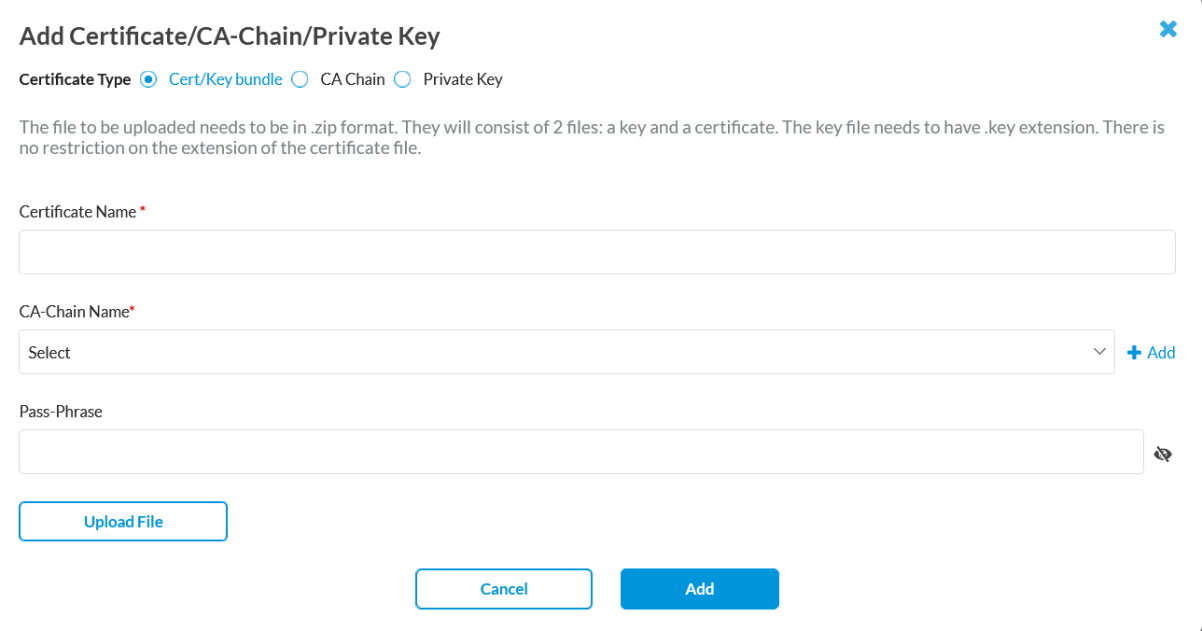
- Select a certificate type: Cert/Key Bundle, CA Chain, or Private Key.
- If you selected certificate type Cert/Key Bundle, enter information for the following fields, and then click Add.
Field Description Certificate Name Enter a name for the certificate. CA-Chain Name Select a CA-Chain from the drop-down list. Pass Phrase Enter a password.
- If you selected CA-Chain as the certificate type, enter information for the following fields, and then click Add.

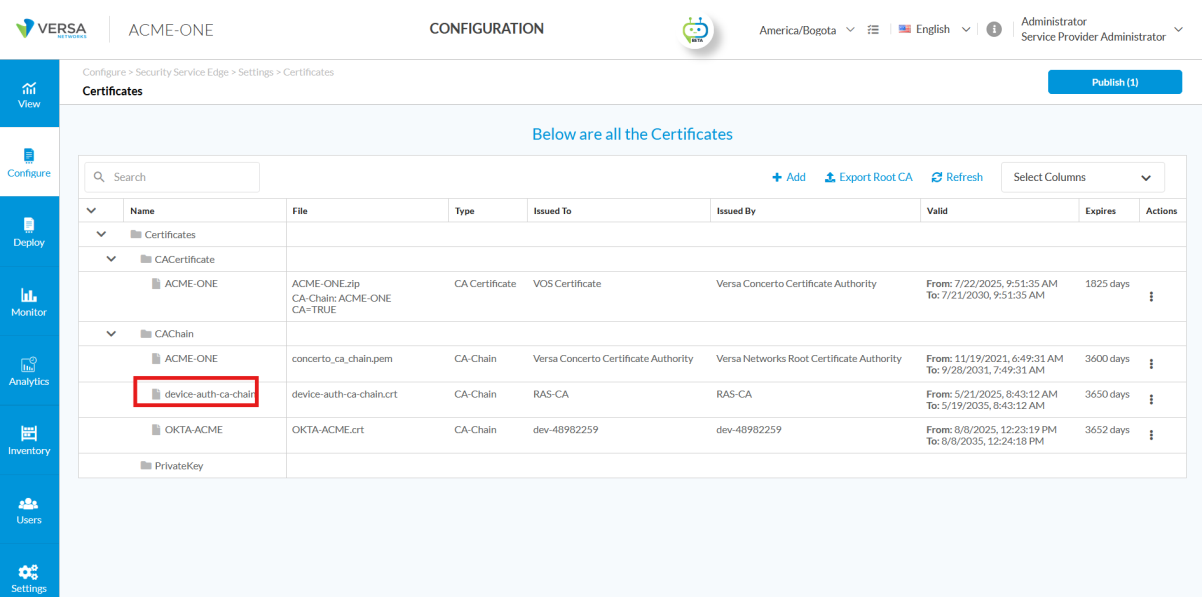
Field Description CA Chain Name Enter the CA-chain name, Upload File Click to upload the certificate file. - Check that the CA chain (here, device-auth-ca-chain) uploaded successfully and is listed under Configure > Security Service Edge > Settings > Certificates.
Create the Device Authentication Profile
To configure a device certificate authentication profile in Concerto and then publish the profile to gateways:
- In Tenant view, select Configure > Security Service Edge > User and Device Authentication > Profiles.

- Click +Add.

- Select Device Certificate Based as the authentication method, then click Get Started. The Add Device Certificate Authentication Profile workflow displays.
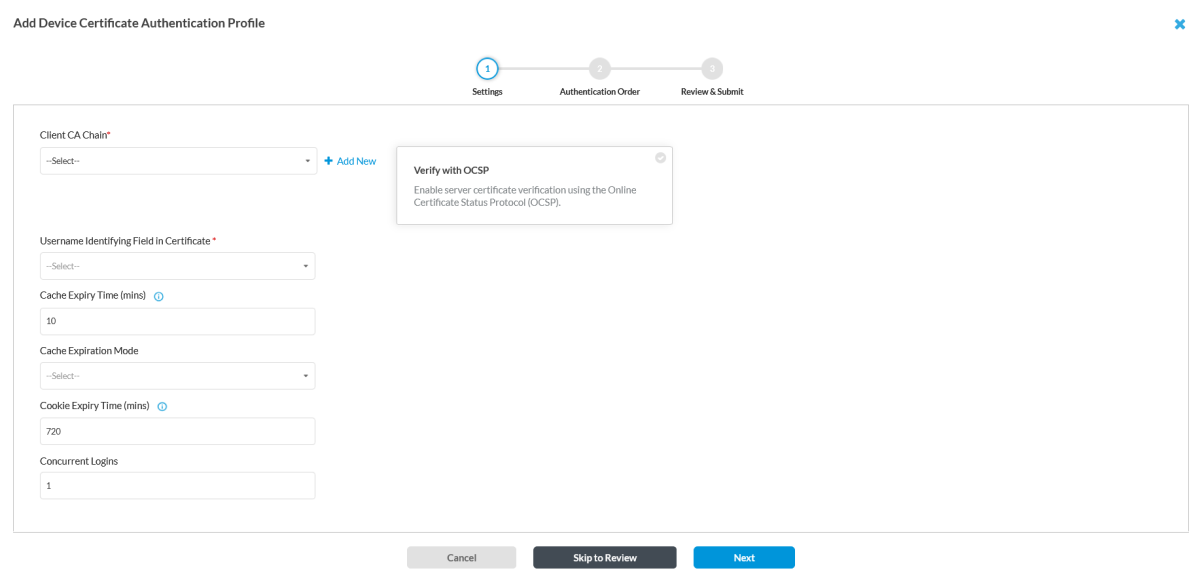
- In step 1, Settings, enter information for the following fields:
Field Description Client CA Chain Select the certificate you uploaded (for example, device-auth-ca-chain.crt). Username Identifying Field in Certificate Select the identifying name. For example, Subject common-name. Cache Expiry Time Enter the cache expiration interval, in minutes.
Default: 10 minutes
Cookie Expiry Time Cookie expiration interval, in minutes.
Default: 720 minutes
Concurrent Logins Enter the number of concurrent logins.
Default: 1
Verify with OCSP Leave disabled unless you require this option.
-
Then click Next to go to workflow step 2, Authentication Order.
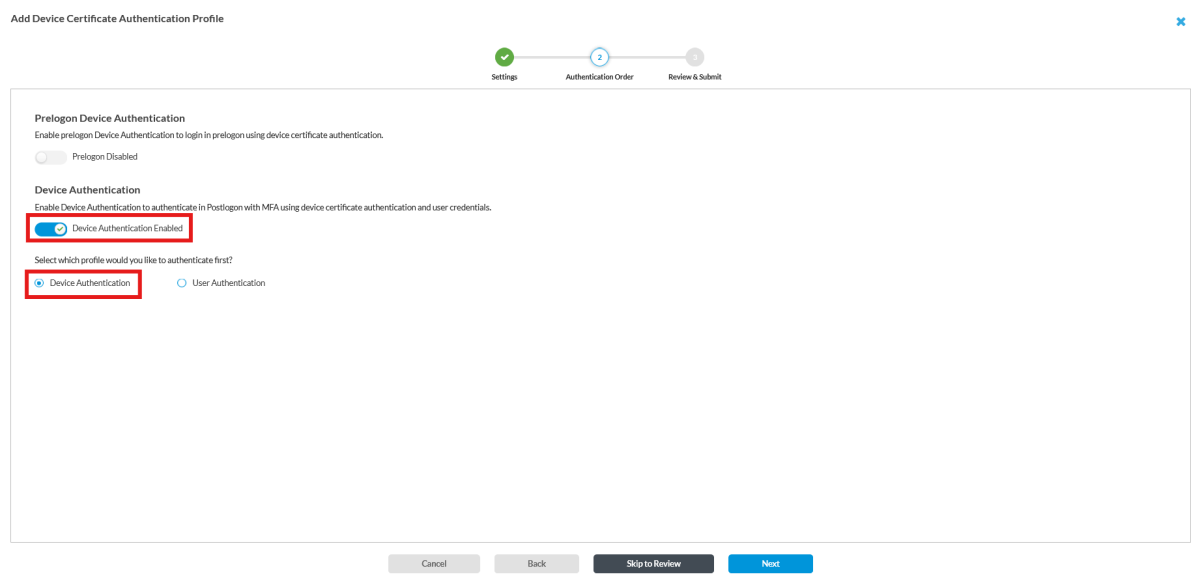
- Enter information for the following fields.
Field Description Prelogon Device Authentication Click the toggle to enable or disable pre-logon. When enabled, devices authenticate before user login. Device Authentication Click the toggle to the enabled position (blue), and then select the Device Authentication option to ensure the device authenticates first. - Click Next to go to workflow step 3, Review and Submit.

- Enter a name and description for the profile.
- Click Save.
- Click the Publish icon to publish the profile to gateways.
Install Certificates on the Client Device (Windows)
To download the certificate file onto the client machine (for example, the .pfx file signed by the same CA used for the CA chain upload in the previous section):
- In Windows, open the Run dialog.

- In the Open field, enter the following value: mmc.
- Press Enter. The MMC console displays.

- Go to File > Add/Remove Snap-in. The following screen displays.

- Select Certificates, and then click Add.

- Click Computer Account to manage device-level certificates.
- Click Next.

- Select Local Computer and then click Finish. The following screen displays.

- Click OK. The following screen displays.

- Right-click the Certificates folder under Personal. Then, in the Actions section, select Certificates > More Actions.

- Go to More Actions > All Tasks > Import. The Certificate Import Wizard screen displays.

- Ensure Local Machine is selected as the store location, and then click Next.
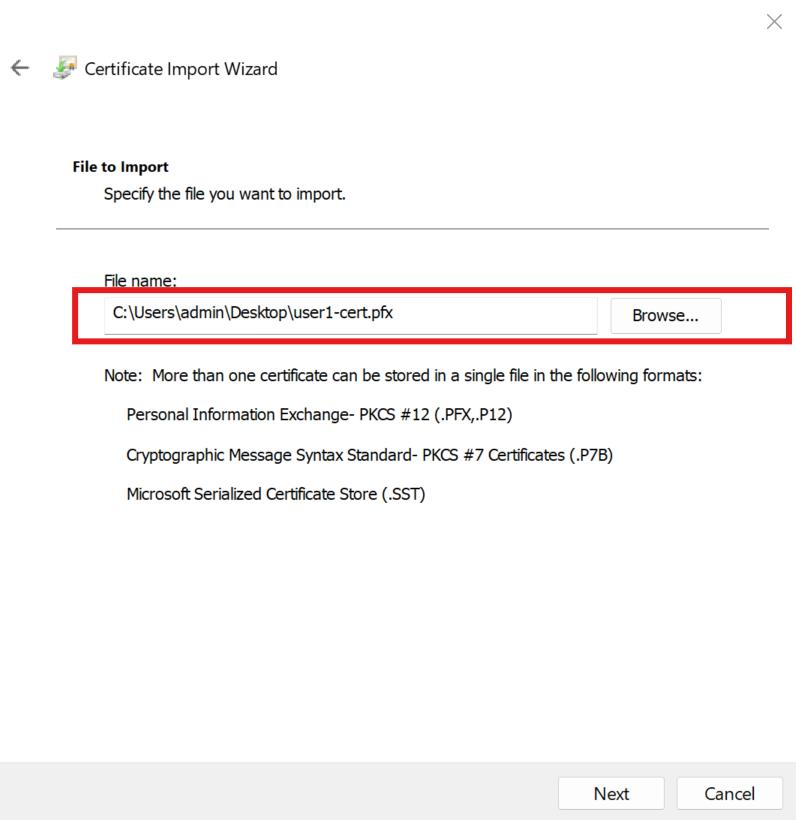
- Browse to the certificate file (for example, user1-cert.pfx), select it, and click Open.
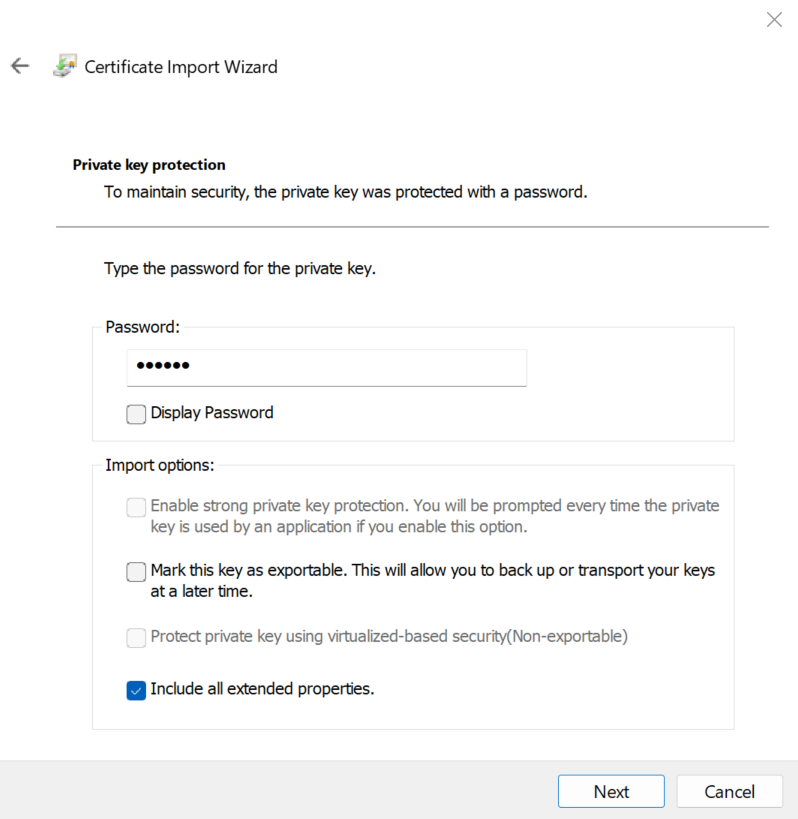
- In the Password field, enter the certificate's private key password.
- Make sure the checkbox for Include all extended properties is checked.
- Optionally, select Mark this key as exportable if you want to reuse it later.
- Click Next. The Certificate Store screen displays.

- On the Certificate Store screen, select Place All Certificates in the Following Store.
- Ensure the value is set to Personal, and then click Next.
- Click Finish to complete the import. A confirmation message should appear: "The import was successful."

- Go to Certificates (Local Computer) > Personal > Certificates. The certificate name should display, as shown below.

- Click the name of the device certificate.

- In the Actions section, select More Actions > All Tasks > Manage Private Keys. The following window displays.

- Ensure the user has access to the private keys assigned at the device level.
Verify Certificates
When a user connects to the gateway and the device certificate authentication profile is enabled, authentication is processed in this order: device first, then user (SSO/LDAP). The user is prompted to choose the correct device certificate. On subsequent connections, the same certificate is auto-selected as long as no other device certificate is installed on the endpoint. If another device certificate is present, the client prompts for selection again.
If certificate validation succeeds, the connection proceeds to the next stage, where the user is authenticated through SAML/SSO or LDAP, depending on configuration. This ensures that both the device and the user identity are verified before access is granted.
The following screenshot displays the SASE client screen allowing certificate selection.

Configure User-Certificate Based Authentication
User certificate authentication installs a certificate on a per-user basis. The certificate is linked to the individual user's profile and must align with the username provided during SSO or LDAP login. This approach is particularly practical in preventing user spoofing in shared-device environments by verifying that the Common Name (CN) in the certificate matches the authenticated user's identity in LDAP or SAML.
The configuration steps are similar to those for device certificate authentication. You can also use an LDAP or SAML profile in conjunction with user certificate authentication.
Create a User Authentication Profile
To configure a user certificate authentication profile in Concerto and then publish the profile to gateways:
- In Tenant view, select Configure > Security Service Edge > User and Device Authentication > Profiles.

- Click +Add. The following screen displays.

- Select User Certificate Based, and then click Get Started. The Add User Certificate Authentication Profile workflow displays.

- Enter information for the following fields.
Field Description
Client CA Chain Select the certificate. Once selected, the certificate details displays below the field.

Username Identifying Field in Certificate Select the field that identifies the user in the certificate.
Cache Expiry Time Enter the cache expiration time, in minutes.
Default: 10
Cookie Expiration Time Enter the cookie expiration time, in minutes.
Default: 720
Concurrent Logins Enter the number of concurrent logins allowed.
Default: 1
Verify with OCSP This option should be disabled unless verification with OCSP is required.
- Click Next to go to workflow step 2, Additional Authentication Method.
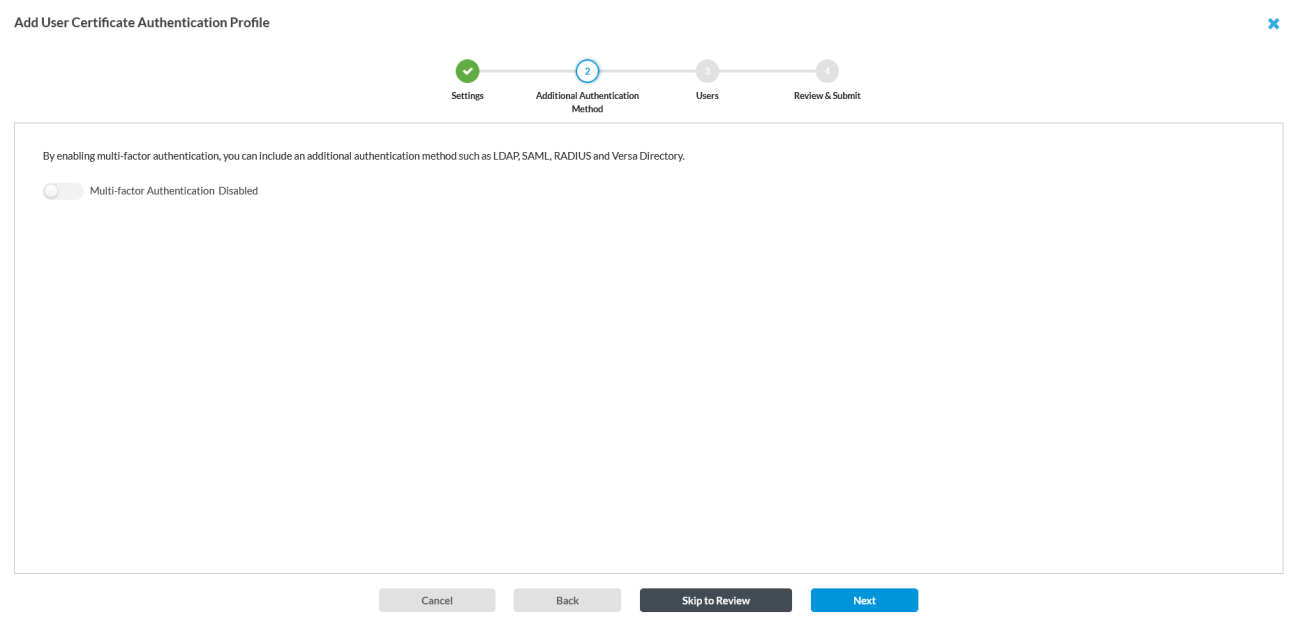
- Click the toggle to enable multi-factor authentication. If you leave this option disabled, only the user certificate is used for authentication. If you enable Multi-factor Authentication, you can select an additional method such as LDAP or SAML.
- If you enabled multi-factor authentication, select LDAP, and then select which profile to authenticate first: LDAP Profile or User-Certificate Based Profile.

-
Click Next to go to workflow step 3, Users.
- In the Users step, you can upload or manually add user entries. This is not mandatory and is only required if you explicitly want to match certificates to specific users. Note: If no users are added, the authentication profile still works without explicit user-to-certificate mapping.
- Click Next to go to workflow step 4, Review and Submit.
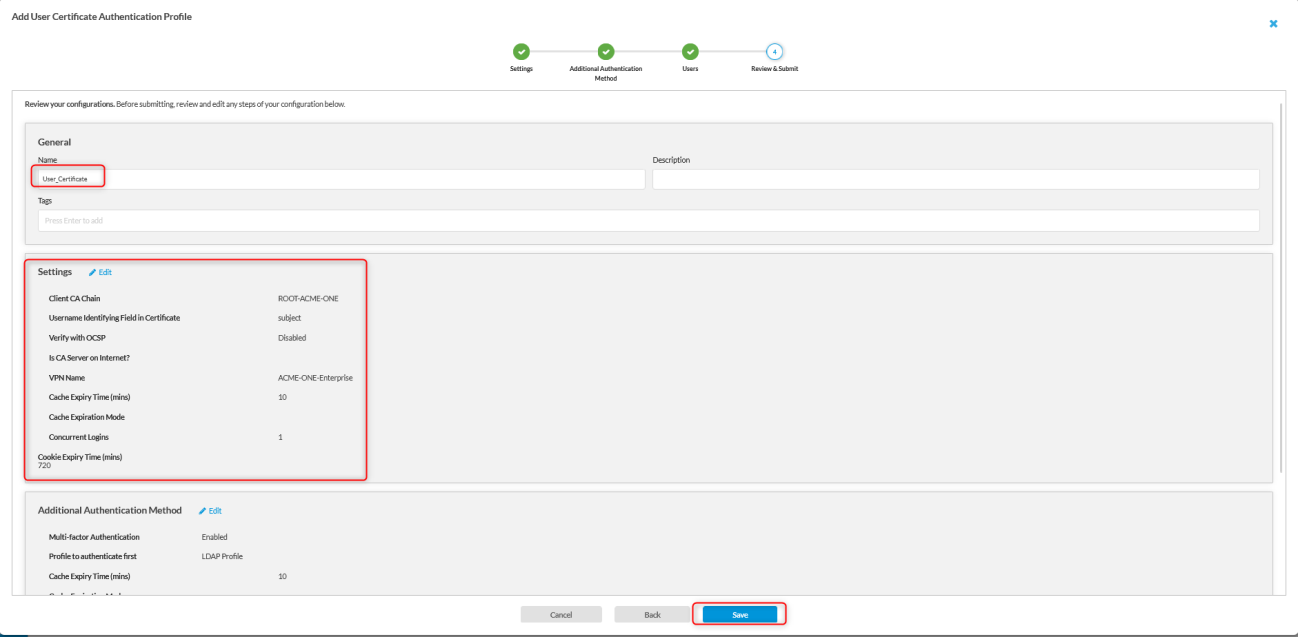
- Enter a Name and an optional Description for the profile, and then review the information.

- Click Save to save the profile to Concerto.
- Click Publish to publish the profile to gateways.
Install Certificates on the Client Device
The installation process for user certificates on client devices follows the same procedure described in the device certificate authentication section. The certificate must be imported into the appropriate certificate store on the client machine.
Find Base and Bind DNs in Active Directory
When configuring Versa Security to integrate with Microsoft Active Directory (AD) using LDAP, you must provide the following:
- Base DN—The starting point in the AD hierarchy where searches begin.
- Bind DN—The DN of the service account Versa uses to query and authenticate against AD.
This section describes how to locate the base DN and bind DN and provides ready-to-use examples. You enter the DN value with no spaces into the Base DN and Bind DN fields in the authentication profile for LDAP, as described in Configure and LDAP Authentication Profile, above.
Example DN Values
The following table lists example DN values based on DN type and location.
| DN Type | Location | DN Value | Notes |
|---|---|---|---|
| Base DN | domain root | DC=versanetworks,DC=com | Search starts at the domain root. |
| Bind DN | admin in Users Container | CN=admin,CN=Users,DC=versanetworks,DC=com | The service account (admin) is located in the built-in Users container. Note: CN=Users and similar assignments such as CN=Computers are built-in default containers that AD creates automatically. |
| Bind DN | user in nested OU | CN=test1,OU=OUtest2,OU=OUtest,DC=versanetworks,DC=com | The user account test1 is located in OUtest2, which is nested inside OUtest. Note: OU (Organizational Unit) is a folder that administrators create themselves to organize users, computers, and groups, often by department or location. You can apply group policy to OUs and delegate administrative rights over them. |
Construct the Base DN
The base DN is based on your AD domain.
To construct the base DN:
- Open Active Directory Users and Computers (ADUC).
- Identify the domain name (for example versanetworks.com).
- Convert the domain name into DN format:
DC=versanetworks,DC=com
Tip: The Base DN can be scoped to a specific OU if you want to restrict searches. For example:
OU=Engineering,DC=versanetworks,DC=com
Find the Bind DN
The Bind DN corresponds to the account Versa uses for authentication and directory searches. To retrieve it from the command line:
dsquery user -name test1
The following is an example of the output of the dsquery command above. Note that the quotes must be removed when copying the output to your Versa configuration.
"CN=test1,OU=OUtest2,OU=OUtest,DC=versanetworks,DC=com"
Selected Commands for DN Values
When you create an LDAP authentication profile in Concerto, you must enter a Base DN and a Bind DN. You can look up both values with the dsquery command on your Active Directory server. Each example below shows the command to run, an example of what it returns, and how to enter the result in the Versa profile.
- Display the Base DN (domain root)
Command to be run on the AD server:
dsquery * domainroot -scope base
Output example:
DC=versanetworks,DC=com
Configure in Versa:
Base DN = DC=versanetworks,DC=com
- Display a User's Bind DN
Command:
dsquery user -name test1
Output example:
CN=test1,OU=OUtest2,OU=OUtest,DC=versanetworks,DC=com
Configure in Versa:
Bind DN = CN=test1,OU=OUtest2,OU=OUtest,DC=versanetworks,DC=com
- Display the Bind DN for an account in the default Users container
Command (example for admin):
dsquery user -name admin
Output example:
CN=admin,CN=Users,DC=versanetworks,DC=com
Configure in Versa:
Bind DN = CN=admin,CN=Users,DC=versanetworks,DC=com
- Find an OU-specific Base DN
Command (example for OU "Engineering"):
dsquery ou -name Engineering
Output example:
OU=Engineering,DC=versanetworks,DC=com
Configure in Versa:
Base DN = OU=Engineering,DC=versanetworks,DC=com
Supported Software Information
Releases 12.2.1 and later support all content described in this article.