
Configure SD-WAN URL-Filtering Profiles
 For supported software information, click here.
URL-filtering profiles enforce actions on HTTP flows based on URL category and URL reputation. You can associate URL filtering profiles with security policies. When you reference a URL-filtering profile in a security policy, you have the option to use a predefined profile or a custom (user-defined) profile.
When you configure a custom URL-filtering profile, you can create allow lists and deny lists of URLs. The URL-filtering profile processes enforceable actions for a session in the following order:
- Deny-listed URLs—Specify either fixed strings or regular expression (regex) patterns to match deny-listed URLs. Specify the deny list action to take for all matching HTTP flows. If you do not configure a deny list action, the default action is taken, which is to drop the session.
- Allow-listed URLs—Specify either fixed strings or perl-compatible regular expression (PCRE) patterns to match allow-listed URLs. URLs that match the allow list configuration are allowed, and no security actions are taken. Optionally, you can enable logging to create a log of allow-listed URLs.
- Category action map—Create a set of rules that specify the URL-filtering action to take for each URL category that is associated with a URL. In each rule, you can specify one or more predefined or custom URL categories. The action can be a packet or session action, or a predefined or custom captive portal action. Versa Operating SystemTM (VOSTM) devices evaluate URL category and URL reputation action rules simultaneously, and they enforce the more severe action. For example, if the category rule action is to block and the reputation rule is to allow, the block action is taken.
- Reputation action map—Create a set of rules that specify the URL-filtering action to take for each URL reputation that is associated with the URL. In each rule, you can specify one or more URL reputation values. The action can be a packet or session action, or a predefined or custom captive portal action.
If this evaluation does not determine an action, the default action configured for the URL-filtering policy is taken.
This article describes how to configure a URL-filtering profile for SD-WAN in Concerto.
Configure a URL-Filtering Profile
- In Tenant view, select Configure > Secure SD-WAN > Security > Profiles.
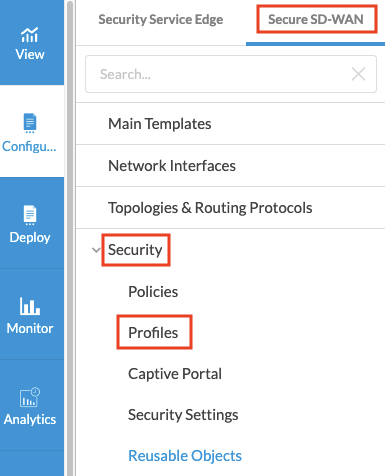
- Select the URL Filtering tab.
- If you have not yet configured a URL-filtering profile, then click Add URL Filtering Profile.
- If you have configured one or more URL-filtering profiles, the following screen displays. Click the + Add icon.

The Add URL Filtering Profile workflow displays.

- In step 1, Deny & Allow List, enter information for the following fields. Note that if the traffic matches both a deny list and an allow list, the action in the deny list takes precedence.

Field Description Deny List (Group of Fields) Choose the IP addresses and actions to deny. - Patterns
Add specific URL patterns to block. You can specify a fixed string or a PCRE regular expression. Click the  Add icon to add more patterns.
- Strings
Enter the complete URL string of a URL to block. Allow List (Group of Fields) Choose the IP addresses and actions to allow. - Patterns
Enter specific URL patterns to allow. You can specify a fixed string or a PCRE regular expression. Click the Add icon to add more patterns.- Strings
Enter the complete URL string of a URL to allow. Logging Disabled Click to send the log information about the listed URLs to Versa Analytics. - Click Next or select workflow step 2, Category and Reputations List.
- To add actions for reputation-based URL-filtering, enter information for the following fields. Note that you can specify a category or a reputation, or both. If you specify both, URLs must match both the category and the reputation.
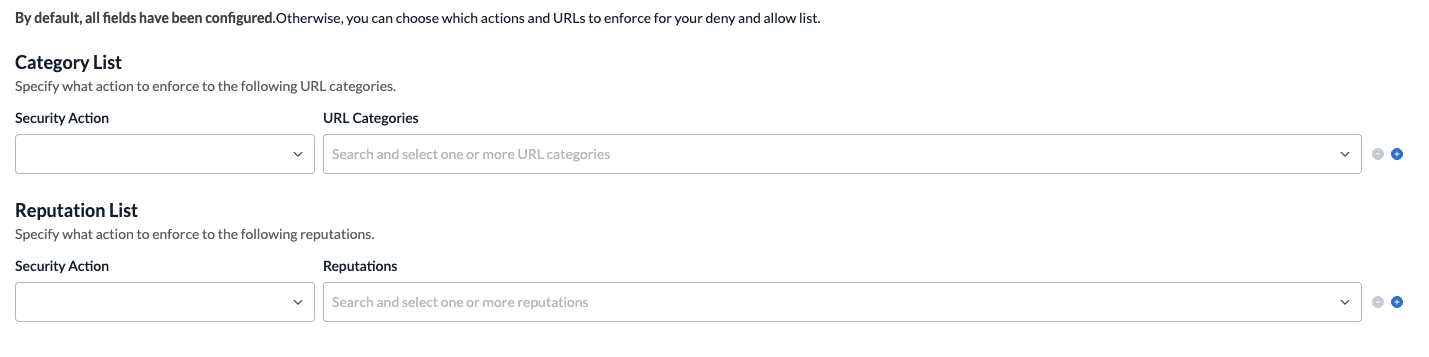
Field Description Category List (Group of Fields) - Security Action
Select the action to enforce on a specific URL category match.
You can select a predefined or a user-defined security action. To configure a user-defined security action, select + Create New.
Predefined actions:
- Alert—Allow the URL and generate an entry in the URL-filtering log.
- Allow—Allow the URL without generating an entry in the URL-filtering log.
- Ask—The browser presents an information page that allows the user to either cancel the operation by clicking Cancel or continue with the operation by clicking OK (for HTTP and HTTPS).
- Block—Block the URL and generate an entry in the URL-filtering log. No response page is display, and the user cannot continue with the website.
- Drop packet—The browser waits for a response from the server and then drops the packets. It is not possible to determine whether the packet was dropped because of no response from the server or because a firewall blocked access to the website.
- Drop session—The browser waits for a response from the server and drops the session. It is not possible to determine whether the session was dropped because of no response from the server or because a firewall blocked access to the website.
- Justify—The browser presents an information page that allows the user to either cancel the operation by clicking Cancel or continue with the operation after entering a justification message and clicking OK (for HTTP and HTTPS).
- Reject—The browser displays an alert and resets the connection to the server. It is not possible to determine whether this occurred because of no response from the server or because a firewall blocked access to the website.
Note that all actions except Allow generate an entry in the URL-filtering log.
- URL Categories
Select one or more URL categories on which to take the specified action. Click the
Add icon to add more URL categories.- + Create New—Click to create a new URL Category object.
Reputation List (Group of Fields) - Security Action
Select the action to enforce on a specific URL category match. See the Security Action field description for Category List for options.
- Reputations
Select the reputation on which to take the specified action. Click the Add icon to add more reputations. - Click Next or select workflow step 3, Default Actions.
- To specify the default action to enforce if there are no criteria matched, enter information for the following fields. If you do not specify an action in the category and reputation lists, the default action is taken.

Field Description Default Action Select the security action to enforce on a specific URL category match.
You can select a predefined or a user-defined security action. To configure a user-defined security action, select + Create New.
Predefined actions:
- Alert—Allow the URL and generate an entry in the URL-filtering log.
- Allow—Allow the URL without generating an entry in the URL-filtering log.
- Ask—The browser presents an information page that allows the user to either cancel the operation by clicking Cancel or continue with the operation by clicking OK (for HTTP and HTTPS).
- Block—Block the URL and generate an entry in the URL-filtering log. No response page is display, and the user cannot continue with the website.
- Drop packet—The browser waits for a response from the server and then drops the packets. It is not possible to determine whether the packet was dropped because of no response from the server or because a firewall blocked access to the website.
- Drop session—The browser waits for a response from the server and drops the session. It is not possible to determine whether the session was dropped because of no response from the server or because a firewall blocked access to the website.
- Justify—The browser presents an information page that allows the user to either cancel the operation by clicking Cancel or continue with the operation after entering a justification message and clicking OK (for HTTP and HTTPS).
- Reject—The browser displays an alert and resets the connection to the server. It is not possible to determine whether this occurred because of no response from the server or because a firewall blocked access to the website.
Note that all actions except Allow generate an entry in the URL-filtering log.
Decrypt Bypass Enabled/Disabled Click to enable decrypt bypass, which disables decryption of SSL traffic that matches the predefined captive portal actions for this URL-filtering policy after captive portal redirection. The decryption policy decrypts SSL sessions to display only the captive portal response. After the captive portal action is performed, SSL decryption is bypassed, and users can directly access the URL. To disable decryption for traffic matching a custom action, select a custom action (Default action) and select Decrypt-Bypass.
If you do not select the Decrypt Bypass option, SSL decryption is enabled and URL-filtering uses the host and URI of the actual URL for categorization. This action further decrypts captive portal redirection from actions such as Ask and Justify.
Cloud Lookup State Enabled/Disabled Click to enable cloud lookup. If the cloud lookup state is not enabled for this policy, it is inherited from the tenant VOS device. - Click Next or select workflow step 4, Permissions.
- The permission for each role is selected by default, and you can update it. To change permissions for a role, select or deselect the Create, Read, Update, and Delete fields for the role.
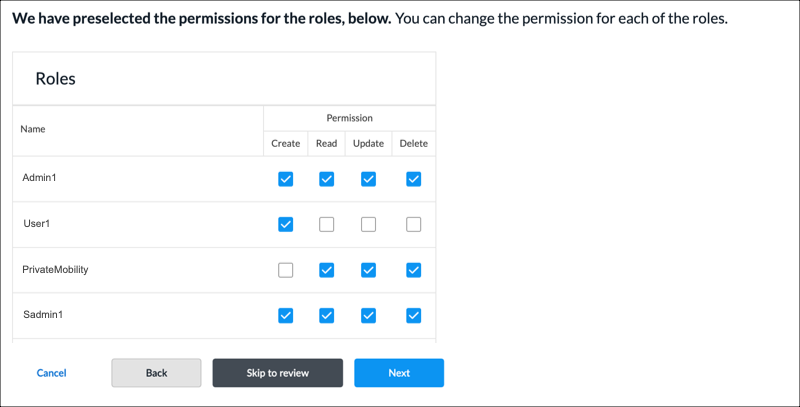
- Click Next or select workflow step 5, Review and Submit.
- In the General section, enter a name for the URL-filtering profile. You can also enter a description and tags. A tag is an alphanumeric descriptor, with no white spaces or special characters, that you can use to search the objects.
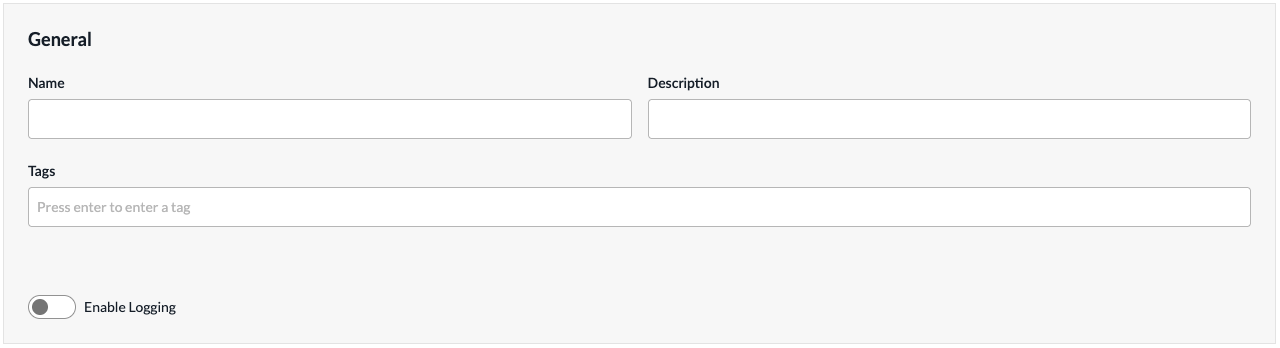
- To enable logging, click the Enable Logging toggle, and then select a logging profile that indicates where to forward the logs.
- Use Default—Click to use the default logging profile.
- Custom—Click to use a custom logging profile, and then select a profile in the drop-down list. To create a custom profile, select + Create New.

- For all other sections, review the information. If you need to make changes, click the
 Edit icon.
 - Click Submit to create the URL-filtering profile.
Supported Software Information
Releases 13.1.1 and later support all content described in this article.