
Configure SD-WAN DNS-Filtering Profiles
 For supported software information, click here.
Domain Name System (DNS) filtering allows you to control access to websites, webpages, and IP addresses, to provide protection from malicious websites, such as known malware and phishing sites.
You can create custom profiles that you can use when configuring internet protection rules. You associate custom DNS-filtering profiles with devices that are connected to a secure web gateway (SWG) and that need to send traffic to the internet. DNS filtering processes any traffic that matches an internet protection rule in a DNS-filtering profile. Any logs that are generated are sent to the logging profile associated with the DNS profile.
In a DNS-filtering profile you can configure the following components to filter DNS requests:
- Deny lists—Define the URLs and IP addresses of DNS requests for which access is blocked, and define the action to take when a URL or an IP address matches. Deny lists are sometimes referred to blacklists.
- Allow lists—Define the URLs and IP addresses of DNS requests to which to explicitly allow access. Allow lists are sometimes referred to as whitelists.
- Query-based actions—Define rules for DNS operation codes (opcodes), which are the commands that are sent to DNS servers to have them perform an action.
- Reputation-based actions—Define how to handle DNS requests from newly observed website domains.
This article describes how to configure a DNS-filtering profile for SD-WAN in Concerto.
Configure a DNS Filtering Profile 
- In Tenant view, select Configure > Secure SD-WAN > Security > Profiles.
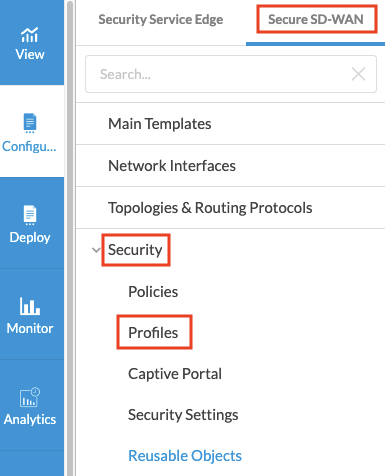
- Select the DNS Filtering tab.
- If you have not yet configured a DNS-filtering profile, then click Add DNS Filtering Profile.
- If you have configured one or more DNS-filtering profiles, the following screen displays. Click the + Add icon.

The workflow to add a DNS-filtering profile displays.

- In workflow step 1, Deny & Allow List, enter information for the following fields. Note that if the traffic matches both a deny list and an allow list, the action in the deny list takes precedence.
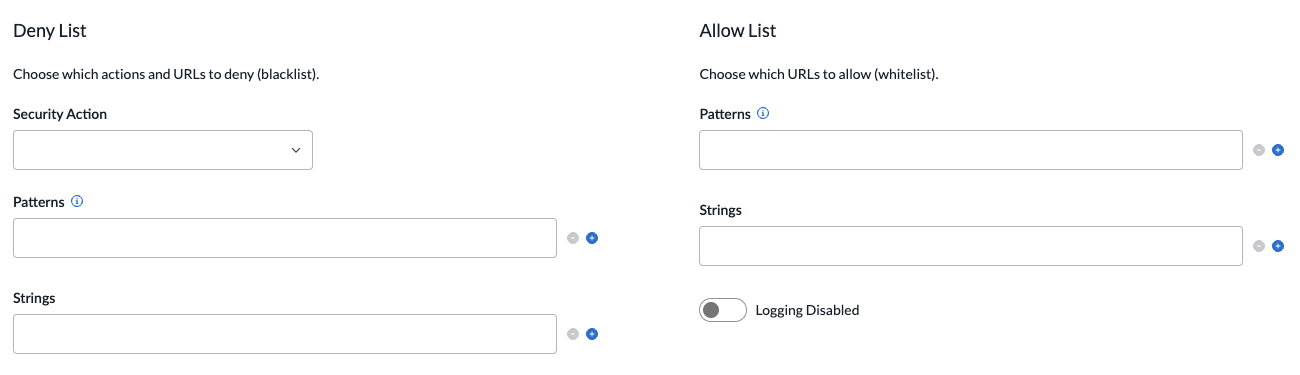
Field Description Deny List (Group of Fields)
Choose the domains and actions to deny (block). - Security Action
Select the action to take for domain names or IP addresses when denying (blocking) incoming DNS requests.
You can select a predefined or a user-defined security action. To configure a user-defined security action, select + Create New. For more information, see the Add Security Actions in Configure Reusable Objects.
Predefined actions:
- Alert—Allow the DNS response and generate an entry in the DNS filtering log in Versa Analytics.
- Allow—Allow the DNS response without generating an entry in the DNS filtering log in Versa Analytics.
- Drop Packet—The browser waits for a response from the DNS server and then drops the packet. It is not possible to determine whether the packet was dropped because of a delayed response from the DNS server or because a firewall blocked access to the website.
- Drop Session—The browser waits for a response from the server and drops the session. It is not possible to determine whether the session was dropped because of a delayed response from the DNS server or because a firewall blocked access to the website.
- Reject—Send an ICMP unreachable message back to the client.
- Sinkhole—Return a false IP address to the URL, thus blocking a DNS sinkhole. A DNS sinkhole spoofs DNS servers to prevent the resolution of the hostnames associated with URLs. This action can help you identify infected hosts in a network if a firewall is unable to find the original source IP address of DNS request sender. Sinkhole malware DNS queries create responses to the client host queries directed at malicious domains and try to connect to a sinkhole IP address instead of connecting to malicious domains. You can check the traffic logs to identify infected hosts.
- Patterns
Click the  Add icon to add a domain name or an IP address to deny. You can specify a fixed string or a Perl-Compatible Regular Expression (PCRE). Note that if the pattern matches the same domain name or IP address in a deny list and an allow list, the action in the deny list takes precedence. Click the Add icon again to add more patterns. Click the
 Delete icon to delete a pattern.
- Strings
Enter a complete string for matching a domain name or IP address to block. Note that if the string matches the same domain name or IP address in a deny list and an allow list, the action in the deny list takes precedence. Allow List (Group of Fields)
Choose the domains and actions that you want to allow. - Patterns
Click the Add icon to add a domain name or an IP address to allow. You can specify a fixed string or a Perl-Compatible Regular Expression (PCRE). Note that if the pattern matches the same domain name or IP address in a deny list and an allow list, the action in the deny list takes precedence. Click the Add icon again to add more patterns. Click the Delete icon to delete a pattern.- Strings
Enter a complete domain name for matching a domain name or IP address to allow. You can add multiple comma-separated strings. Note that if the string matches the same domain name or IP address in a deny list and an allow list, the action in the deny list takes precedence. - Enable Logging
Click to log information about the allowed domain names and IP addresses. - Click Next or select workflow step 2, Query-Based Actions, to define rules for DNS operation codes (opcodes), which are commands that are sent to the DNS server to have it perform an action.
- If you have not yet configured a query-based action, click Add Query Based Action.
- If you have configured one or more query-based actions, the following screen displays. Click + Add.

- In the Add Query-Based Actions popup window, enter information for the following fields.
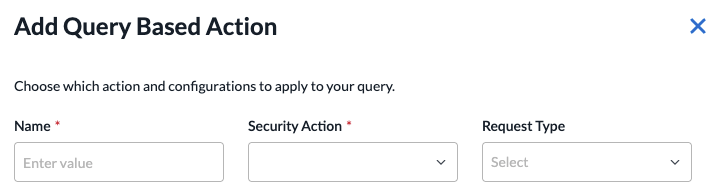
Field Description Name (Required)
Enter a name for the query-based action. Security Action Select the action to take for domain names or IP addresses when denying (blocking) incoming DNS requests.
You can select a predefined or a user-defined security action. To configure a user-defined security action, select + Create New. For more information, see the Add Security Actions in Configure Reusable Objects.
Predefined actions:
- Alert—Allow the DNS response and generate an entry in the DNS filtering log in Versa Analytics.
- Allow—Allow the DNS response without generating an entry in the DNS filtering log in Versa Analytics.
- Drop Packet—The browser waits for a response from the DNS server and then drops the packet. It is not possible to determine whether the packet was dropped because of a delayed response from the DNS server or because a firewall blocked access to the website.
- Drop Session—The browser waits for a response from the server and drops the session. It is not possible to determine whether the session was dropped because of a delayed response from the DNS server or because a firewall blocked access to the website.
- Reject—Send an ICMP unreachable message back to the client.
- Sinkhole—Return a false IP address to the URL, thus blocking a DNS sinkhole. A DNS sinkhole spoofs DNS servers to prevent the resolution of the hostnames associated with URLs. This action can help you identify infected hosts in a network if a firewall is unable to find the original source IP address of DNS request sender. Sinkhole malware DNS queries create responses to the client host queries directed at malicious domains and try to connect to a sinkhole IP address instead of connecting to malicious domains. You can check the traffic logs to identify infected hosts.
Request Type Select the type of DNS opcode to which the rule applies:
- IQuery—Send a request for an inverse DNS query command.
- Notify—Send a request for a DNS notify command.
- Query—Send a request for a DNS query command.
- Status—Send a request for a DNS status command.
- Update—Send a request for a DNS update command.
For each request type, you must enter additional information, as described in the following step.
- Based on the value you selected for the Request Type field, enter information for the following fields.
Field Description IQuery (Group of Fields) - Address Group
Select one or more address groups. - IP Subnet
Enter a list of IPv4 or IPv6 subnet values. - IP Range
Enter a list of IP address ranges. - IP Wildcard
Enter a list of IP address wildcard values. Notify Enter one or more zone names. Query (Group of Fields) - Number of Additional Records
Select one of the following operators, and then enter the number of additional records:
- Equal-to
- Greater-than
- Less-than
- Not-equal-to
- Number of Questions
Select one of the operators, and then enter the number of questions.
- Query Type
Select the query type. - Domain Names
Enter one or more domain names. Status Enter one or more zone names. Update (Group of Fields) - Number of Zone Records
Select one of the following operators, and then enter the number of zone records:
- Equal-to
- Greater-than
- Less-than
- Not-equal-to
- Number of Prerequisite Records
Select one of the operators, and then enter the number of prerequisite records. - Number of Additional Records
Select one of the operators, and then enter the number of additional records. - Number of Update Records
Select one of the operators, and then enter the number of update records. - Domain
Enter one or more domain names. - Click Add.
- Click Next or select workflow step 3, Reputation-Based Actions.
- To define how to handle DNS requests from newly observed website domains, enter information for the following fields.
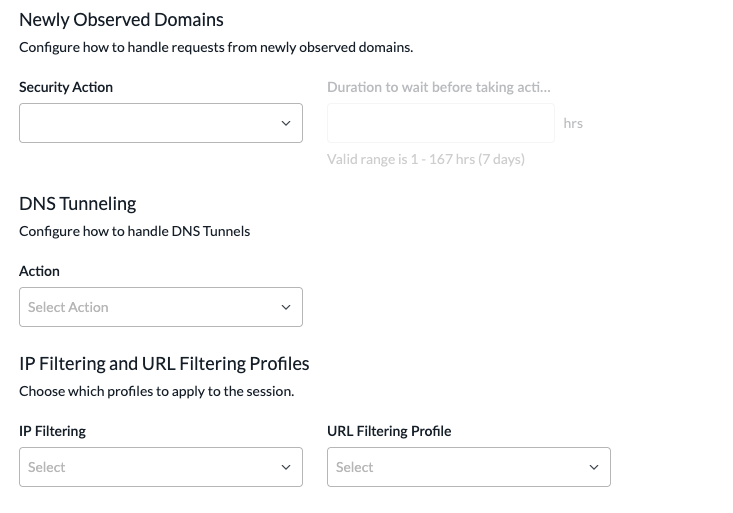
Field Description Newly Observed Domains (Group of Fields) Configure how to handle requests from newly observed domains. - Security Action
Select the action to take on the newly observed domain.
You can select a predefined or a user-defined security action. To configure a user-defined security action, select + Create New. For more information, see the Add Security Actions in Configure Reusable Objects.
Predefined actions:
-
Alert—Allow the DNS response and generate an entry in the DNS filtering log in Versa Analytics.
-
Allow—Allow the DNS response and do not an entry in the DNS filtering log in Versa Analytics.
-
Drop Packet—Have the browser wait for a response from the DNS server and then drop the packet. It is not possible to determine whether the packet was dropped because of a non-responsive DNS server or because a firewall blocked access to the website.
-
Drop Session—Have the browser waits for a response from the server and then drop the session. It is not possible to determine whether the session was dropped because of a non-responsive DNS server or because a firewall blocked access to the website
-
Reject—Send an ICMP unreachable message back to the client.
-
Sinkhole—Return a false IP address to the URL, thus blocking a DNS sinkhole. A DNS sinkhole spoofs DNS servers to prevent the resolution of the hostnames associated with URLs. This action can help you identify infected hosts in a network if a firewall is unable to find the original source IP address of DNS request sender. Sinkhole malware DNS queries create responses to the client host queries directed at malicious domains and try to connect to a sinkhole IP address instead of connecting to malicious domains. You can check the traffic logs to identify infected hosts.
- Duration
How long to wait, in hours, before taking the configured action on a newly observed domain.
Range: 1 through 167 hours
DNS Tunneling Configure how to handle DNS tunnels. - Action
Select the action to take when DNS tunneling is detected:
- Allow All Tunnels—Allow the DNS response and do not generate an entry in the DNS filtering log in Versa Analytics.
- Block Suspicious Tunnels—Block the DNS response and generate an entry in the DNS filtering log in Versa Analytics. No response page is displayed, and the user cannot continue with the website.
- Sinkhole Suspicious Tunnels—Return a false IP address to the URL, thus blocking a DNS sinkhole. A DNS sinkhole spoofs DNS servers to prevent the resolution of the hostnames associated with URLs. This action can help you identify infected hosts in a network if a firewall is unable to find the original source IP address of DNS request sender. Sinkhole malware DNS queries create responses to the client host queries directed at malicious domains and try to connect to a sinkhole IP address instead of connecting to malicious domains. You can check the traffic logs to identify infected hosts.
IP-Filtering and URL-Filtering Profiles (Group of Fields)
Choose the profiles to apply to the session. - IP-Filtering Profile
Select an IP-filtering profile to use to evaluate the resolved IP addresses and destination DNS server associated with the domain. The action taken based on the IP-filtering profile applies to the session. You can select predefined and custom IP-filtering profiles. For more information, see Configure SD-WAN IP-Filtering Profiles. - URL-Filtering Profile
Select the URL-filtering profile to use to evaluate domain names and common names in DNS request and response messages. The action taken based on the URL-filtering profile applies to the session. You can select predefined and custom URL-filtering profiles. For more information, see Configure SD-WAN URL-Filtering Profiles.
- Click Next or select workflow step 4, Tunnel Detection.
- Enter information for the following fields.

Field Description Security Action
Select the action to take when DNS tunneling is detected.
You can select a predefined or a user-defined security action. To configure a user-defined security action, select + Create New. For more information, see the Add Security Actions in Configure Reusable Objects.
Predefined actions:
-
Alert—Allow the DNS response and generate an entry in the DNS filtering log in Versa Analytics.
-
Allow—Allow the DNS response and do not an entry in the DNS filtering log in Versa Analytics.
-
Drop Packet—Have the browser wait for a response from the DNS server and then drop the packet. It is not possible to determine whether the packet was dropped because of a non-responsive DNS server or because a firewall blocked access to the website.
-
Drop Session—Have the browser waits for a response from the server and then drop the session. It is not possible to determine whether the session was dropped because of a non-responsive DNS server or because a firewall blocked access to the website
-
Reject—Send an ICMP unreachable message back to the client.
-
Sinkhole—Return a false IP address to the URL, thus blocking a DNS sinkhole. A DNS sinkhole spoofs DNS servers to prevent the resolution of the hostnames associated with URLs. This action can help you identify infected hosts in a network if a firewall is unable to find the original source IP address of DNS request sender. Sinkhole malware DNS queries create responses to the client host queries directed at malicious domains and try to connect to a sinkhole IP address instead of connecting to malicious domains. You can check the traffic logs to identify infected hosts.
Post Detection Parameters (Group of Fields) Choose how to handle domains after DNS tunneling has been detected. - Quarantine Period
Enter how long to quarantine a domain after a DNS tunnel has been detected.
Default: 14400 minutes (24 hours)- Maximum Domains To Track
Enter the maximum number of domains to track for DNS tunneling.
Default: 128Detection Parameters (Group of Fields) - Frequency-Based Detection
Detect DNS tunneling based on the number of requests, the number of subdomains per base domain, and the number of DNS requests for uncommon DNS request types. - Invalid Character Detection
Detect DNS tunneling based on the invalid (non-RFC) characters that are present in the DNS requests. When you enable invalid character-based detection, the configured action is taken directly on the DNS requests when the non-RFC character is found in the FQDN. Also note that these domains are not quarantined. -
- If you selected Frequency-Based Detection, configure parameters for detecting the frequency of DNS tunneling. Enter information for the following fields.
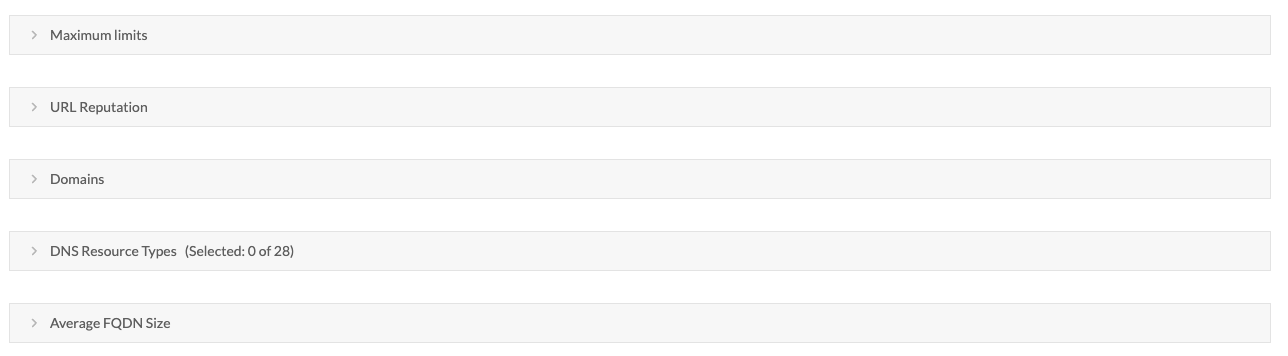
Field Description Maximum Limits (Group of Fields) Click to configure maximum limit parameters.

- Maximum Domains To Track
Enter the maximum number of domains to track in parallel for DNS tunneling.
Range: 1 through 18000
Default: 16384- Maximum IPs To Track
Enter the maximum number of source IP addresses per domain to track for DNS tunneling.
Range: 1 through 1000
Default: 32- Detection Window
Set the length of time window to use to detect DNS tunneling.
Range: 1 through 360 minutes
Default: 10 minutes- Repetitive FQDN Limit
Enter the maximum number of repeating DNS requests for an FQDN per source that are allowed within the detection time window.
Range: 1 through 18000
Default: 400- Uncommon Requests Limit
Enter the maximum number of uncommon DNS requests per source that are allowed within the detection time window.
Range: 1 through 1000
Default: 80URL Reputation
Click to configure the URL reputation.

Click the down arrow to select a URL reputation. Tunnel detection is ignored for FQDNs having a URL reputation higher than the selected reputation.
- Low risk
- High risk
- Moderate risk. This is the default.
- Suspicious
- Trustworthy
Domains (Group of Fields) Click to configure domains. - Include Domains
Choose domains to include in the top-level domain database, and then click the Add icon.- Exclude Domains
Choose domains to exclude from the top-level domain database, and then click the Add icon.DNS Resource Types
Click to select DNS resource record types to query, and then click the checkbox for each type you want to select, or click Select All.
- A—Host address
- AAAA—IPv6 address
- AFSDB—AFS database location
- APL—Address prefix list
- CAA—Certification authority authorization
- CDNSKEY—Child copy of DNSKEY record, for transfer to parent
- CDS—Child copy of DS record, for transfer to parent
- CERT—Certificates
- CNAME—Canonical name for an alias
- CSYNC—Child-to-parent synchronization
- DHCID—DHCP ID
- DLV—DNSSEC lookaside validation record
- DNAME—Delegation name record
- DNSKEY—DNS key record
- DS—Delegation signer
- EUI48—MAC address (EUI-48)
- EUI64—MAC address (EUI-64)
- HINFO—Host information
- HIP—Host identity protocol
- HTTPS—HTTPS binding
- IPSECKEY*—IPsec key
- KEY—Security key
- KX—Key exchanger
- LOC—Location information
- MX—Mail exchange
- NAPTR—Naming authority pointer
- NS—Authoritative name server
- NSEC—Authenticated denial of existence
Average FQDN Size (Group of Fields)
Click to choose which mappings to detect DNS tunneling based on the average size of the subdomains.
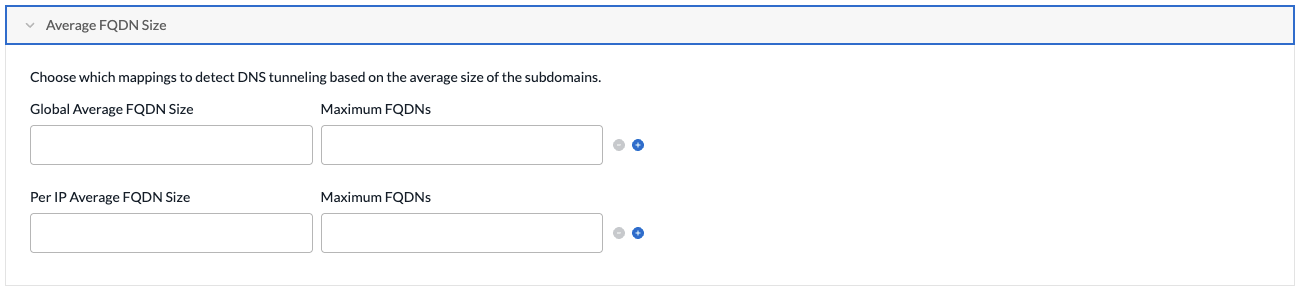
- Global Average FQDN Size, Maximum FQDNs
Configure global mappings for the average size of the subdomain and the maximum number of subdomains per base domain. You can configure up to six mappings. The following are the default values:
- FQDN size—1, maximum number of FQDNs—250
- FQDN size—20, maximum number of FQDNs—200
- FQDN size—30, maximum number of FQDNs—150
- FQDN size—40, maximum number of FQDNs—100
- FQDN size—50, maximum number of FQDNs—50
- FQDN size—60, maximum number of FQDNs—30
- Per-IP Average FQDN Size, Maximum FQDNs
Enter per-single-source IP address mappings on which to detect DNS tunneling based on the average size of the subdomains and number of subdomains from single source IP address. You can configure up to six mappings. - Click Next or select workflow step 5, Permissions.
- The permission for each role is selected by default, and you can update it. To change permissions for a role, select or deselect the Create, Read, Update, and Delete fields for the role.
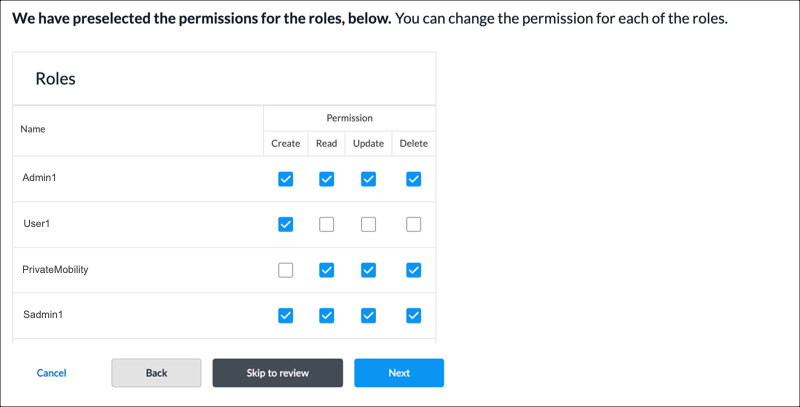
- Click Next or select workflow step 6, Review and Submit.
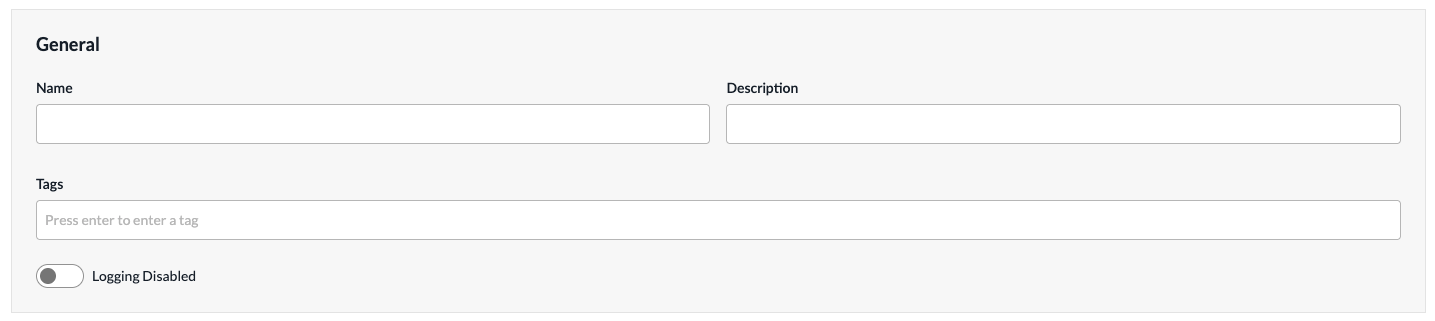
- In the General section, enter a name for the DNS filtering profile. You can also enter a description and tags. A tag is an alphanumeric descriptor, with no white spaces or special characters, that you can use to search the objects.
- To enable logging, click the Logging Disabled toggle, and then select a logging profile that indicates where to forward the logs.
- Use Default—Click to use the default logging profile.
- Custom—Click to use a custom logging profile, and then select a profile in the drop-down list. To create a custom profile, select + Create New. See the Logging Profiles section in Configure Reusable Objects.

- For all other sections, review the information. If you need to make changes, click the
 Edit icon.
 - Click Submit to create the DNS-filtering profile.
Supported Software Information
Releases 13.1.1 and later support all content described in this article.