
Configure Application Layer Gateway
 For supported software information, click here.
Application Layer Gateway (ALG), also known as Application Level Gateway, is a security component that enhances firewall and carrier-grade NAT (CGNAT) operations. ALG allows you to use customized NAT traversal filters with Versa Operating System™ (VOS™) devices to support address and port translation for application layer control and data protocols such as FTP and Session Initiation Protocol (SIP). For these protocols to work through CGNAT or a firewall, either the application has to identify an address–port number combination that allows incoming packets or NAT has to monitor control traffic and dynamically open up port mappings by creating firewall pinholes.
Note: To configure ALG in Concerto Releases 12.2.2 and earlier, see Configure Application Layer Gateway.
The following is an example of how an SIP ALG is used with FTP. In active mode, FTP uses two sessions:
- Control session—Lists folders and files, signals the creation of folders and files, deletes files, and performs other operations.
- Data session—Uploads or downloads actual files.
When the client initiates a session with the FTP server, it uses destination port 21. The client identifies the folder with the required content and then initiates the file download. Because the server must open a connection to the client for FTP to work, the client uses port 21 as the destination port to the server. This port listens to incoming connections from the server on the external IP address and a port of its choice. Then, the server starts a connection to the IP address and port that the client sent in its control message. However, if the client is behind a firewall, the firewall is unable to identify the port to open for the incoming connection. Also, if the client is behind a NAT, the client sends an internal IP address to the server, but the server cannot identify the destination IP address to use after the NAT translation.
To resolve this issue, you use ALG. ALG listens for connections on port 21 and waits for the data connection to establish. When ALG detects a packet that initiates a file download, ALG modifies the packet to add an external NAT IP address and then creates a temporary firewall rule to allow the incoming connection from the server.
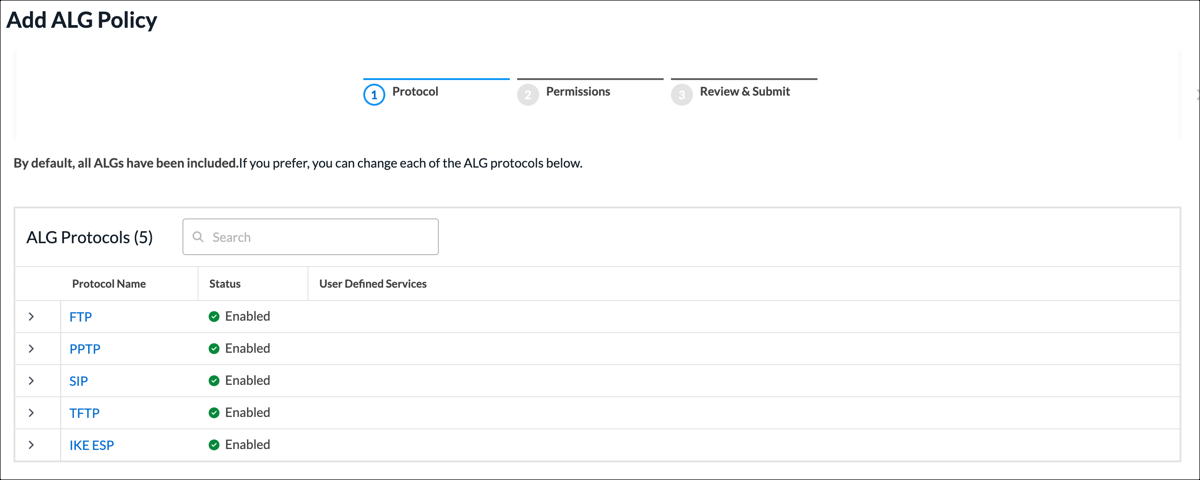
ALG supports operations for FTP, IKE ESP, Point-to-Point Tunneling Protocol (PPTP), SIP, and Trivial FTP (TFTP). These operations are enabled by default.
Create an ALG Policy
You can create an ALG policy as part of a main template, or you can create it separately and then associate it with a main template. For more information about main templates, see Configure Main Templates.
- To create an ALG policy using the main template workflow:
- In Tenant view, select Configure > Secure SD-WAN > Main Templates.
- Click + Add, or select an existing main template for which you want to configure the policy.
- Select the workflow step for Servers and Settings, in the top menu bar. The following screen displays.

- Click Add New ALG Policy. The Add ALG Policy workflow displays.
- Continue to Configure an ALG Policy, below.
- To create an ALG policy separately from a main template:
- In Tenant view, select Configure > Secure SD-WAN > Servers & Settings > Application Layer Gateway Policies.

The following screen displays.

- Click Add ALG Policy. The Add ALG Policy workflow displays. Continue to Configure an ALG Policy, below.
- In Tenant view, select Configure > Secure SD-WAN > Servers & Settings > Application Layer Gateway Policies.
Configure an ALG Policy
- In workflow step 1, Protocol, click a protocol in the Protocol Name column.
The following screen displays, allowing you to enable and disable user-defined services for the protocol.

- Click the
 toggle to enable/disable the protocol.
 - In the User Defined Services table, click the checkbox for one or more user-defined services that you want to enable for the protocol.
- To add a user-defined service:
- Click + Add New. The Add Service workflow displays, beginning with step 1, Protocol & Port.

- Select a protocol in the Protocol field.
- Click Next or select step 2, Permissions.

- The default permission for each role is preselected. If required, select or deselect permissions for each role.
- Click Next or select step 3, Review & Submit.
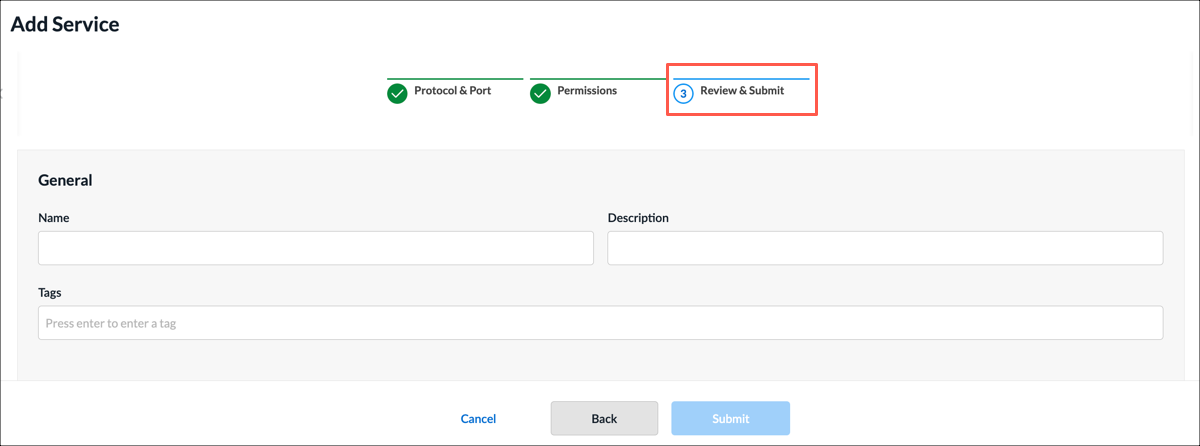
- Enter information for the following fields.
Field Description Name
Enter a name for the service. Description
(Optional) Enter a description for the service. Tags
(Optional) Enter one or more tags. A tag is an alphanumeric text descriptor with no spaces or special characters. You can specify multiple tags added for the same object. The tags are used for searching the objects. - Review the remaining sections. Click the
 Edit icon in any section to make changes, as needed.
 - Click Submit. The screen returns to the Edit Application Layer Gateway window.

- Click + Add New. The Add Service workflow displays, beginning with step 1, Protocol & Port.
- Click Save. The screen returns to the Add ALG Policy workflow.

- Click Next or select step 2, Permissions.
- The default permission for each role is preselected. Select or deselect permissions for each role, as needed.
- Click Next or select step 3, Review and Submit, to review the information.

- In the General section, enter information for the following fields.
Field Description Name Enter a name for the ALG policy.
Description Enter a text description. Tags Enter a tag, and then press the Enter key. You can enter multiple tags. A tag is an alphanumeric text descriptor with no spaces or special characters. The tags are used for searching the objects. Reuse Options (For policies added through the Main Templates workflow.) Click Reusable on Other Templates to make the policy usable in other main templates. Otherwise, click Not Reusable. If you mark the policy as reusable, the policy is listed in the ALG policies table at Configure > Secure SD-WAN > Servers & Settings > Application Layer Gateway Policies. - For all other sections, review the information. To make changes, click the
 Edit icon.
 - Click Submit.
Manage ALG Policies
You can perform the following actions on SD-WAN ALG policies:
- Edit
- Clone
- Delete
- View references
- Propagate
- Compare versions
- View the audit log
- Enable and disable auto delete
For information about these actions, see Manage SD-WAN Policies and Profiles.
Supported Software Information
Releases 13.1.1 and later support all content described in this article.
Additional Information
Configure Main Templates
Manage SD-WAN Policies and Profiles