
Configure Adaptive Shaping
 For supported software information, click here.
In an SD-WAN deployment, adaptive shaping enables a spoke or hub device to enforce a dynamic egress shaping rate on any device that is sending it traffic, forcing the sending device to limit the amount of traffic that it sends. From the sender’s perspective, only the traffic destined for the device on which adaptive shaping is configured is shaped; no other egress traffic is affected.
One use case for adaptive shaping is in a hub-and-spoke topology in which the downlink bandwidth of the hub’s WAN link is limited compared to the aggregate uplink bandwidth of all spokes. If the spokes collectively send more traffic to the hub than the WAN link can handle, it may become congested, or the ISP may drop packets even before they reach the hub. If you configure adaptive shaping on the hub, the hub can advertise a reduced transmission rate to the spokes whenever congestion occurs, prompting them to adjust the amount of traffic they send.
Another use case is shaping traffic in the reverse direction—from the hub towards the spoke. This is useful when the hub’s uplink bandwidth is greater than the downlink bandwidth of the spokes and is not utilized much. In this scenario, the hub can overload the spoke’s WAN downlink. Applying the adaptive shaping feature on the spoke can help solve this problem by advertising a reduced transmission rate from the spoke to the hub.
Adaptive shaping is more suitable for hub-and-spoke topologies than for full-mesh topologies, because each SD-WAN path has two shaping pipes. In larger full-mesh networks, this can translate into a high number of shaping pipes (thousands), which can cause additional load on poller CPUs.
To configure adaptive shaping, you do the following:
- Enable adaptive shaping on the hub. This can be any branch type, but in this article, the hub is the branch for which adaptive shaping is applied on the downlink.
- Configure the input rate range of WAN interfaces in the hub’s SD-WAN site configuration. This input rate is advertised to other branches in the network, so remote branches shape traffic to this hub accordingly.
- Configure class of service (CoS) egress shapers on the WAN interfaces of remote branches so that they can respond to adaptive shaping requests from this hub.
Enable Adaptive Shaping on the Hub
- In Director view:
- Select the Configuration tab in the top menu bar.
- Select the organization from the Organization drop-down list.

- Select Devices > Devices in the horizontal menu bar.
- Select a hub from the list of devices in the main pane. The view changes to the Appliance view.
Note: You can also perform this in Template context (Select Templates > Device Templates in the horizontal menu bar).
- Select the Configuration tab in the top menu bar.
- In the left menu, select SD-WAN > System > Adaptive Shaping. The following screen displays.

- Click the
 Edit icon. In the Edit Adaptive Shaping popup window, enter information for the following fields.

Field Description Enable Click to activate adaptive shaping. Auto Update (For Releases 22.1.1 and later.) Click to use the measured bandwidth instead of the link speed or the configured bandwidth to implement adaptive shaping. You may want to use this option if the bandwidth on a WAN interface is not guaranteed. For example, if the WAN interface is a satellite link, or it is in motion and so the bandwidth that the interface receives varies due to the weather or the signal strength.
To have the VOS device determine the available bandwidth, you must configure a monitor. For more information, see Configure Automatic DIA Bandwidth Monitoring. To check the bandwidth calculated by the bandwidth monitoring, see View the Monitored Bandwidth.
Note that when Auto Update is enabled, the advertised adaptive shaping pipe rate is in the range between the Minimum Input Rate and the Input Rate configured for the Shaping Rate (see Configuring the WAN Interface Input Rate, below).
Default: Disabled
High Threshold Enter the upper bandwidth limit, which is a percentage of the input rate configured on the interface. When the downlink utilization on the hub exceeds the High Threshold value for the number of times defined by the Damping Count, the hub advertises a lower shaping rate (lower by the Percentage Change value) to the remote branches. The effect is that the branches reduce the rate at which they send traffic to the hub. The advertised shaping rate remains reduced until the downlink utilization falls below the Low Threshold value.
Note: The advertised shaping rate does not fall below the Minimum Input Rate configured on the interface.
Range: 1 through 100 percent
Default: 80 percentLow Threshold Enter the lower bandwidth limit, which is a percentage of the input rate configured on the interface. When the downlink utilization on the hub falls below the Low Threshold value for the number of times defined by the Damping Count, and the advertised shaping rate was previously decreased below the configured input rate on the interface, the hub advertises a higher shaping rate (higher by the Percentage Change value). The effect is that the remote branches increase the rate at which they send traffic to this hub.
Note:
-
The advertised shaping rate does not increase above the input rate configured on the interface.
-
Taking this logic into account, the low threshold must not be set lower than the Minimum Input Rate configured on the interface.
Range: 1 through 100 percent
Default: 10 percent
Percentage Change Enter the percentage value to decrease (for the high threshold) or increase (for the low threshold) the shaping rate that is advertised to the branches. The advertised value is then decreased or increased by the configured value.
Range: 1 through 100 percent
Default: 10 percent
Damping Count Enter the number of poll intervals in a row before determining the threshold crossing condition.
Range: 1 through 10
Default: 1
Poll Interval Enter a value for how often the hub checks the downlink utilization on its interface.
Range: 5 through 3600 seconds
Default: 10 seconds
-
- Click OK.
Configure the WAN Interface Input Rate
For adaptive shaping to work on the hub, you must configure the input rate for the WAN interfaces.
To configure the input rate:
- In Director view:
- Select the Configuration tab in the top menu bar.
- Select the organization from the Organization drop-down list.
- Select Devices > Devices in the horizontal menu bar.
- Select a Controller node in the main pane. The view changes to Appliance view.
- Select the Configuration tab in the top menu bar.
- Select Services > SD-WAN > Site in the left menu bar.
On a multi-tenant device, you must also select the organization for which adaptive shaping rates must be configured in the top menu bar.

- Click the
 Edit icon. The Edit Site window displays.
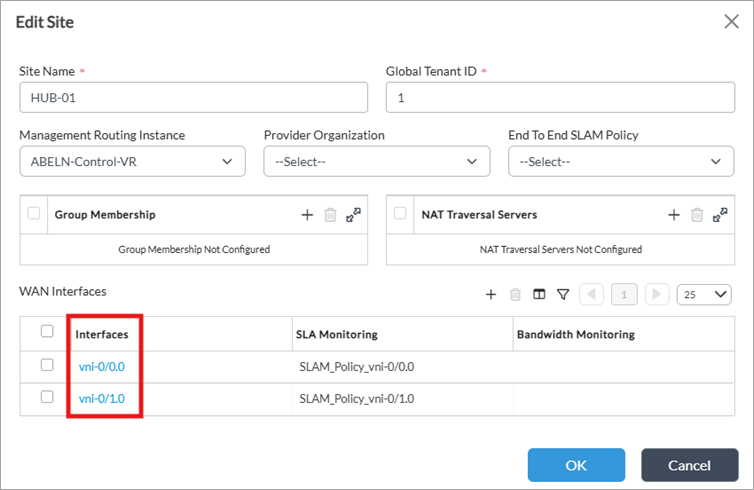
- In the WAN Interfaces field, click the WAN interface for which the input rate must be configured. The Edit WAN Interfaces window displays.

- In the Shaping Rate group of fields, enter the input rate and the minimum input rate in either Kbps or as a percentage of the interface bandwidth.
Note:
- Minimum input rate must be lower than Input rate (these cannot be equal). The shaping rate advertised to remote branches is always between those values.
- If rates are configured as a percentage of the interface bandwidth, then the downlink bandwidth value must be configured on the corresponding WAN interface, as described in Configure Interfaces.
For information about configuring the other fields, see Configure SD-WAN Sites.
- Click OK.
- Click OK on the Edit Site window.
Configure CoS on the Branch Interfaces
The final step in configuring adaptive shaping is to ensure that all remote branches have an egress shaper configured on their WAN interfaces. For more information, see Configure CoS. This enables the remote branches to respond to adaptive shaping requests from the hub.
Adaptive Shaping Verification
To verify adaptive shaping operation on the branches:
- Issue the show class-of-services interfaces extensive command.
- Check for pipes with the Type field set to SD-WAN (Type: SDWAN). There are two pipes for each SD-WAN path to the hub: secure and cleartext. Each pipe’s statistics include the Users field, from which the related SD-WAN path can be identified.
SPOKE-cli> show class-of-services interfaces extensive
Interface: vni-0/0
...
  Pipe Stat:
...
     Pipe ID       : 4
     Users         : [ AB-HUB-01:INET-1:INET-1:ABELN:secure ]
     Type          : SDWAN
     Configuration :
       Rate       : 70000 kbps
         TC0: Network-Control      : 70000-70000 kbps
         TC1: Expedited-Forwarding : 70000-70000 kbps
         TC2: Assured-Forwarding   : 70000-70000 kbps
         TC3: Best-Effort          : 70000-70000 kbps
...
Supported Software Information
Releases 20.2 and later support all content described in this article, except:
- Release 22.1.1 adds the Auto Update option, to use the available bandwidth instead of the link speed or the configured bandwidth to implement adaptive shaping.