
Access the Versa CLI
 For supported software information, click here.
The Versa CLI is a text-based interface that allows you to view, configure, and manage settings on Versa Director and Versa Analytics nodes, and on Versa Operating SystemTM (VOSTM) devices such as controllers and branches. The method to access the CLI differs depending on the device type.
Log In to a Shell Account
You can access the shell using the following methods:
- Director nodes—Access the CLI from the Director UI by clicking the menu on the right and selecting Director CLI. For more information, see Access the Director CLI for Releases 23.1.2 and Later or Access the Director CLI for Release 23.1.1 and Earlier, below.
- Analytics nodes—Log in to the shell using the SSH utility. For more information, see Log In to a Shell Account on an Analytics Node, below.
- VOS devices running Releases 23.1.1 and later—Access the shell using WebSSH, a WebSocket-based secure terminal, accessible by clicking the Shell button on the Appliance screen in the Director UI. For more information, see Log In to a Shell Account on a VOS Device for Releases 23.1.1 and Later, below.
- VOS devices running Releases 22.1.4 and earlier—Access the shell using Shell In a Box, a web-based terminal emulator, accessible from the Director UI. For more information, see Log In to a Shell Account on a VOS Device for Releases 22.1.4 and Earlier, below.
Log In to a Shell Account on an Analytics Node
You can log in to a shell account on an Analytics node using the SSH utility. For example, to access the admin shell account on an Analytics node with IP address 10.20.30.17, you can issue the following command from the built-in Terminal tool on a MacOS device.
user@MacOSDevice$ ssh 10.20.30.17 -l admin
admin@Analytics$
Log In to a Shell Account on a VOS Device for Releases 23.1.1 and Later
WebSSH is a browser-based Secure Shell (SSH) interface that does not rely on external SSH clients such as PuTTY or other terminal applications, and provides an integrated, seamless, and secure method to interact with network appliances from any web browser.
You can use WebSSH as a centralized access point to manage controllers and branch devices. Using secure backend connections, it allows you to open real-time terminal sessions to devices without additional software installation or local network permissions. This is useful when direct SSH access from laptops is restricted by security policies.
To simplify access and strengthen centralized management, WebSSH provides terminal connectivity directly through the browser. For Analytics and Director nodes, you can log in using the standard SSH utility. WebSSH replaces Shell In a Box from Release 23.1.1 and supports the following features:
- Sessions start by connecting to the system shell, not the Director CLI.
- Full session audit log and option to download logs.
- Clipboard support to copy and paste commands within the browser terminal.
You can open a shell window to a VOS device from Director CLI using WebSSH, and then log in to a shell account from this window. It is recommended that you use one of the following browsers:
- Chrome, Versa 71 or later
- Firefox, Version 60 or later
- Microsoft Edge, Version 79 and later
- Safari, Version 12 and later
To open a shell window to a VOS device:
- In Director view, select the Administration tab in the top menu bar.
- Select Appliances in the left menu bar. The following screen displays.

- In the main pane, click the checkbox to the left of the VOS device name. This activates the Shell icon.

- Click the
 Shell icon. A WebSSH shell window displays. For more information on using the CLI, see Use the CLI on Director Node, Analytics Node, or VOS Device below.

- To start logging, click Menu at the bottom of the window.

The following menu items display:

- Click Start Log to start session logs.
- Click Download Log to download and save the log file.
Log In to a Shell Account on a VOS Device for Releases 22.1.4 and Earlier
You can open a shell window to a VOS device from Director using Shell In a Box, and then log in to a shell account from this window. It is recommended that you use one of the following browsers:
- Chrome, Versa 71 or later
- Firefox, Version 60 or later
To open a shell window to a VOS device:
- In Director view, select the Administration tab in the top menu bar.
- Select Appliances in the left menu bar. The following screen displays.

- In the main pane, click the checkbox to the left of the VOS device name. The icons in the top panel become active.

- Click the Appliance Shell
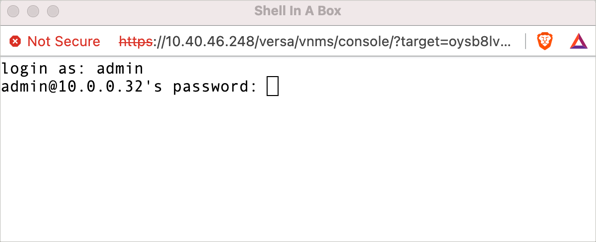
 icon. A shell window displays. For more information on using the CLI, see Use the CLI on Director Node, Analytics Node, or VOS Device below.
Use the CLI on a Director Node, Analytics Node, or VOS Device
To start and use the CLI on a Director node, an Analytics node, or a VOS device:
- Log in to a shell account on the Director node, Analytics node, or VOS device. Director nodes, Analytics nodes, and VOS devices have the following default shell accounts:
- VOS devices—admin
- Director—Administrator
- Analytics—versa
- To log in to a shell account, see Log In to a Shell Account, above.
- To start the CLI, issue the cli command at the shell prompt. The prompt changes to > to indicate you are in the CLI.
- At any CLI prompt, you can type in a question mark to display a list of available commands. The available CLI commands vary, depending on whether you are on a Director node, Analytics node, or VOS device, and which CLI mode you are in.
- To switch to configuration mode, enter the configure command. The prompt changes to %. You can issue configuration and show commands from this prompt.
Note: When you modify the configuration on a VOS device from the CLI and then commit your changes, the device configuration is no longer in sync with the configuration stored in the Director database. For information about synchronizing the configuration, see Synchronize or Delete VOS Device Configurations.
- Enter CLI configuration commands in configuration mode. The following example configures a routing instance on a branch device.
admin@Branch1(config)% set routing-instances WAN1-Transport-VR interfaces [ tvi-0/3001.0 tvi-0/3002.0 ]
- When you are done entering configuration commands, enter the commit command to save your changes.
admin@Branch1(config)% commit
- Issue the exit command to return to the > prompt.
- Issue the exit command again to return to the shell.
Access the Director CLI for Releases 23.1.2 and Later
Starting in Release 23.1.2, you can access the CLI of primary, secondary, or arbiter nodes in a Versa Director cluster.
To access the Director node CLI:
- After you log into Versa Director, click the username in the top right corner, and then select Director CLI.

The Director CLI window displays.

- Click the Cluster Nodes field and select the Director node (primary, secondary, or arbiter) for which you want to access the CLI.

- Hover your cursor over each node to view the following information for the node:
- Configured status
- Northbound IP address
- Southbound IP address
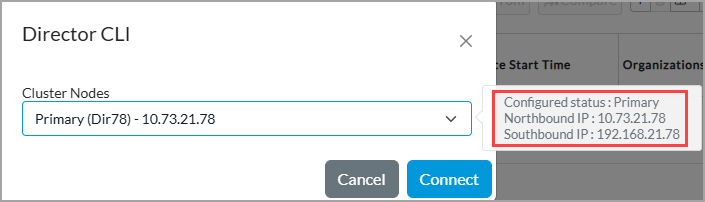
- After you select the node, click Connect. A WebSSH shell window displays.
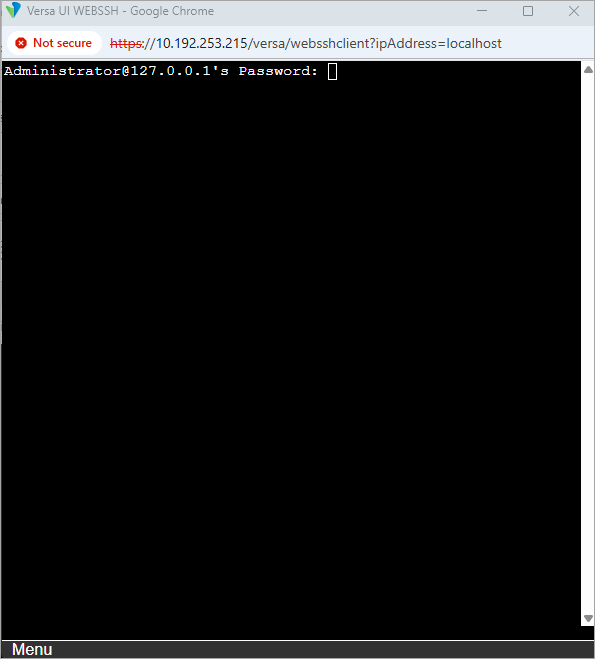
- Enter your password to access the CLI.
Access the Director CLI for Release 23.1.1 and Earlier
Note that from Release 23.1.1, WebSSH replaces Shell In a Box and WebSSH supports:
- Double authentication for enhanced security—Only Provider Data Center System Admin (PDCSA) users are granted direct shell access. Other uses require explicit authentication for CLI access by entering the username and password again.
To access the Director node CLI:
- After you log into Versa Director, click the username on the top right corner and select Director CLI.
A WebSSH shell window displays.
- Enter your password to access the CLI.
Access the Versa CLI
To access the Versa CLI:
admin@Branch1$ cli

             .---.,
            (      ``.
       _     \        )    __      ________ _____   _____
      (  `.   \      /     \ \    / /  ____|  __ \ / ____|  /\
       \    `. )    /       \ \  / /| |__  | |__) | (___   /  \
        \     |    /         \ \/ / |  __| |  _  / \___ \ / /\ \
         \    |   /           \  /  | |____| | \ \ ____) / ____ \
          \   |  /             \/   |______|_|  \_\_____/_/    \_\
           \  | /
            \_|/                   _  _ ___ _______      _____  ___ _  _____
                                  | \| | __|_   _\ \    / / _ \| _ \ |/ / __|
                                  | .` | _|  | |  \ \/\/ / (_) |   / ' <\__ \
                                  |_|\_|___| |_|   \_/\_/ \___/|_|_\_|\_\___/


admin connected from 10.200.1.4 using ssh on Branch1
admin@Branch1>
admin@Branch1> ?
Possible completions:
  clear       - Clear parameter
  commit      - Confirm a pending commit
  compare     - Compare running configuration to another configuration or a file
  configure   - Manipulate software configuration information
  describe    - Display transparent command information
  diff-config - Generate 'set/delete' commands to change one config to another
  exit        - Exit the management session
  file        - Perform file operations
  help        - Provide help information
  id          - Show user id information
  monitor     - Real-time debugging
  mtr         - Trace a host with ping functionality
  ping        - Ping a IPv4/IPv6 host
  quit        - Exit the management session
  request     - Make system-level requests
  scp         - Securely copy a file to host
  script      - Script actions
  set         - Set CLI properties
  set-path    - Set relative show path
  shell       - Go to linux shell
  show        - Show information about the system
  source      - File to source
  ssh         - Secure shell connection to remote host
  tcpdump     - tcpdump for interfaces
  top         - Exit to top level and optionally run command
  traceroute  - Trace a host
  up          - Exit one level of configuration
  wget        - Download file from Web/Host in a non-interactive way
  xpath       - Evaluate xpath expression
admin@Branch1> configure
admin@Branch1(config)%
admin@Branch1(config)% exit
admin@Branch1>
admin@Branch1> exit
admin@Branch1$
Supported Software Information
Releases 20.2 and later support all content described in this article, except:
- Release 23.1.1 adds support for WebSSH interface, which replaces Shell In a Box.
- Release 23.1.2 adds support to connect to the WebSSH interface of any Director node (primary, secondary, or arbiter).