
Configure MTLS Certificate-Based Authentication
 For supported software information, click here.
A certificate is an electronic document that provides proof of a digital entity's identity on the internet. When a TLS connection is established, the server provides a certificate that the client validates before trusting the server's identity.
The server can also request that the client authenticate itself through a client certificate. This method, in which both the client and server identities are verified during the TLS handshake, is referred to as mutual TLS (mTLS). Unlike standard TLS, which only verifies the server, mTLS ensures that both ends of the communication are trusted.
MTLS also allows for the use of an access token, provided by the authorization server, which is bound to the client's certificate. MTLS certificate-bound access tokens ensure that only the party in possession of the private key corresponding to the certificate can utilize the token to establish an mTLS connection. The client must prove ownership of the private key (proof-of-possession), which prevents the use of stolen access tokens by unauthorized parties.
This article describes how to configure mTLS certificate-based authentication in Versa Director to improve the security of your APIs and services.
Note: MTLS is not supported for the central authentication feature.
In Release 23.1.2, a new authentication mechanism is added to Versa Director that extends MTLS authentication to VNMS APIs. Instead of authenticating with a username and password or an OAuth token, the user presents an X.509 client certificate to authenticate API requests. An X.509 certificate is a digital identity document issued by a Certificate Authority (CA) that contains a subject (who owns the certificate), issuer (who signed the certificate), and a validity period.
Prerequisite
Before you configure mTLS certificate-based authentication, you must configure the FQDN for the certificate-based login screen.
To do this, issue the vsh cluster set_mtls_fqdn command. For example:
[Administrator@versa-director: ~] $ vsh cluster set-mtls-fqdn
[sudo] password for Administrator:
Enter the sudo password for the cluster:
--------------------------------------------------------------------------------
Node 1: IP = 10.192.249.165
Enter the FQDN for MTLS (no IP allowed) [Press Enter to keep current: ‘versa-director’]:
Keeping existing mtls_fqdn: versa-director
[ 10.192.249.156 ] : Executing cmd : cp -f /var/versa/vnms/share/config/clusterconfig.json /opt/versa/vnms/etc/clusterconfig.json

[10.192.249.156] sudo: cp -f /var/versa/vnms/share/config/clusterconfig.json /opt/versa/vnms/etc/clusterconfig.json
[10.192.249.156] out: sudo password:
[10.192.249.156] out:
[ 10.192.249.156 ] : Executing cmd : chmod 664 /opt/versa/vnms/etc/clusterconfig.json

[10.192.249.156] sudo: chmod 664 /opt/versa/vnms/etc/clusterconfig.json
[10.192.249.156] out: sudo password:
[10.192.249.156] out:
Configuring MTLS Certificate-Based Authentication
To configure mTLS certificate-based authentication, you first configure the certificate user with a username for mTLS certificate-based authentication, which is stored in the local database. Then, the user configures a CA certificate profile in which they upload a CA chain file. When the user authenticates, the username in the certificate is compared to the username in the local database.
Configure the Certificate User
Configure the certificate user to authenticate with mTLS.
- In Director view, select the Administration tab in the top menu bar.
- In the left menu bar, select Director User Management > Organization > Users.
- In the main pane, click the Add button or the + Add icon.

- In the Add User for Organization window, enter information for the following fields.

Field Description Username Enter the username for the certificate user. This username is mapped to the designated username field in the user's certificate for authentication. First Name Enter the first name of the certificate user. Last Name Enter the last name of the certificate user. User Type Enter mTLS. Email Address Enter the email address of the certificate user. Idle Time Out Enter the duration after which the login session expires. Phone Number Enter the phone number of the certificate user. Temporary Account Click to indicate this is a temporary user account. Enable Two Factor Authentication. Click to enable or disable two-factor authentication of the user. Tags Enter one or more tags to to associate with the user. A tag is an alphanumeric text descriptor with no spaces or special characters that you use for searching objects. Roles (Group of Fields) - Organization
Select the organization for the certificate user. - Available Roles
Select the role to assign to the certificate user. - Landing Page
Select the first page to appear when the certificate user logs in to the application. - Click OK.
Create the CA Cert Profile
To create a CA certificate profile:
- In Director view, select the Administration tab in the top menu bar.
- In the left menu bar, select Connectors > mTLS CA Certificates > Tenant.

- In the mTLS CA Certificates section, click the Edit icon.
- In the mTLS CA Certificates window, enter information for the following fields.

Field Description Name Enter the certificate name. Description Enter a description for the certificate profile. Username Field Enum Select the username field in the certificate that is mapped with the user in the local database. When the user authenticates, the username is extracted from this field in the certificate and compared to the username configured in Create the Certificate User, above.
- Subject Common Name
- Subject Alternative Email
- Subject Alternative Principal Name
Certificate Click Browse to select and upload a CA chain file. The CA chain file must be in PEM format. - Click OK.
Login with Certificate
When mTLS certificate-based authentication is configured, a local user can log in using the following procedure:
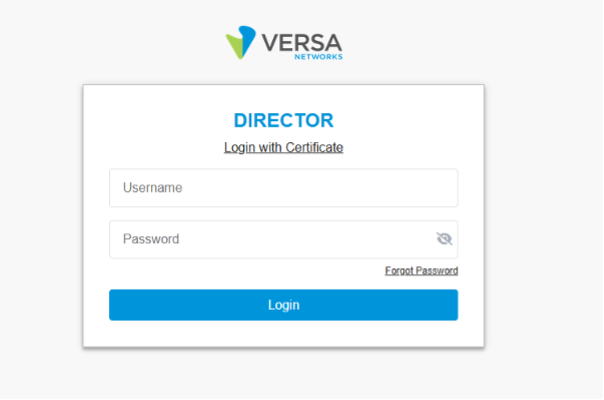
- On the Versa Director login page, the user clicks the Login with Certificate link.
- The link redirects to a screen where the user selects the certificate.
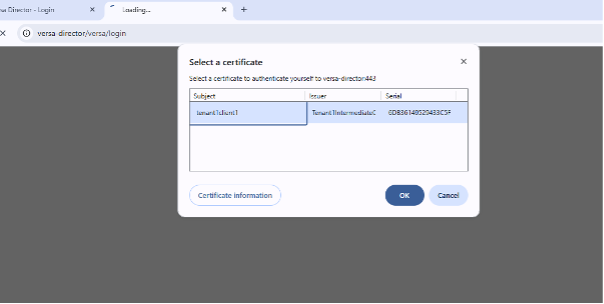
- After clicking OK, the Director login screen displays.
- The user clicks Enter Organization for Tenant Users, and enters the tenant name, as shown below.

- When the user clicks Login, an OAuth token request is initiated with the "cert" grant type and the uploaded client cert PEM file.
- The client certificate is validated and the username from the certificate is mapped to the username configured for the certificate user.
- If authentication is successful, an access token is granted to the user.
Supported Software Information
Releases 23.1.1 and later support all information in this article, except:
- Release 23.1.2 adds support for mTLS Authentication for VNMS APIs.