
Explicit Web Proxy with SD-WAN Traffic Steering
 For supported software information, click here.
This article describes the operation and configuration of explicit Web proxy and how to combine it with SD-WAN traffic steering rules in Versa Operating SystemTM (VOSTM) using Versa Director. The integration of these two features allows traffic destined to Web resources to be explicitly directed through a proxy, and have it routed using the most appropriate WAN path based on versatile SD-WAN policies.
Note that this article only covers the relevant configuration for explicit Web proxy and SD-WAN traffic steering, and not other aspects of the configuration and onboarding of a VOS device. For additional information on HTTP/HTTPS proxy, see Configure HTTP/HTTPS Proxy.
Explicit Web Proxy Operation
An explicit proxy processes HTTP/HTTPS traffic that has the destination IP address and port of the proxy itself. This traffic comes from clients that have been explicitly configured to use the web proxy IP address and port. This way, web traffic is ensured to pass through the web proxy appliance, that can then apply security policies. In this use case, VOS is configured to act as a web proxy that listens on 10.130.61.1:3128, meaning that the VOS proxy processes HTTP/HTTPS traffic destined to 10.130.61.1:3128.
Web Proxy Operation
A web proxy uses in the HTTP CONNECT method, in which clients configured with the IP address and port of the proxy send CONNECT requests to the proxy, instructing it to establish a TCP connection to the target web server on their behalf.
Note: TLS Decryption is not required for basic web proxy operation. It is a separate, optional process that complements standard web proxy functionality.
Note: The client does not perform DNS resolution for the target website. Instead, it includes the hostname in the HTTP CONNECT request sent to the web proxy, which then handles the DNS lookup.
The below sequence diagram provides a high-level overview of how an HTTPS connection to example.com would be established when using a web proxy.

Web Proxy with TLS Decryption Operation
Typically, when a web proxy is configured in VOS, it is also set up to perform HTTPS decryption for traffic inspection. This involves enabling both the web proxy and the corresponding TLS decryption profiles and policies.
The operation of the web proxy is essentially the same when it comes to the use of HTTP CONNECT method. However, with TLS decryption in place, VOS won’t limit the operation of the web proxy to tunnel the connection packets – VOS acts as a man-in-the-middle for the TLS session. For a given HTTPS connection from the client:
- VOS establishes two TLS sessions:
- TLS session #1 with the client
- TLS session #2 with the web server
- VOS, in the middle of both sessions:
- Decrypts the traffic from the client and inspect it (TLS session #1)
- If allowed by the security policy, encrypts the traffic and sends it to the web server (TLS session #2)
The below sequence diagram provides a high-level overview of how a HTTPS connection to example.com would be established when using web proxy in combination with TLS decryption.

Components of Explicit Web Proxy with TLS Decryption and SD-WAN Traffic Steering
Implementation of explicit web proxy with TLS decryption and SD-WAN traffic steering includes the following major components:
- DNS Proxy
-
When using explicit full proxy, the client sends HTTP CONNECT messages to the web proxy and the web proxy (VOS) performs the DNS resolution for the requested hosts. DNS proxy is the component that handles this, and a DNS proxy profile and a DNS proxy policy must be configured.
In order for the web proxy traffic to successfully be subject to the SD-WAN traffic steering rules, you must configure the DNS proxy policy rules to follow policy-based forwarding.
- CGNAT
-
CGNAT pools and rules are needed for traffic that is sent out to Internet. These are typically one CGNAT pool and one CGNAT rule per transport that is used to reach the web servers on the internet (and that are created by default by the Director template workflow, when split tunnels are configured, or by Concerto when DIA is configured in the VPN).
Additionally, you must configure a bypass NAT rule to disable NAT translation for packets destined to the web proxy. This rule is needed when implementing SD-WAN traffic steering rules for web proxy traffic, to prevent the traffic being translated by the pbf (policy-based forwarding) component before it is processed by the vfp (versa forward proxy) component.
- Web Proxy
-
Web proxy is the main component in this use case. When configured in explicit mode, it enables VOS to process HTTP CONNECT messages and the proxy connections.
- TLS Decryption
-
The TLS decryption component performs the man-in-the-middle TLS operations, by establishing a TLS connection with the client and with the server. In order to establish a TLS connection with the client, VOS impersonates the web server by crafting and sending to the client a certificate signed for the web server hostname (for this, it uses a CA certificate that must have been uploaded in advance).
- SD-WAN Traffic Steering
-
SD-WAN traffic steering rules can match traffic based on different criteria (L3/L4, L7: URL, application) and prefer one transport or another, enforce SLAs, etc.
Topology
This configuration example for explicit web proxy with TLS decryption and SD-WAN traffic steering is based on the following topology:
- VOS is deployed in the Provider Organization with the subtenant ACME.
- VOS has two transports: INET1 and INET2.
- Split tunnels are configured in both INET1 and INET2 transports, and LAN traffic can break out to the internet locally through either of the transports.
- Clients in the ACME-Enterprise LAN are configured to use and HTTP/HTTPS proxy with the IP address 10.130.61.1 and port 3128.
- VOS is configured to do the following:
- Act as a web proxy, listening in in its IP 10.130.61.1 and on port 3128.
- Decrypt and inspect all traffic sent to the proxy.
- Steer traffic to Wikipedia to INET2 transport.
- Steer all the rest of web proxy traffic to INET1 transport.

Software Requirements
This example is based on the following software versions:
- VOS 22.1.4 (Service Release dated 2025-09-05)
- Director 22.1.4 (Service Release dated 2025-09-08)
Configuration
To configure explicit web proxy with TLS decryption and SD-WAN traffic steering, you do the following:
- Configure NGFW policy to allow traffic to the web proxy.
- Configure the DNS policy that the web proxy will use to resolve the hosts requested via HTTP CONNECT requests.
- Configure CGNAT.
- Configure the web proxy in explicit mode.
- Configure TLS decryption.
- Configure SD-WAN traffic steering rules to control what WAN interface the web proxy traffic is going to use.
The following sections describe these configuration procedures.
Configure NGFW
You configure the NGFW policy to allow traffic to the web proxy. In this example, an NGFW rule allows all traffic coming from the ACME-Enterprise LAN. More advanced NGFW rules can be implemented to restrict access based on criteria such as application, URL reputation, and URL categories.
- In Director view:
- Select the Configuration tab in the top menu bar.
- Select Devices > Devices in the horizontal menu bar.
- Select a device in the main pane. The view changes to Appliance view.
- Select Services > Next Gen Firewall > Security > Policies in the left menu.
- Click Add. The Add Rule window displays.
- On the General tab, enter a name for the rule.
- Select the Source tab, and then select the source LAN zone.

- Select the Enforce tab.
- In the Actions section, select the Allow action.

- Click OK.
- The rule displays in the first position for the policy, as shown below.

Configure DNS Proxy
To configure DNS proxy, you configure a DNS proxy profile and a DNX proxy policy. In order for the web proxy traffic to successfully be subject to the SD-WAN traffic steering rules, you must configure the DNS proxy policy rules to follow policy-based forwarding.
This example uses two DNS servers, 8.8.8.8 and 8.8.4.4, defined inside two separate resolvers in the DNS proxy profile:
- Resolver #1 uses INET1 transport
- Resolver #2 uses INET2 transport
Note that in this example, DNS proxy is not intercepting DNS requests coming from clients. The DNS proxy profile is used in conjunction with a DNS policy by the web proxy component to perform DNS lookups.
Create SNAT Pools
Configure the SNAT pools that source-NAT the DNS lookups sent by VOS, by the web proxy. This example shows two SNAT pools because there are two resolvers and each one uses a different transport.
- In Director view:
- Select the Configuration tab in the top menu bar.
- Select Devices > Devices in the horizontal menu bar.
- Select a device in the main pane. The view changes to Appliance view.
- Select Objects & Connectors > Objects > SNAT Pool in the left menu.
- Click Add.
- Add a SNAT pool for the first DNS resolver, selecting INET1 as the egress network.

- Click OK.
- Add another SNAT pool for the second DNS resolver, selecting INET2 as the egress network.

-
Click OK. Both SNAT pools display, as shown below.

Create DNS Monitor Objects
To monitor the health of the DNS servers that we are to use in our resolvers, through the different transports, we configure a DNS monitor object per DNS per transport:
| DNS Server | Transport | Monitor Object |
|---|---|---|
| 8.8.8.8 | INET1 | Monitor-DNS-Google1-INET1 |
| 8.8.8.8 | INET2 | Monitor-DNS-Google1-INET2 |
| 8.8.4.4 | INET1 | Monitor-DNS-Google2-INET1 |
| 8.8.4.4 | INET2 | Monitor-DNS-Google2-INET2 |
- Select Networking > IP-SLA > Monitor in the left menu.
- Click Add.
- To add the first DNS monitor object (here, Monitor-DNS-Google1-INET1), enter information for the following fields.

Field Description Interval Enter how often in seconds to attempt a DNS lookup. Threshold Enter how many DNS lookups must fail in a row to declare the monitor object down. Monitor Type Select type DNS. Domain Name Enter the domain name that the monitor tries to resolve. Organization Select the organization. Networks Enter the networks through which the monitor sends the DNS request. IP Address Enter the IP address of the DNS server to monitor. - Repeat Step 3 until you have four DNS monitor objects created, as shown below.

Configure the DNS Proxy Profile
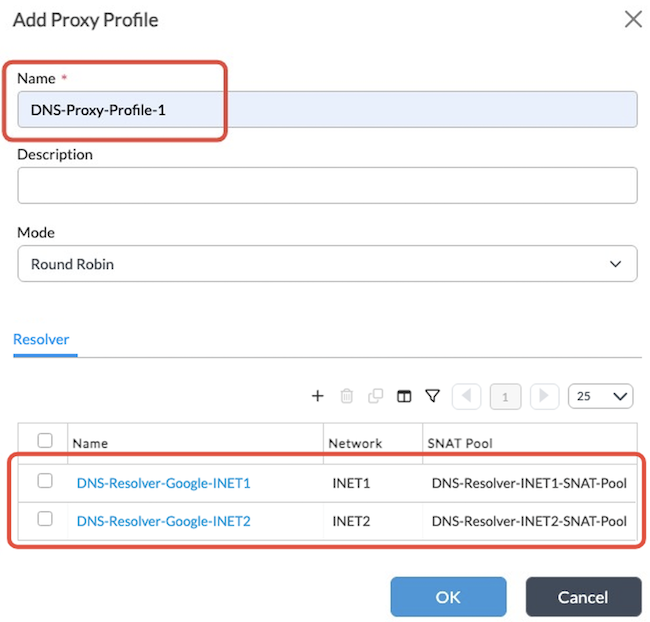
In the DNS proxy profile, you define the DNS resolvers to use. For redundancy, this example uses a separate resolver in each transport. Each resolver is associated with two DNS servers.
To configure the DNS proxy profile, you reference the SNAT pools and DNS monitor objects that you configured in Create SNAT Pools and Create DNS Monitor Objects, above.
- Select Networking > DNS > Proxy Profiles in the left menu.
- Click Add. The Add Proxy Profile window displays.
- Enter a name for the proxy profile in the Name field (here, DNS-Proxy-Profile-1).

- In the Resolver section, click the + icon. The Add Resolver window displays.
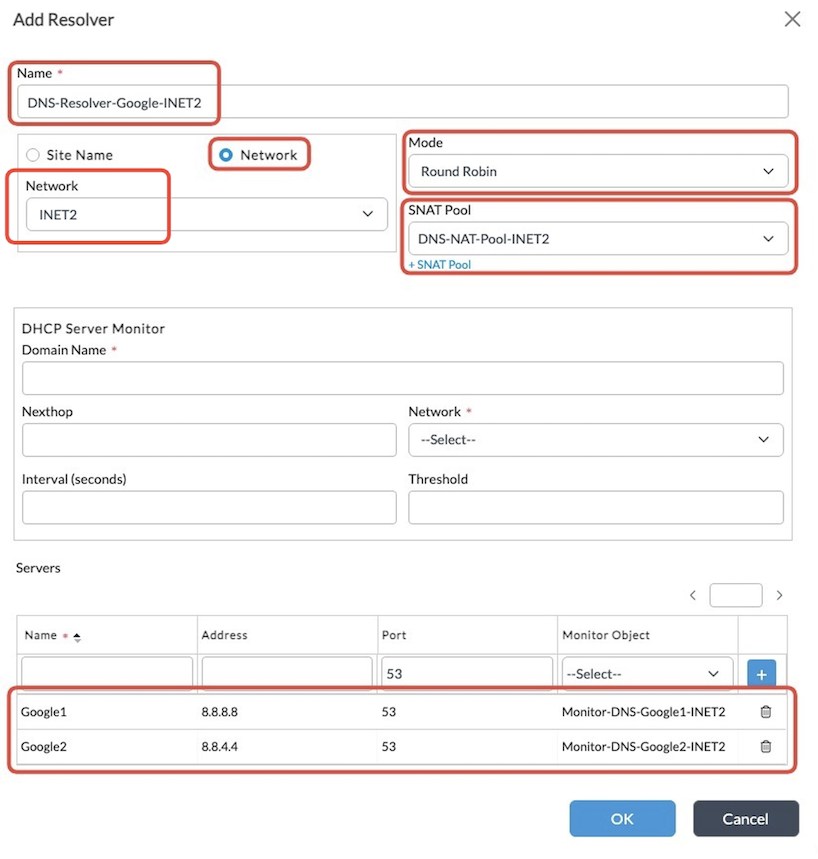
- Create the first resolver, which uses the DNS Servers 8.8.8.8 and 8.8.4.4 through the INET1 network, in a round robin fashion, as long as both are up.

Note that each of the DNS servers is configured with its respective monitor object.
- Click OK, and then create the second resolver, which uses the INET2 transport, as shown below.
- Click OK. The resolvers display as shown below.
Note that the mode of operation of the proxy profile can be either round-robin or failover:
- Round-robin (default): Uses both resolvers in a round-robin fashion.
- Failover: The resolvers defined first take precedence, and the first one is used over the second one as long as it is operational.
In the next section, you enable policy-based forwarding in the DNS Policy rules. This results in SD-WAN traffic steering rules being honored when determining the DNS resolver to use (e.g. INET2 over INET1).
Create a DNS Policy
To configure the DNS policy that the web proxy component uses to perform DNS lookups:
- Select Networking > DNS > Policies in the left menu.
- Click Add. The Add DNS Policy window displays.

- Add a DNS Policy specific to the web proxy.
- Click OK.
- Select the Rules tab, and then select the DNS policy that you created in Step 4.
- Click + Add. The Add Redirection Rules window displays.

- On the General tab, enter a name for the rule.
- Select the Source/Destination tab, and then select the source zone relative to the LAN.

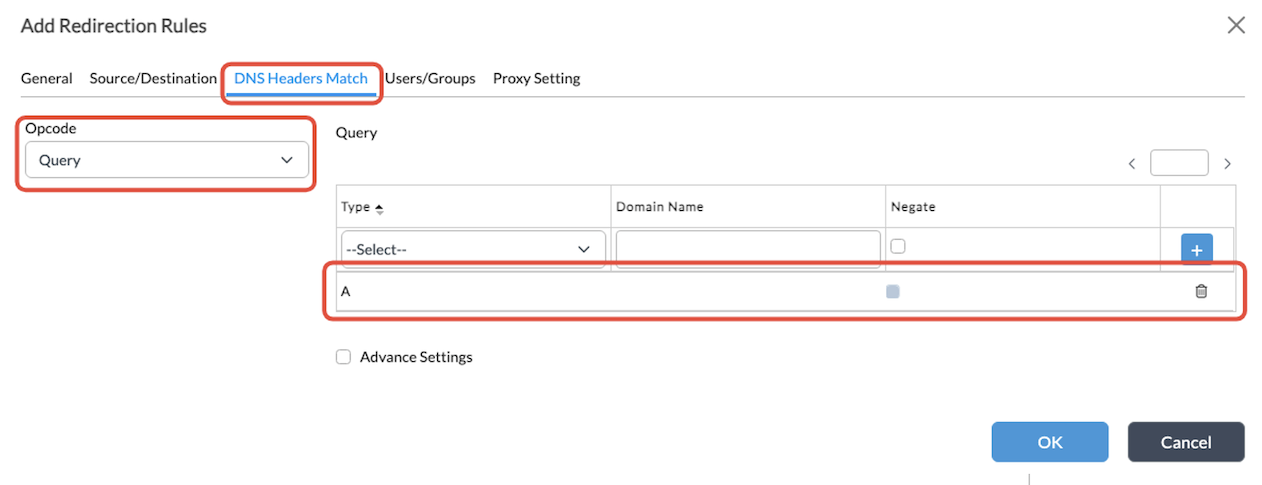
- Select the DNS Headers Match tab, and then create an entry for Type A queries.
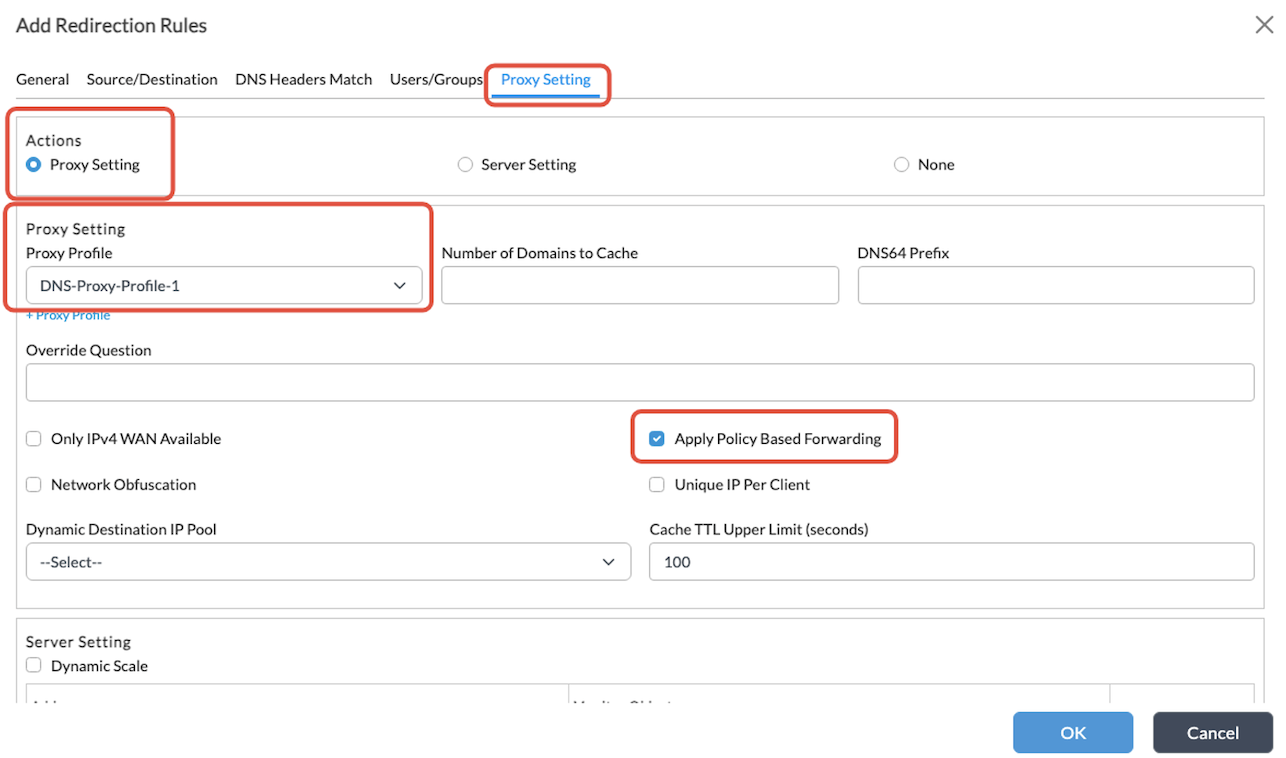
- Select the Proxy Setting tab, and enter information for the following fields:
- Actions—Select Proxy Setting.
- Proxy Profile—Select the proxy profile that you created in
- Apply Policy-Based Forwarding—Click the checkbox to enable policy-based forwarding. This ensures that the SD-WAN traffic steering rules are applied to web proxy traffic.
- Click OK.
Configure CGNAT
Because split tunnel is configured through the template workflows, by default, there is already a NAT pool and a NAT rule per transport where we have split tunnels.
In this example, the pools and rules below are already present in the configuration:

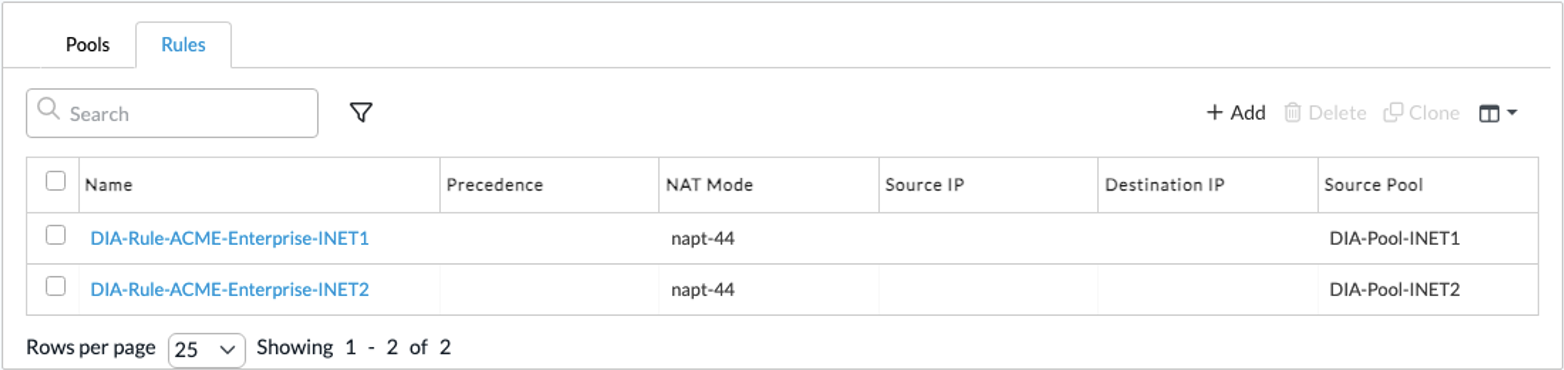
These pools and rules are necessary to send the traffic directly to Internet. In addition to these, you need to configure a more specific and preferred NAT rule to bypass NAT for traffic destined to the proxy.
Note: This step is essential when configuring ‘apply policy-based forwarding’ in the DNS policy rule with web proxy. The rule does not prevent the traffic from being translated altogether. Instead, it prevents the policy-based forwarding (pbf) component from installing a NAT translation before the session is processed by the Versa forward proxy (vfp) component. The vfp component eventually applies the NAT translation.
- In Director view:
- Select the Configuration tab in the top menu bar.
- Select Devices > Devices in the horizontal menu bar.
- Select a device in the main pane. The view changes to Appliance view.
- Select the Configuration tab in the top menu bar.
- Select Services > CGNAT in the left menu.
- Select the Rules tab, and then click Add. The Add CGNAT Rule window displays.
- Add a rule that matches the destination IP address and port of the web proxy and that has action set to Disable Translation:
- On the General tab, enter a name for the rule in the Name field.
- In the Precedence field, enter a higher precedence than 1, which is the default precedence of the other NAT rules. This example uses 10.

- Select the Match tab.

- Select the Action tab, and enter the following information.

- Click OK.
Configure Web Proxy
Configuring web proxy in explicit mode effectively makes the VOS device to listen to HTTP Connect messages in the configured IP address and port and process the proxy connections.
- In Director view:
- Select the Administration tab in the top menu bar.
- Select Appliance in the left menu bar.
- Select a VOS device in the main pane. The view changes to Appliance view.
- Select Services > Web Proxy in the left menu.
- Click Add. The Add HTTP/HTTPS Proxy window displays.
- Configure the web proxy in explicit mode, with the correct IP address and port and DNS redirection policy. Do not specify a NAT pool. This ensures that the web proxy uses the same NAT pool used for the DNS lookup, which honors the policy-based forwarding.

- For all other fields, accept the default values.
- Click OK. The web proxy should display as shown below.

Note: When you configure the web proxy component, VOS is effectively listening on 10.130.61.1:3128 for HTTP CONNECT messages and processing proxy connections. The web proxy is functional, but there is no TLS decryption in place.
Configure TLS Decryption
To configure TLS Decryption, you do the following:
- Upload the CA key, chain, and certificate for generating the forged TLS certificates.
- Create a decryption proxy profile.
- Create a decryption policy.
Upload the CA Key, CA Chain, and CA Certificate
Before you begin, make sure you have the key and certificate files for the CA and the complete CA chain certificate.
To upload the CA key:
- In Director view:
- Select the Configuration tab in the top menu bar.
- Select Devices > Devices in the horizontal menu bar.
- Select a device in the main pane. The view changes to Appliance view.
- Select Objects & Connectors > Objects > Custom Objects > Key in the left menu.
- On the Director tab, click the Upload icon in the upper right corner.

- The Upload Key File to Director window displays.
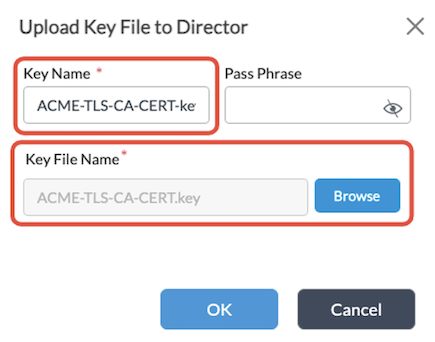
- In the Key Name field, enter a name for the key.
- In the Key File Name field, click Browse to upload the key file.
- Enter the pass phrase if needed.
- Click OK.
- Select the Appliance tab.
- Click the Upload icon in the upper right corner. The Upload Key File to Appliance window displays.
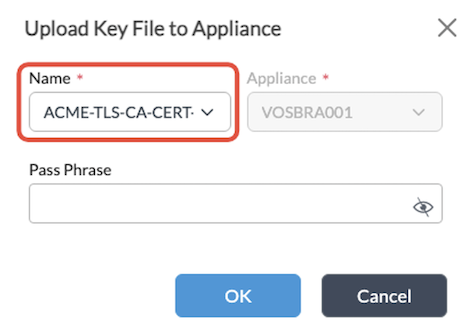
- In the Name field, select the name of the key that you uploaded to Director.
- Click OK. The key displays on the Appliance tab, as shown below.

To upload the CA chain:
- Select Objects & Connectors > Objects > Custom Objects > CA Chains in the left menu.
- On the Director tab, click the Upload icon in the upper right corner. The Upload CA Chain to Director window displays.

- In the Chain Name field, enter a name for the CA chain.
- In the Chain File Name field, click Browse to upload the CA chain certificate file.
- Click OK.
- Select the Appliance tab.
- Click the Upload icon in the upper right corner. The Upload CA Chain File to Appliance window displays.
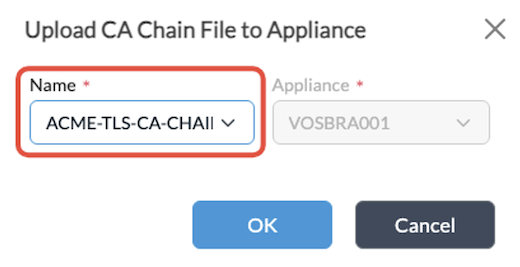
- In the Name field, select the name of the file you uploaded to Director.
- Click OK. The key displays on the Appliance tab, as shown below.

To upload the CA certificate:
- Select Objects & Connectors > Objects > Custom Objects > Certificates in the left menu.
- On the Director tab, click the Upload icon in the upper right corner. The Upload Certificate File to Director window displays.

- In the Certificate Name field, enter a name for the certificate.
- Select the private key name and CA chain that you uploaded in the previous steps.
- In the Certificate File Name field, click Browse to upload the CA certificate.
- Click OK.
- Select the Appliance tab.
- Click the Upload icon. The Upload Certificate File to Appliance window displays.
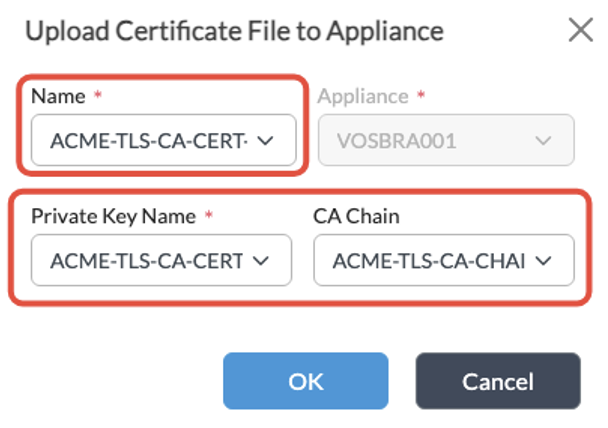
- In the Name field, select the certificate file that you uploaded to Director.
- Select the private key and CA chain.
- Click OK. The certificate displays on the Appliance tab, as shown below.

Create a Decryption Proxy Profile
- In Director view:
- Select the Administration tab in the top menu bar.
- Select Appliances in the left menu bar.
- Select a VOS device in the main pane. The view changes to Appliance view.
- Select the Configuration tab in the top menu bar.
- Select Services > Next-Gen Firewall > Decryption > Proxy Profiles in the left menu bar.
- Click the
 Add icon in the main pane. The Add Decryption Profile window displays.

- On the General tab, enter information for the following fields.
- Type—SSL Full Proxy
- CA Certificate—Select the CA certificate that we uploaded in the previous step
- Mode—Explicit
- Match Rule—Click the Add icon. The Add Match Rule window displays.
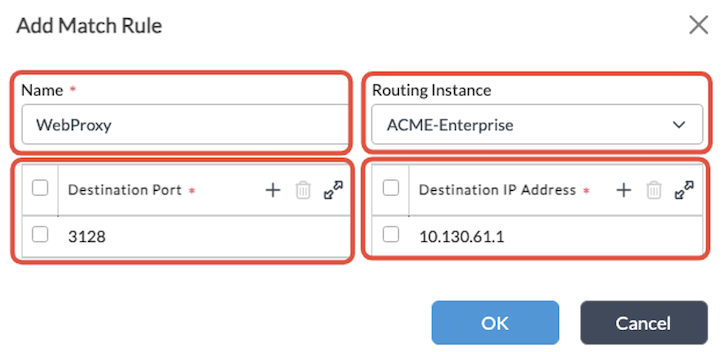
- Create a rule to match the destination IP and port of the web proxy, as shown above.
- Click OK.
Create a Decryption Policy
To decrypt all traffic sent to the web proxy, create a decryption policy. In the policy, define a rule that matches all traffic to the web proxy and enforces a decrypt action using the decryption profile that was just created in Create a Decryption Proxy Profile, above.
To configure a decryption policy:
- In Director view:
- Select the Administration tab in the top menu bar.
- Select Appliance in the left menu bar.
- Select a VOS device in the main pane. The view changes to Appliance view.
- Select the Configuration tab in the top menu bar.
- Select an organization in the horizontal menu bar.
- Select Services > Next-Gen Firewall > Decryption > Policies in the left menu bar.
- Select the Decryption Policies tab and then click the
 Add icon in the main pane. The Add Decryption Policy window displays.
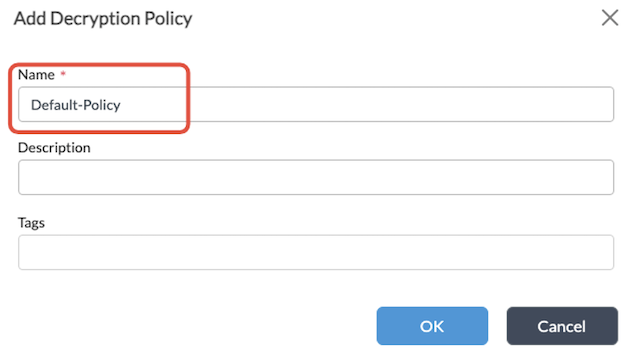
- Enter a name for the policy (here, Default-Policy) and click OK.
- Select the Rules tab and click the Add icon in the main pane. The Add Decryption Rule window displays.

- On the General tab, enter a name for the Rule.
- Select the Destination tab.
- In the Destination Address section, click the icon. The Add/Edit Address window displays.
- Enter the destination IP address of the proxy, as shown below.
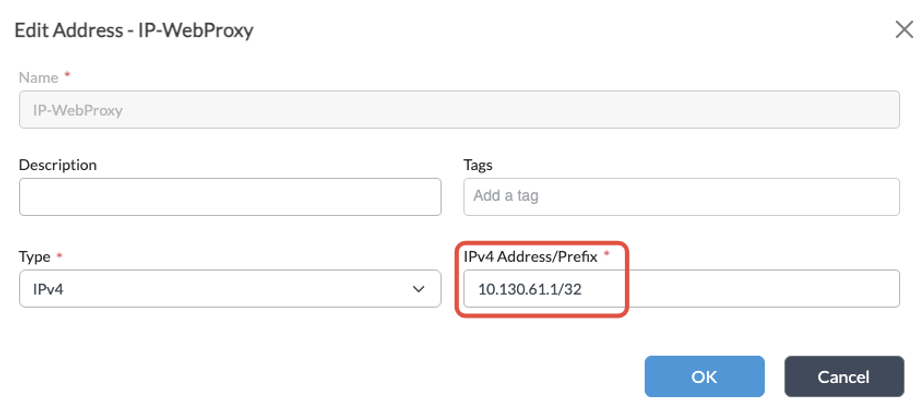
- Click OK.
- Select the Headers/Schedule tab.
- In the Service section, click the icon. The Add/Edit Service window displays.
- To define the custom service:
- In the Protocol field, select TCP.
- Click Source/Destination Port.
- In the Destination Port field, enter the destination port of the proxy.

- Click OK.
- Select the Enforce tab, and enter information for the following fields:
- Action—Decrypt
- Decryption Profile—Select the decryption profile you configured in Create a Decryption Proxy Profile, above.

- Click OK. The rule displays on the Rules tab, as shown below.
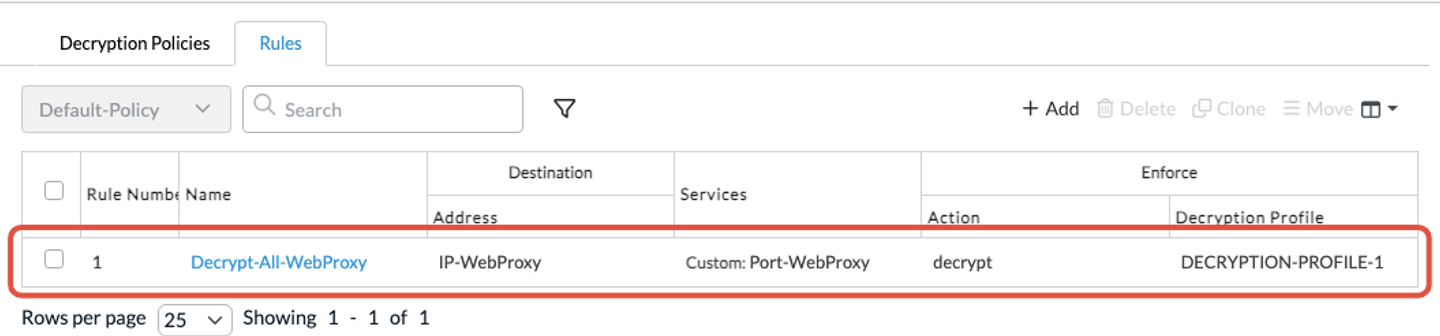
You have configured web proxy and TLS decryption so that the TLS decryption policy matches all packets sent to the proxy, and all web proxy connections are decrypted. Having TLS decryption enabled for the proxy traffic means that you can implement security features that rely on it, such as URL filtering or cloud access security broker (CASB).
Configure SD-WAN Traffic Steering Rules
With web proxy and TLS decryption in place, the next step is to configure SD-WAN traffic steering rules to control what WAN interface the web proxy traffic uses.
This example shows how to configure SD-WAN traffic steering rules to:
- Steer traffic to Wikipedia to INET2 transport.
- Steer all the rest of web proxy traffic to INET1 transport.
To do this, you create two SD-WAN forwarding profiles:
- Forwarding profile #1—Prefers INET2 over INET1 for internet traffic.
- Forwarding profile #2—Prefers INET1 over INET2 for internet traffic.
For each forwarding profile, you create a monitor object to track the status of each transport and fail over to the second priority when the first priority is down.
Then, you create two SD-WAN rules:
- Rule #1—Matches web proxy Wikipedia traffic and uses forwarding profile #1.
- Rule #2—Matches all web proxy traffic and uses forwarding profile #2.
Configure Monitor Objects
This example uses a single ICMP monitor for each transport, for the purposes of simplicity. Typically, monitor groups have more than one object inside to avoid false positives.
To configure monitor objects:
- In Director view:
- Select the Administration tab in the top menu bar.
- Select Appliances in the left menu bar.
- Select a device name in the main panel. The view changes to Appliance view.
- Select the Configuration tab in the top menu bar.
- Select Networking > IP SLA > Monitor in the left menu bar.
- Click the
 Add icon. The Add IP SLA Monitor window displays.
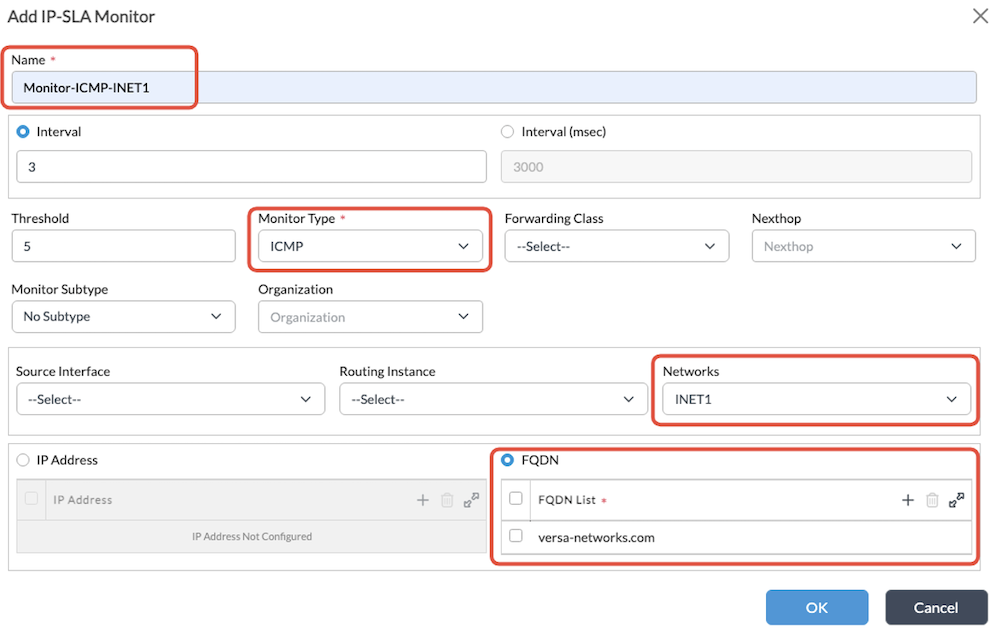
 - Enter the following information:
- Name—Enter a name for the monitor object.
- Monitor Type—ICMP
- Networks—INET1
- IP Address or FQDN—Enter the IP address or FQDN that you want to ping.
- Click OK.
- Repeat Step 5 to create a second ICMP monitor for the INET2 transport, as shown below.

- Click OK.
- Both ICMP monitors display, as shown below.

Create SD-WAN Forwarding Profiles
- In Director view:
- Select the Administration tab in the top menu bar.
- Select Appliances in the left menu bar.
- Select a device in the main pane. The view changes to Appliance view.
- Select the Configuration tab in the top menu bar.
- Select Services > SD-WAN > Forwarding Profiles in the left menu bar.
- Click the
 Add icon. The Add Forwarding Profile window displays.

- On the General tab, enter a name for the first forwarding profile in the Name field.
- Select the Nexthop tab.

- Click the icon in the Nexthop Priorities List table. The Add Nexthop Priorities window displays.
- Configure nexthop INET2 with priority 1, as shown below.

- Click OK.
- Configure another nexthop priority for INET1 with priority 2, as shown below.

- Click OK. The nexthop priorities display in the table.
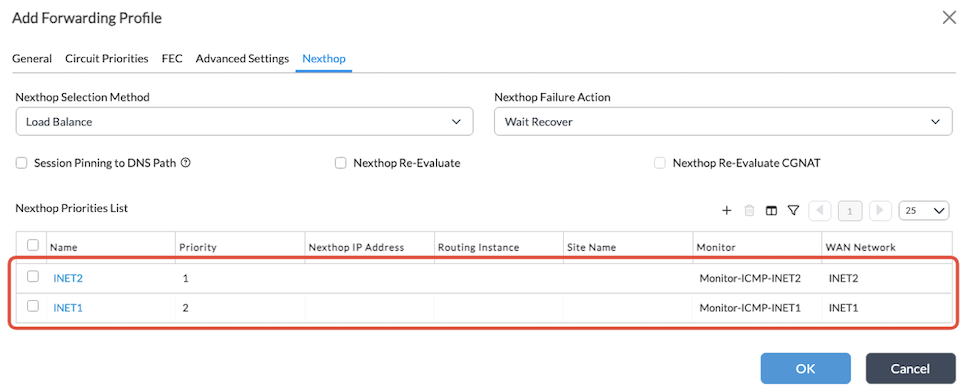
- Click OK to create the first forwarding profile.
- Add another forwarding profile to prefer INET1.

- In this profile, configure the INET1 nexthop with priority 1, and the INET2 nexthop with priority 2.
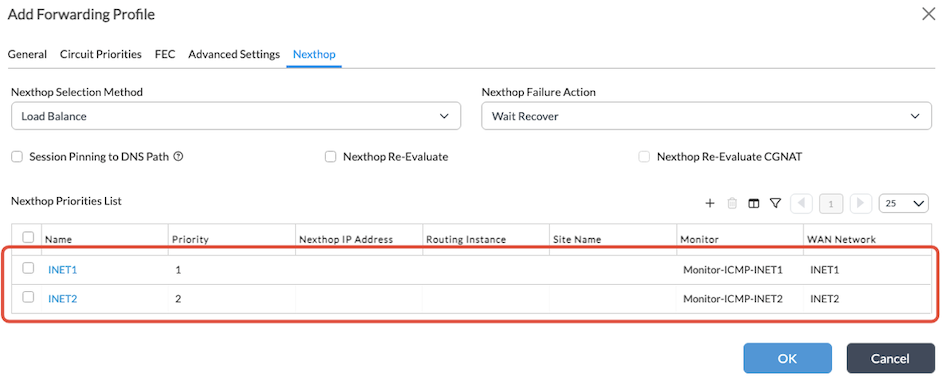
- Click OK to save the second forwarding profile. Both forwarding profiles display, as shown below.

Create SD-WAN Rules
Navigate to Services > SDWAN > Policies and, if necessary, create the default policy in the ‘Policies’ tab.
- In Director view:
- Select the Administration tab in the top menu bar.
- Select Appliances in the left menu bar.
- Select a device in the main pane. The view changes to Appliance view.
- Select Configuration > Services > SD-WAN > Policies.
- On the Policies tab, click the Add icon. The Add Policies window displays.
- Click OK to create the default policy.
- Select the Rules tab.
- Click the Add icon. The Add Rules window displays.
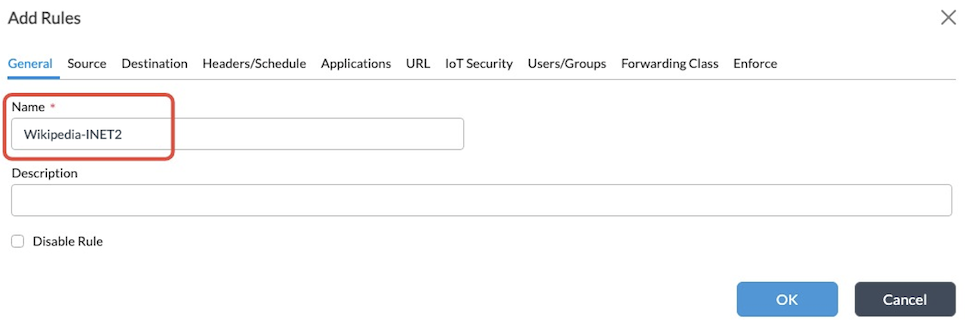
- To create the first SD-WAN rule for Wikipedia traffic, enter a name in the Name field (here, Wikipedia-INET2).
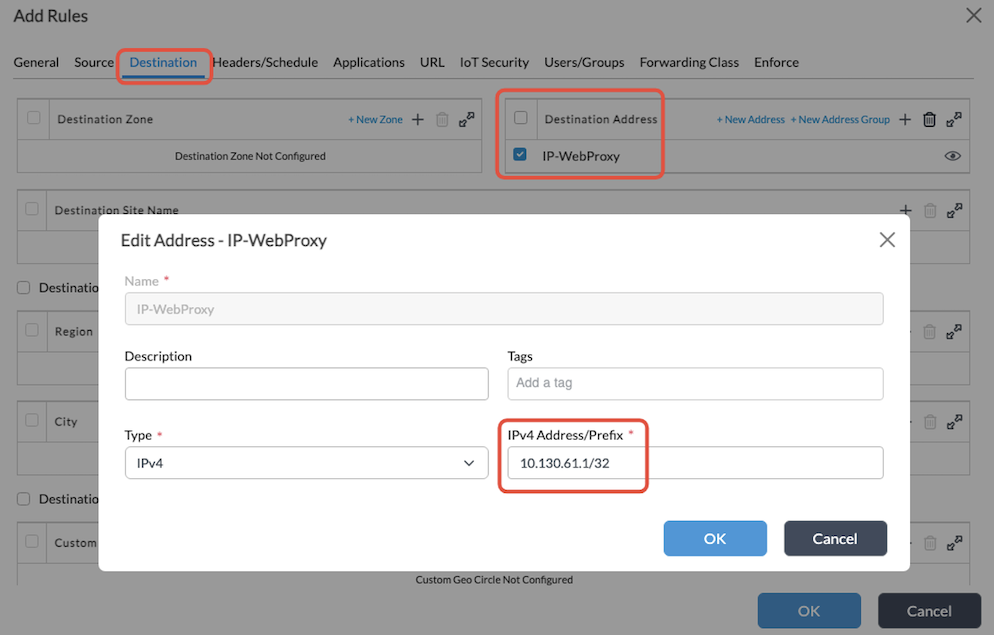
- Select the Destination tab.
- In the Destination Address section, select the IP address of the proxy.
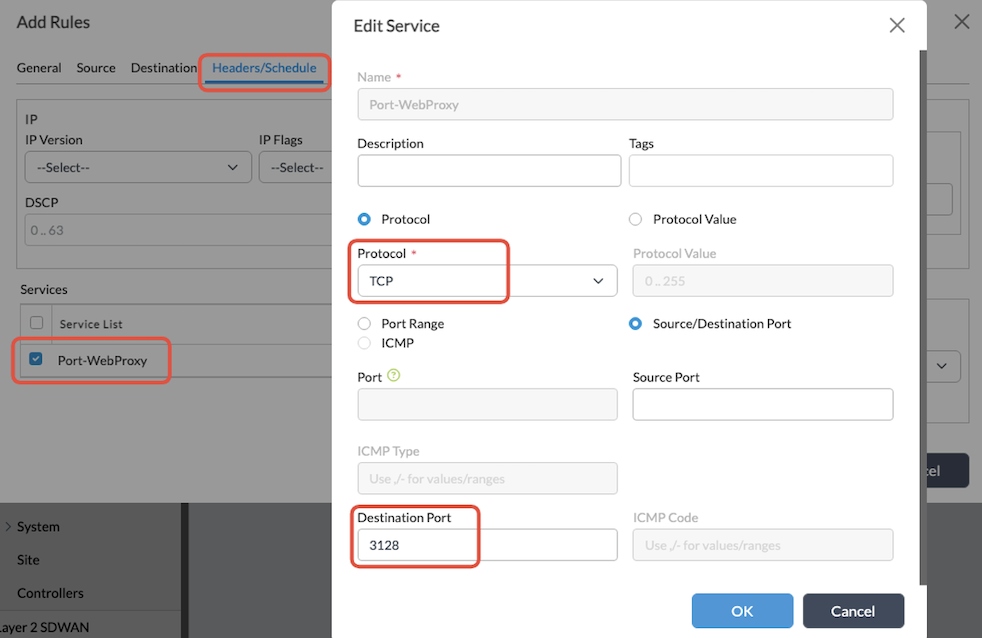
- Select the Headers/Schedule tab.
- In the Services section, select the service relative to the web proxy port.
- Select the Applications tab, and then select the Wikipedia application.

- Select the Enforce tab, and then enter the following information:
- Action—Allow Flow
- Forwarding Profile—Select the first forwarding profile (here, FP-1-Prefer-INET2).

- Click OK.
- Click the + icon to create the second rule to match the rest of the traffic.
- On the General tab, enter a name in the Name field (here, All-INET1).

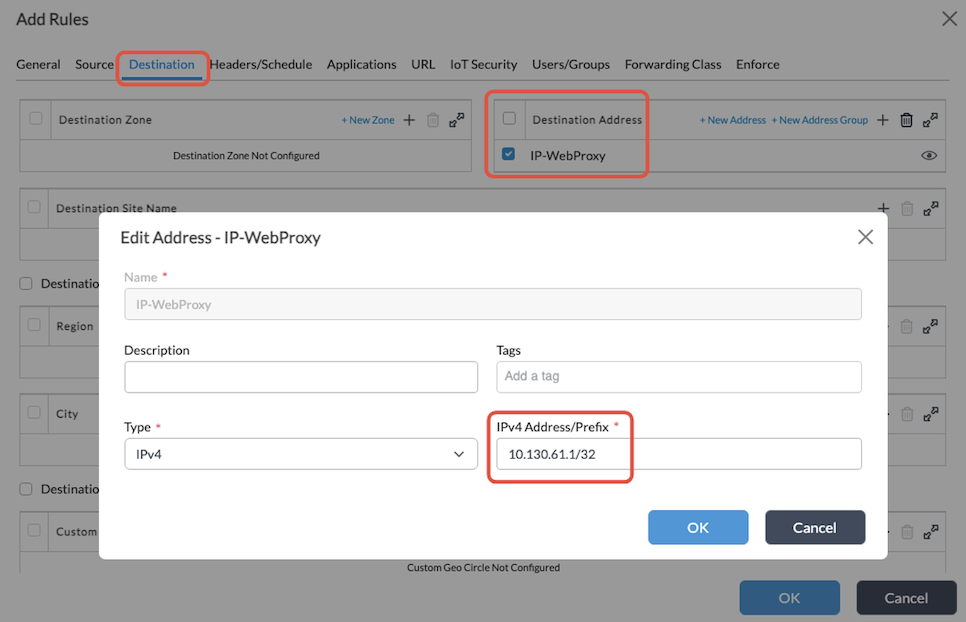
- Select the Destination tab.
- In the Destination Address section, select the IP address of the proxy.
- Select the Headers/Schedule tab.
- In the Services section, select the service relative to the web proxy port.

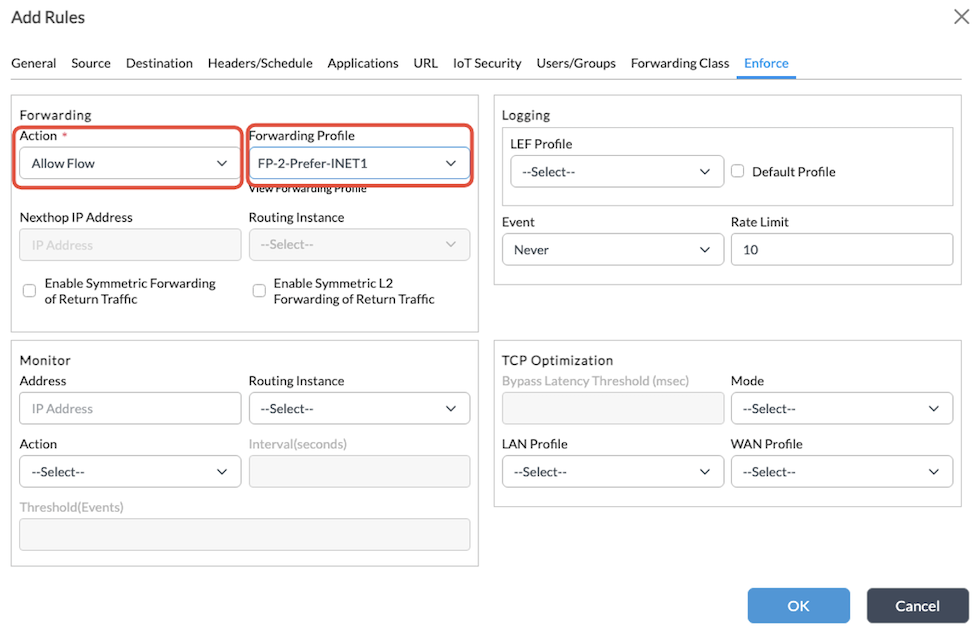
- Select the Enforce tab, and enter the following information:
- Action—Allow Flow
- Forwarding Profile—Select the second forwarding profile (here, FP-2-Prefer-INET1).
- Click OK. The SD-WAN rules display as shown below.

Verification
To validate the configuration, you do the following:
- From a client in the LAN, attempt to browse to Wikipedia and to any other web page (in this example, Facebook).
- In Director, check the VOS session table.
Below is the example proxy configuration in the client browser:

Test #1: Access Wikipedia
- Access www.wikipedia.org through the client’s browser.

- In Director, navigate to the session table:
- Select Appliance view, and then select the appliance.
- Select the Monitor tab in the top menu.
- Select the Services > Sessions tab in the main pane.
- Select Extensive in the drop-down list. The session from the client to Wikipedia displays in the table.
The example below shows the first SD-WAN rule is matched and the traffic is forwarded through INET2.

Test #2: Access Facebook
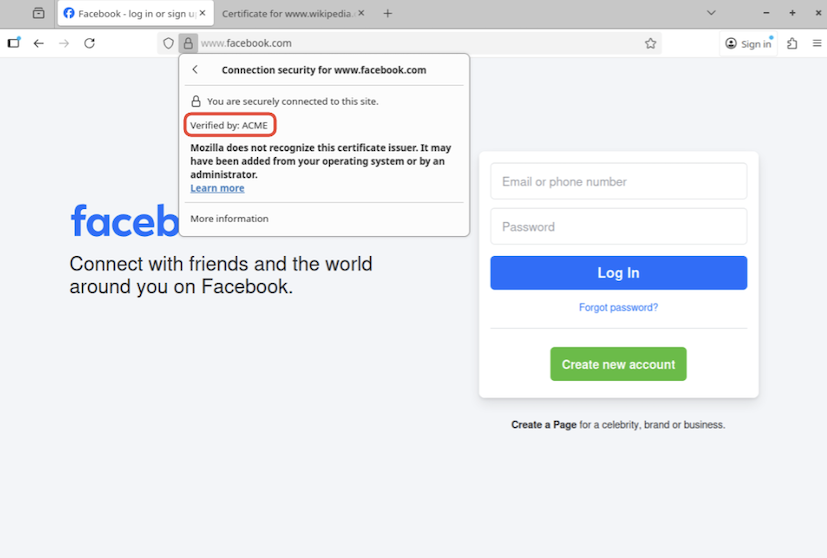
- Access www.facebook.com through the client’s browser.
- In Director, navigate to the session table:
- Select Appliance view, and then select the appliance.
- Select the Monitor tab in the top menu.
- Select the Services > Sessions tab in the main pane.
- Select Extensive in the drop-down list.
The example below shows that traffic this time matches the second SD-WAN rule and is forwarded through INET1.

Test #3: Simulate Failure in INET2 and Access Wikipedia
Simulate a failure in the INET2 transport by disconnecting the cable (or by any other means) and access Wikipedia. Once the INET2 transport is down, you can see that the relevant monitor objects are down:

- From the client’s browser, access Wikipedia.

- In Director, navigate to the session table:
- Select Appliance view, and then select the appliance.
- Select the Monitor tab in the top menu.
- Select the Services > Sessions tab in the main pane.
- Select Extensive from the drop-down list.
- The example below shows the first SD-WAN rule is applied, but because INET2 transport is down, traffic is forwarded through INET1, which is the second priority transport.

Service Template Example
For a service template containing all the configurations in this example, click the expand icon below.
Service Template
devices {
template ACME-Explicit-Proxy {
config {
/* Tags: replace */
monitor {
monitor Monitor-DNS-Google1-INET1 {
interval 3;
threshold 3;
type dns;
org ACME;
sub-type none;
destination-port 53;
domain-name versa-networks.com;
network INET1;
ip-addresses [ 8.8.8.8 ];
}
monitor Monitor-DNS-Google1-INET2 {
interval 3;
threshold 3;
type dns;
org ACME;
sub-type none;
destination-port 53;
domain-name versa-networks.com;
network INET2;
ip-addresses [ 8.8.8.8 ];
}
monitor Monitor-DNS-Google2-INET1 {
interval 3;
threshold 3;
type dns;
org ACME;
sub-type none;
destination-port 53;
domain-name versa-networks.com;
network INET1;
ip-addresses [ 8.8.4.4 ];
}
monitor Monitor-DNS-Google2-INET2 {
interval 3;
threshold 3;
type dns;
org ACME;
sub-type none;
destination-port 53;
domain-name versa-networks.com;
network INET2;
ip-addresses [ 8.8.4.4 ];
}
monitor Monitor-ICMP-INET1 {
interval 3;
threshold 5;
type icmp;
org ACME;
sub-type none;
network INET1;
fqdn-list [ versa-networks.com ];
}
monitor Monitor-ICMP-INET2 {
interval 3;
threshold 5;
type icmp;
org ACME;
sub-type none;
network INET2;
fqdn-list [ versa-networks.com ];
}
}
/* Tags: replace */
networks {
network INET1;
network INET2;
}
/* Tags: replace */
orgs {
org ACME {
appliance-owner;
services [ sdwan nextgen-firewall cgnat ];
}
org-services ACME {
cgnat {
rules {
rule Bypass-NAT-WebProxy {
precedence 10;
paired-site false;
from {
destination-address [ 10.130.61.1/32 ];
destination-address-list [ 10.130.61.1/32 ];
destination-port 3128;
destination-port-range {
low 3128;
high 3128;
}
}
then {
no-translation;
}
}
}
}
dns-proxy {
proxy-profiles DNS-Proxy-Profile-1 {
mode round-robin;
resolver DNS-Resolver-Google-INET1 {
network INET1;
mode round-robin;
servers {
dns-proxy-addr-port Google1 {
address 8.8.8.8;
port 53;
monitor-object Monitor-DNS-Google1-INET1;
}
dns-proxy-addr-port Google2 {
address 8.8.4.4;
port 53;
monitor-object Monitor-DNS-Google2-INET1;
}
}
snat-pool DNS-NAT-Pool-INET1;
}
resolver DNS-Resolver-Google-INET2 {
network INET2;
mode round-robin;
servers {
dns-proxy-addr-port Google1 {
address 8.8.8.8;
port 53;
monitor-object Monitor-DNS-Google1-INET2;
}
dns-proxy-addr-port Google2 {
address 8.8.4.4;
port 53;
monitor-object Monitor-DNS-Google2-INET2;
}
}
snat-pool DNS-NAT-Pool-INET2;
}
}
redirection-policy WebProxy-DNS-Policy {
rules DNS-A-Queries {
match {
dns-header-matches {
opcode {
query {
qtype-domain-match match1 {
query-type A;
negate-domain-match false;
}
}
}
}
source {
user {
local-database {
status disabled;
}
external-database {
status disabled;
}
user-type any;
}
zones [ INT-SUBT-04-ACME-Basic ];
}
}
set {
action {
action-choice {
proxy {
profile DNS-Proxy-Profile-1;
honour-pbf true;
network-obfuscation disabled;
maximum-ttl 100;
}
}
}
lef {
profile-default false;
}
}
}
}
}
sd-wan {
forwarding-profiles {
forwarding-profile FP-1-Prefer-INET2 {
nexthop-selection-method load-balance;
nexthop-reevaluate disabled;
nexthop-failure-action wait-recover;
nexthop-priorities {
priority 1 {
nexthop INET2 {
monitor Monitor-ICMP-INET2;
wan-network INET2;
}
}
priority 2 {
nexthop INET1 {
monitor Monitor-ICMP-INET1;
wan-network INET1;
}
}
}
session-pinning {
domain-app-cache false;
}
connection-selection-method weighted-round-robin;
sla-violation-action forward;
evaluate-continuously enable;
recompute-timer 300;
encryption optional;
symmetric-forwarding enable;
replication {
mode disable;
}
fec {
sender {
mode disable;
}
receiver {
recovery enable;
preserve-order enable;
maximum-fec-packet-size 1400;
}
}
sla-smoothing {
enable false;
}
sla-dampening {
enable false;
}
reorder enable;
gradual-migration disable;
path-reconsider-interval 60;
reverse-route-verification disable;
header-compression {
level low;
skip-hmac disabled;
unidirectional enabled;
}
}
forwarding-profile FP-2-Prefer-INET1 {
nexthop-selection-method load-balance;
nexthop-reevaluate disabled;
nexthop-failure-action wait-recover;
nexthop-priorities {
priority 1 {
nexthop INET1 {
monitor Monitor-ICMP-INET1;
wan-network INET1;
}
}
priority 2 {
nexthop INET2 {
monitor Monitor-ICMP-INET2;
wan-network INET2;
}
}
}
session-pinning {
domain-app-cache false;
}
connection-selection-method weighted-round-robin;
sla-violation-action forward;
evaluate-continuously enable;
recompute-timer 300;
encryption optional;
symmetric-forwarding enable;
replication {
mode disable;
}
fec {
sender {
mode disable;
}
receiver {
recovery enable;
preserve-order enable;
maximum-fec-packet-size 1400;
}
}
sla-smoothing {
enable false;
}
sla-dampening {
enable false;
}
reorder enable;
gradual-migration disable;
path-reconsider-interval 60;
reverse-route-verification disable;
header-compression {
level low;
skip-hmac disabled;
unidirectional enabled;
}
}
}
policies {
sdwan-policy-group Default-Policy {
rules {
rule Wikipedia-INET2 {
rule-disable false;
match {
source {
user {
local-database {
status disabled;
}
external-database {
status disabled;
}
user-type any;
}
}
destination {
address {
address-list [ IP-WebProxy ];
}
}
services {
services-list [ Port-WebProxy ];
}
application {
predefined-application-list [ WIKIPEDIA ];
}
}
set {
action allow;
forwarding-profile FP-1-Prefer-INET2;
lef {
event never;
rate-limit 10;
}
}
}
rule All-INET1 {
rule-disable false;
match {
source {
user {
local-database {
status disabled;
}
external-database {
status disabled;
}
user-type any;
}
}
destination {
address {
address-list [ IP-WebProxy ];
}
}
services {
services-list [ Port-WebProxy ];
}
}
set {
action allow;
forwarding-profile FP-2-Prefer-INET1;
lef {
event never;
rate-limit 10;
}
}
}
}
}
}
}
security {
profiles {
decrypt {
decrypt-profile DECRYPTION-PROFILE-1 {
description null;
state enabled;
decrypt-profile-type ssl-full-proxy;
certificate ACME-TLS-CA-CERT-cert;
full-proxy-port-list [ 3128 ];
full-proxy-address 10.130.61.1;
match WebProxy {
address [ 10.130.61.1 ];
routing-instance-list [ ACME-Enterprise ];
port-list [ 3128 ];
}
transparent-full-proxy false;
use-extended-master-secret false;
expired-certificate {
predefined-actions alert;
}
untrusted-issuers {
predefined-actions alert;
}
unsupported-version {
predefined-actions alert;
}
unsupported-ciphers {
predefined-actions allow;
}
min-supported-key-length 1024;
unsupported-key-length {
predefined-actions allow;
}
restrict-certificate-extension true;
routing-instance-list [ ACME-Enterprise ];
support-session-ticket false;
lef-profile-default true;
lef-log-level alert;
download-ca-issuer disabled;
ca-chain default;
ocsp {
enabled disabled;
response-timeout 5;
}
ssl-protocol-cfg {
protocol {
min-version tls-1.1;
max-version tls-1.2;
}
}
crl-check disabled;
}
}
}
access-policies {
access-policy-group Default-Policy {
rules {
access-policy AC-R-AllowAll {
rule-disable false;
match {
source {
zone {
zone-list [ INT-SUBT-04-ACME-Basic ];
}
user {
local-database {
status disabled;
}
external-database {
status disabled;
}
user-type any;
}
}
}
set {
action allow;
tcp-session-keepalive disabled;
lef {
options {
send-pcap-data {
enable false;
}
}
}
}
}
access-policy Allow_From_SDWAN {
match {
source {
zone {
zone-list [ ptvi ];
}
}
}
set {
action allow;
}
}
}
}
}
decryption-policies {
decryption-policy-group Default-Policy {
rules {
decryption-policy Decrypt-All-WebProxy {
rule-disable false;
match {
source {
user {
local-database {
status disabled;
}
external-database {
status disabled;
}
user-type any;
}
}
destination {
address {
address-list [ IP-WebProxy ];
}
}
services {
services-list [ Port-WebProxy ];
}
}
set {
action decrypt;
decryption-profile DECRYPTION-PROFILE-1;
}
}
}
}
}
}
objects {
addresses {
address IP-WebProxy {
ipv4-prefix 10.130.61.1/32;
}
}
zones {
zone INT-SUBT-04-ACME-Basic;
}
services {
service Port-WebProxy {
protocol TCP;
destination-port 3128;
}
}
snat {
pool DNS-NAT-Pool-INET1 {
egress-networks [ INET1 ];
}
pool DNS-NAT-Pool-INET2 {
egress-networks [ INET2 ];
}
}
}
vfp {
profile Web-Proxy-1 {
mode explicit;
address 10.130.61.1;
port [ 3128 ];
routing-instance-list [ ACME-Enterprise ];
dns-redirection-policy WebProxy-DNS-Policy;
lef-profile-default true;
parse-response no;
user-notification disabled;
honour-pbf false;
}
}
}
}
/* Tags: replace */
service-node-groups {
service-node-group default-sng {
id 0;
type internal;
services [ sdwan nextgen-firewall cgnat ];
}
}
}
}
}
To import it to the Director node:
- Create a service template of type General, in your Organization. For more information, see Create Service Templates.
- Edit line #2 to replace “ACME-Explicit-Proxy” with the name of the template you just created in Director.
- Edit other lines to customize the template for your environment, as needed. For example:
- Lines where the organization name “ACME” is used
- Certificate name
- Proxy IP address and port
- In Director:
- Select the template that you created in Step 1.
- Click Import, and then select the template file and import it.
You can also parametrize the template with variables. For example, to parametrize the web proxy port, replace “3128” with “{$WP-Port}”. The table below shows additional configuration values that you can parameterize and the corresponding variables.
| Line | Value | Variable |
|---|---|---|
| 89 | destination-port 3128; | destination-port “{$WP-Port}”; |
| 91 | low 3128; | low “{$WP-Port}”; |
| 92 | high 3128; | high “{$WP-Port}”; |
| 380 | full-proxy-port-list [ 3128 ]; | full-proxy-port-list [ “{$WP-Port}” ]; |
| 385 | port-list [ 3128 ]; | full-proxy-port-list [ “{$WP-Port}” ]; |
| 521 | destination-port 3128; | destination-port “{$WP-Port}”; |
| 537 | port [ 3128 ]; | port [ “{$WP-Port}” ]; |
Supported Software Information
Releases 22.1.4 (Service Release dated 2025-09-08) and later support all content in this article.
Additional Information
Configure HTTP/HTTPS Proxy
Configure SD-WAN Traffic Steering