
Use the GenAI Firewall to Secure Generative AI
 For supported software information, click here.
The adoption of generative AI in the workplace has introduced security risks, as employees adopt AI tools independently without organizational approval. This unmonitored usage, known as "shadow AI", creates a significant risk of data leakage, security gaps, and regulatory violations. Organizations need to implement real-time content inspection to detect and block sensitive data leaks while ensuring that unauthorized data cannot be input into or retrieved from AI models.
Deploying a generative AI firewall to monitor and control generative AI traffic is an essential component of AI security. Versa Networks provides the GenAI Firewall solution to help organizations safeguard against unauthorized generative AI use and sensitive data exposure.
The GenAI Firewall solution uses real-time content inspection, data loss prevention, and policy-based enforcement to allow only approved AI interactions while blocking any risky usage. It manages, monitors, and reports how your organization uses generative AI – including assessments on the riskiness of apps, controlling access, and preventing unauthorized data movement.
Using the GenAI Firewall Rule in an Internet Protection Policy
When you configure an internet protection policy, you can add the GenAI_Firewall rule to categorize generative AI tools (URLs) and detect data leakage through them.
GenAI_Firewall is a built-in internet protection policy rule. Built-in rules are predefined in Concerto and behave the same as other user-defined (custom) rules. They are automatically generated when you publish a tenant, but they are disabled.
To view the GenAI_Firewall internet protection rule, go to Configure > Real-Time Protection > Internet Protection. Then, use the search box to search for the GenAI_Firewall rule.
The following screen displays:

To enable the GenAI_Firewall rule, click the checkbox in the far-left column.
If you enable the GenAI_Firewall rule, you can modify, reorder, move, and delete it. If you delete a built-in rule and then republish the tenant, the rule is created again. Also, if you edit the name of a built-in rule and then publish, the version of the rule with the revised name is retained, and the original built-in rule is generated again.
To use a built-in rule, SASE needs to be enabled on the tenant and the tenant needs to have VSIA solution tier. For more information, see Configure SASE Internet Protection Rules.
GenAI Profiles for Security Enforcement
Security enforcement profiles define the actions to take on traffic that matches an internet protection rule.
The GenAI_Firewall rule is linked to the following built-in security enforcement profiles:
- GenAI_DLP—Data loss prevention (DLP) profile to prevent data leakage.
- GenAI_Firewall—URL-filtering profile to apply security actions based on the risk level of generative AI tools.
These profiles are predefined in Concerto. You can use them as they are, or you can clone them and make modifications. For more information on using security enforcement profiles in an internet protection rule, see Configure Security Enforcement Actions for SASE Internet Protection Rules.
GenAI DLP Profile
The GenAI_DLP profile is a predefined DLP profile that uses content scanning and contextual analysis to prevent sensitive data from being leaked. The GenAI_DLP profile has the following rules to protect personally identifiable information (PII), source code, and financial data:
- PII_US
- Source_Code
- US_Financial
To view the GenAI_DLP profile:
- Go to Configure > Security Service Edge > Real-Time Protection > Profiles.
- Select the Data Loss Prevention (DLP) tab.
- Select DLP Profiles, and use the search box to search for the GenAI_DLP profile.
- Click the arrow to the left of the profile name to expand the entry. The following screen displays:

For more information on DLP profiles, see Configure Data Loss Prevention in Concerto.
GenAI URL-Filtering Profile
The GenAI_Firewall profile is a predefined URL-filtering profile. URL-filtering profiles enforce security actions based on URL category and URL reputation.
The GenAI_Firewall profile categorizes generative AI tools based on their level of risk: trustworthy, low-risk, suspicious, moderate risk, or high risk. The profile defines different security actions for each category. The categories and associated risk levels and security actions are shown in the table below.
| URL Category | Risk level | Security Action |
|---|---|---|
| GenAI_sanctioned | trustworthy | Allow—Allows the URL without generating an entry in the URL-filtering log. |
| GenAI_tolerated | low risk, moderate risk | Ask—The browser presents an information page that allows the user to either cancel the operation by clicking Cancel or continue with the operation by clicking OK (for HTTP and HTTPS). |
| GenAI_unsanctioned | suspicious, high risk | Block—Blocks the URL and generate an entry in the URL-filtering log. No response page is display, and the user cannot continue with the website. |
To view the GenAI_Firewall URL-filtering profile:
- Go to Configure > Real-Time Protection > Profiles..
- Select the Filtering Profiles tab.
Note: In Release 12.2.2, the Secure Web Gateway (SWG) subtab was renamed Filtering Profiles.
- Select URL Filtering, and use the search box to search for the GenAI_Firewall profile. The following screen displays:

For more information on URL-Filtering Profiles, see Configure Custom URL-Filtering Profiles.
Monitoring GenAI Usage
When a user violates a rule in the GenAI policy, they get a policy violation message, as shown below.

You can view DLP and URL-filtering logs to track these policy violations. Use DLP logs for instances of users trying to upload sensitive data to generative AI tools, and URL-filtering logs to see what tools users are trying to access.
- To view DLP logs, go to Analytics > DLP, and then select a gateway.
- To view URL-filtering logs, go to Analytics > Threat Filtering > URL Filtering, and then select a gateway.
For example, the first three rows of the DLP log below show that a user tried to upload source code to a generative AI tool.

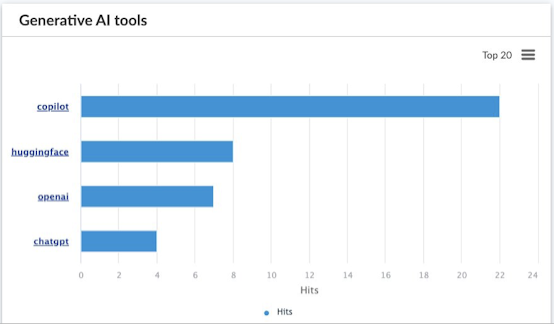
Versa Analytics dashboards provide charts for generative AI usage. To view the charts, go to View > Dashboard > Security > Internet Protection > Web Overview > Generative AI.
For example, the following report shows the generative AI tools with the most usage.
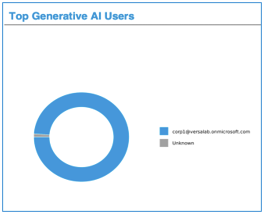
The reports below show the high-risk generative AI tools and users.

Generative AI Business Reports
You can generate a business insights Generative AI report from Versa Analytics. To do this, you select the predefined template named Generative AI Report from the Download a Report screen in Analytics, and then build the report. You can select any time period for the report and download the report in PDF format to your local system.
For more information about generating business reports, see Generate a Business Report in Manage Business Reports.
Supported Software Information
Release 12.2.1 supports all content in this article, except:
- In Release 12.2.2, the Secure Web Gateway (SWG) subtab was renamed Filtering Profiles.